
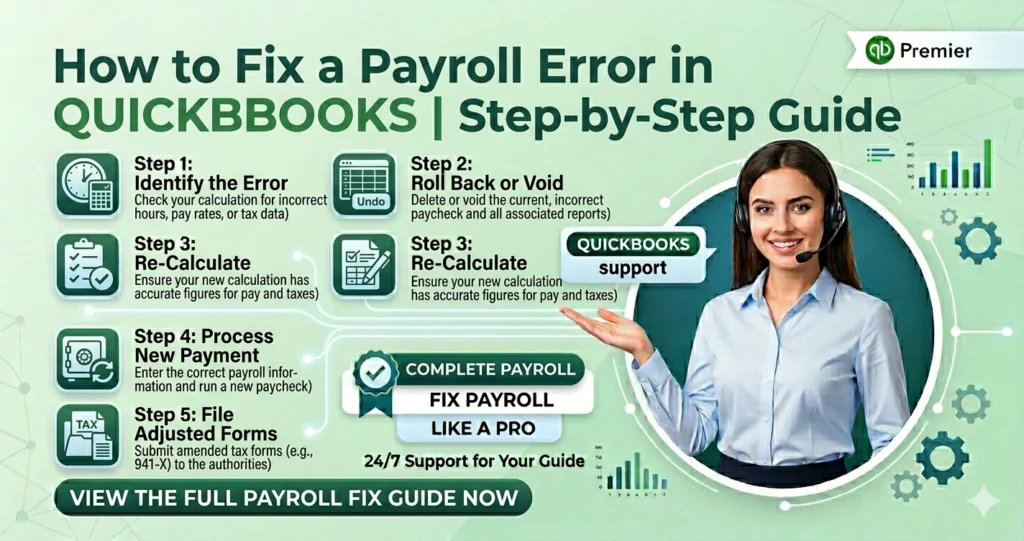
Payroll errors can happen in all kinds of businesses. Errors will happen when an employee is paid the wrong amount or payroll taxes are calculated incorrectly. It is important to solve the issue as soon as possible.
Common Payroll Errors in QuickBooks
- Entering the incorrect salary of the employees
- Missing the overtime work
- Duplicating paychecks
- Wrong tax calculations
- Payroll posted to the wrong bank account
- Underpayments or overpayments
- Outdated payroll tax tables
- Payroll software errors
Fixing Payroll Errors in QuickBooks Online
Correcting Direct Deposit Paychecks
If an employee was paid through direct deposit, QuickBooks allows you to edit or delete the paycheck before it has been fully processed.
To review a direct deposit paycheck:
- Open QuickBooks Online.
- Go to the Payroll section.
- Locate the employee’s paycheck.
- Check the status of the payroll transaction.
- If you can edit the paycheck, make the required changes and save them.
Cancelling or Deleting Paper Checks
For employees who were paid by paper check, QuickBooks Online allows you to cancel or delete the paycheck when it is required.
Follow these steps:
- Open the Payroll menu.
- Select the Paycheck List.
- Locate the paycheck that has the error.
- Click the drop-down arrow
- Choose either Void or Delete.
- Confirm the action.
Automatic Payroll Recalculation
When a paycheck is edited, deleted, or voided, QuickBooks automatically updates:
- Employee earnings
- Payroll tax calculations
- Employer tax
- Payroll reports
Correcting Bank Account Mapping
Sometimes payroll expenses or tax payments may be linked to the wrong bank account. This can create accounting errors and make reconciliation difficult.
To update payroll account
- Click the Gear icon.
- Select the Payroll Settings.
- Locate the Accounting section.
- Review the assigned bank accounts.
- Edit the account mapping if necessary.
Solving Payroll Errors in QuickBooks Desktop
Depending on the type of mistake, you may need to replace a paycheck, create an adjustment, or update payroll information.
Correcting Employee Underpayments
This may happen due to:
- Missing working hours of employees
- Incorrect pay rates
- Omitted bonuses
- Payroll entry mistakes
To fix an underpayment, you can:
- Delete the incorrect paycheck and create a replacement.
- Run an unscheduled payroll for the missing amount.
Correcting Employee Overpayments
An overpayment occurs when an employee receives more money than they are eligible to receive.
There are several ways to handle this situation:
Deduct the Amount from a Future Paycheck
Many employers choose to recover the overpayment by deducting the excess amount from the employee’s next paycheck. You need to follow labor laws and communicate clearly with the employee before making deductions.
Create a Journal Entry
To create a journal entry:
- Open the Accountant menu.
- Select Make General Journal Entries.
- Enter the correct debit and credit amounts.
- Apply the adjustment to the payroll and checking accounts.
- Save the entry.
Updating Payroll Tax Tables
- Open QuickBooks Desktop.
- Select Employees.
- Click Get Payroll Updates.
- Choose Update Tax Table.
- Download and install the latest updates.
Using QuickBooks Tool Hub to Resolve Payroll Issues
The QuickBooks Tool Hub is prepared to solve many software issues. It can help in solving payroll-related problems and software problems
Tips to Prevent Payroll Errors
Review Payroll
Always verify employee working hours, deductions, and tax information before submitting payroll.
Keep Employee Records Updated
Changes in wages, tax, or personal information should be entered promptly.
Update QuickBooks Regularly
When you install the software, you can have the latest payroll features, tax tables
Reconcile Payroll Accounts
Regular account reconciliation helps in identifying discrepancies
Monitor Payroll Reports Review payroll summaries and tax reports frequently to reduce errors