
Introduction
Office 365, now known as Microsoft 365, is one of the world’s most popular cloud productivity platforms. Millions of users rely on Microsoft 365 every day for essential services such as Outlook, Microsoft Teams, OneDrive, Word, Excel, PowerPoint, SharePoint, and Exchange Online. Because these services often contain critical personal and business information, Microsoft places a strong emphasis on account security.
One of the most common challenges users face is forgetting their Office 365 password or being unable to sign in due to authentication issues. Whether you’ve forgotten your password, your account has been locked, or you’re experiencing login errors after a password change, knowing how to reset your Office 365 password can help restore access quickly and securely.
This comprehensive guide explains everything you need to know about resetting an Office 365 password, recovering your account, troubleshooting password-related problems, and preventing future login issues.
What Is an Office 365 Password?
Your Office 365 password is the credential used to authenticate your Microsoft account and access Microsoft 365 services.
This password may be used for:
- Outlook email
- Microsoft Teams
- OneDrive
- SharePoint Online
- Word Online
- Excel Online
- PowerPoint Online
- Exchange Online
- Microsoft 365 Admin Center
The password serves as the primary layer of account security and is often combined with Multi-Factor Authentication (MFA).
Why Might You Need to Reset Your Office 365 Password?
There are many reasons why users reset their passwords.
Common situations include:
Forgotten Password
The most common reason is simply forgetting the password.
Users may:
- Use multiple accounts
- Rarely sign out
- Forget recently changed passwords
Account Lockout
Microsoft may temporarily lock an account due to:
- Multiple failed login attempts
- Suspicious activity
- Security concerns
Resetting the password often helps restore access.
Suspected Account Compromise
If you suspect someone else accessed your account, changing the password immediately is recommended.
Signs include:
- Unknown login attempts
- Unexpected password changes
- Unrecognized devices
- Suspicious emails
Password Expiration Policies
Some organizations enforce password expiration requirements.
Users may be prompted to reset passwords periodically to maintain security compliance.
Multi-Factor Authentication Recovery
If authentication methods change, users may need to reset credentials and reconfigure account security settings.
Understanding Office 365 Password Reset Options
Microsoft provides several ways to reset passwords depending on the account type.
Personal Microsoft Accounts
These include:
- Outlook.com
- Hotmail.com
- Live.com
- MSN.com
Users can reset passwords independently using Microsoft’s recovery tools.
Business Microsoft 365 Accounts
Business accounts typically belong to organizations.
Examples:
- employee@company.com
- user@business.org
Password reset options may depend on organizational policies.
Administrator-Assisted Resets
In business environments, administrators can reset passwords on behalf of users.
This method is commonly used when:
- Users lose access to recovery methods
- Self-service password reset is unavailable
- Security verification fails
How to Reset an Office 365 Password
Let’s walk through the standard password reset process.
Method 1: Reset a Forgotten Office 365 Password
If you cannot remember your password:
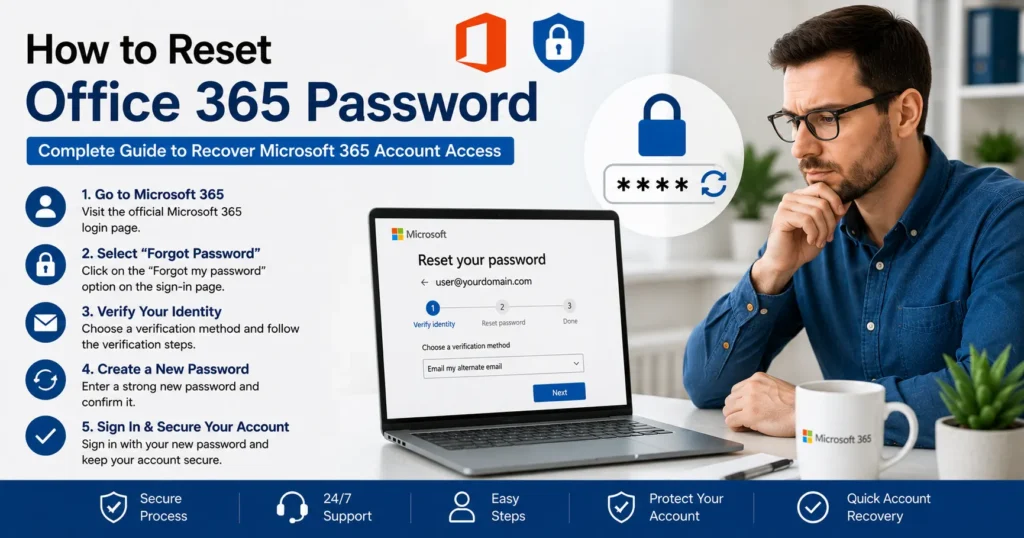
Step 1: Visit Microsoft’s Password Recovery Page
Navigate to Microsoft’s account recovery portal.
Step 2: Enter Your Email Address
Provide the email address associated with your Microsoft account.
Examples:
- user@outlook.com
- user@hotmail.com
- user@company.com
Step 3: Verify Your Identity
Microsoft may ask you to verify ownership using:
- Email verification
- SMS verification
- Authenticator app approval
- Security questions
Step 4: Create a New Password
Choose a strong password that meets Microsoft’s security requirements.
Step 5: Sign In Again
Use the new password to access:
- Outlook
- Teams
- OneDrive
- Office applications
Method 2: Change Your Password While Logged In
If you still have account access, changing your password is straightforward.
Steps
- Sign in to your Microsoft account.
- Navigate to Security Settings.
- Select Change Password.
- Enter your current password.
- Create a new password.
- Save changes.
This method is ideal when updating passwords proactively.
Method 3: Reset a Business Office 365 Password
For organizational accounts:
User-Initiated Reset
If Self-Service Password Reset (SSPR) is enabled:
- Select Forgot Password.
- Verify identity.
- Create a new password.
Administrator Reset
Administrators can:
- Open Microsoft 365 Admin Center.
- Locate the user account.
- Select Reset Password.
- Assign a temporary password.
- Require password change at next login.
How Self-Service Password Reset Works
Self-Service Password Reset allows users to recover accounts without contacting IT support.
Benefits include:
- Faster recovery
- Reduced help desk workload
- Improved productivity
Verification methods may include:
- Mobile phone
- Alternate email
- Authenticator app
- Security questions
Creating a Strong Office 365 Password
A strong password helps protect your account against unauthorized access.
Recommended Characteristics
Use:
- At least 12 characters
- Uppercase letters
- Lowercase letters
- Numbers
- Special characters
Example structure:
- Random phrase
- Multiple word combinations
- Unique symbols
Avoid Using
Do not use:
- Birthdates
- Names
- Phone numbers
- Common words
- Previous passwords
Weak passwords increase security risks.
Office 365 Password Reset Problems and Solutions
Sometimes password resets don’t go smoothly.
Let’s examine common issues.
Problem: Verification Code Not Received
Users may not receive:
- SMS messages
- Email codes
- Authenticator prompts
Solutions
Check:
- Spam folder
- Mobile signal strength
- Correct recovery information
- Authenticator notifications
Retry the request if necessary.
Problem: Account Locked After Multiple Attempts
Repeated login failures may trigger security protections.
Solution
Wait for the lockout period to expire.
Then:
- Reset password
- Verify identity
- Attempt login again
Problem: Multi-Factor Authentication Failure
MFA can occasionally block account recovery.
Common Causes
- Lost phone
- New device
- Authenticator app removed
- Incorrect time settings
Resolution
Work with your administrator or recovery options to reconfigure MFA.
Problem: Password Reset Completed but Login Still Fails
This issue may occur due to:
- Cached credentials
- Synchronization delays
- Application authentication tokens
Solution
Sign out of all Microsoft applications and sign in again using the new password.
Updating Password Across Office Applications
After resetting your password, some applications may still use old credentials.
Update passwords in:
- Outlook
- Teams
- OneDrive
- Word
- Excel
- PowerPoint
Removing stored credentials often resolves synchronization issues.
How to Reset Office 365 Password in Outlook
Outlook frequently stores authentication tokens.
Steps
- Close Outlook.
- Open Credential Manager.
- Remove outdated Microsoft credentials.
- Restart Outlook.
- Enter new password.
This forces Outlook to reauthenticate.
How to Reset Office 365 Password in Microsoft Teams
Teams may continue using expired tokens.
Solution
- Sign out of Teams.
- Exit Teams completely.
- Restart application.
- Sign in with the new password.
Clear Teams cache if login issues persist.
How to Reset Office 365 Password in OneDrive
OneDrive synchronization may stop after a password change.
Steps
- Pause synchronization.
- Sign out of OneDrive.
- Sign back in using updated credentials.
- Resume synchronization.
How Administrators Reset User Passwords
Microsoft 365 administrators can assist users who cannot recover accounts independently.
Admin Password Reset Process
- Open Admin Center.
- Navigate to Users.
- Select Active Users.
- Choose affected account.
- Click Reset Password.
- Assign temporary password.
The user can then create a new permanent password.
Security Best Practices After Resetting Your Password
Changing your password is only the first step.
Additional security measures include:
Enable Multi-Factor Authentication
MFA significantly improves account protection.
Benefits include:
- Reduced unauthorized access
- Enhanced account security
- Improved compliance
Review Account Activity
Check for:
- Unknown devices
- Suspicious login attempts
- Unrecognized locations
Monitoring activity helps detect compromise early.
Update Recovery Information
Ensure your account includes:
- Current phone number
- Backup email address
- Updated authentication methods
Accurate recovery information simplifies future password recovery.
Sign Out of Unused Devices
Remove access from devices you no longer use.
This reduces security risks.
Common Office 365 Password Error Messages
Users often encounter specific errors.
Examples include:
Incorrect Password
Usually indicates:
- Typing mistakes
- Outdated credentials
- Password synchronization issues
Account Locked
Typically caused by:
- Failed login attempts
- Security triggers
Password Expired
Organizations may require periodic password changes.
Additional Verification Required
Usually related to:
- MFA requirements
- Security policies
- New device sign-ins
Preventing Future Password Problems
Adopting good password habits reduces future issues.
Use a Password Manager
Password managers help:
- Store credentials securely
- Generate strong passwords
- Avoid forgotten passwords
Enable Passwordless Authentication
Microsoft supports passwordless sign-in methods.
Examples include:
- Microsoft Authenticator
- Security keys
- Biometric authentication
These options improve convenience and security.
Keep Devices Updated
Maintain updated:
- Windows
- macOS
- Browsers
- Microsoft 365 Apps
Updates improve authentication reliability.
When to Contact Microsoft 365 Support
Professional assistance may be necessary if:
- Account recovery fails
- Verification methods are unavailable
- MFA cannot be reset
- Account remains locked
- Authentication errors persist
Support specialists can help identify root causes and guide advanced recovery procedures.
Frequently Asked Questions
How Long Does an Office 365 Password Reset Take?
Most resets take only a few minutes once identity verification is completed.
Will Resetting My Password Delete Emails?
No. Password resets do not affect emails, files, or account data.
Can I Use My Old Password Again?
This depends on organizational policies. Many environments prohibit password reuse.
Why Does Outlook Keep Asking for My New Password?
Outdated credentials may still be stored locally. Removing cached credentials typically resolves the issue.
Do I Need to Update Passwords on All Devices?
Yes. Devices using Microsoft 365 services should be updated with the new password.
Conclusion
Knowing how to reset an Office 365 password is essential for maintaining secure access to Microsoft 365 services such as Outlook, Teams, OneDrive, SharePoint, Word, Excel, and Exchange Online. Whether you’ve forgotten your password, experienced account lockouts, changed devices, or need to recover from a security incident, Microsoft provides several recovery options to help restore access quickly.
By following the password reset procedures outlined in this guide, creating strong credentials, enabling Multi-Factor Authentication, and maintaining updated recovery information, users can reduce downtime and improve account security. For businesses, implementing Self-Service Password Reset and educating users about password best practices can further streamline account recovery and minimize support requests.
A secure password strategy combined with proactive account management ensures that your Microsoft 365 environment remains both accessible and protected against modern security threats.