
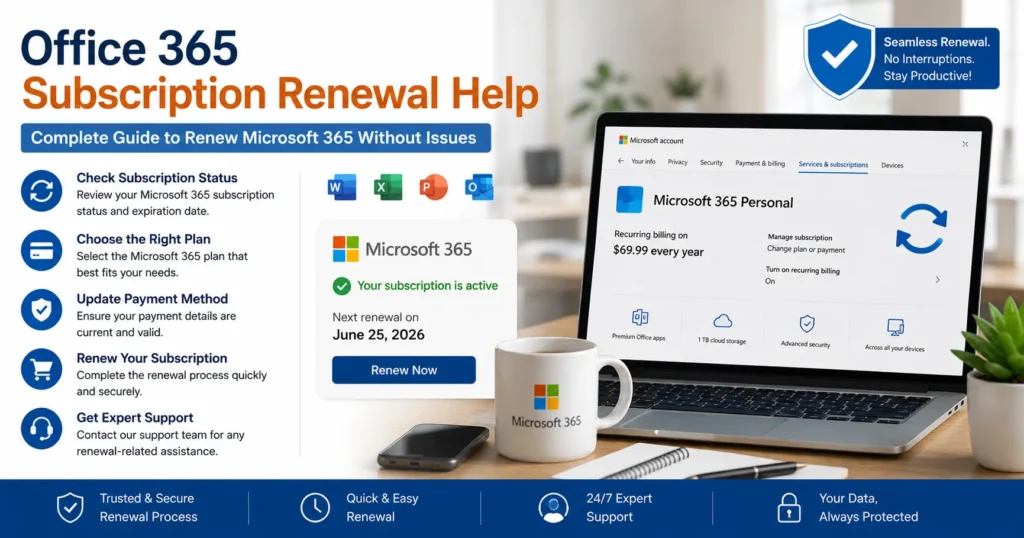
Introduction
Microsoft 365, formerly known as Office 365, is one of the world’s most widely used productivity platforms. It provides access to essential applications and services such as Outlook, Word, Excel, PowerPoint, OneDrive, Teams, SharePoint, Exchange Online, and Microsoft Defender. Millions of individuals, families, businesses, and enterprises depend on Microsoft 365 every day for communication, collaboration, document creation, cloud storage, and security.
To continue using premium Microsoft 365 features, users must maintain an active subscription. However, many users encounter challenges when their subscription approaches expiration. Payment failures, expired credit cards, billing issues, renewal errors, licensing conflicts, and account verification problems can interrupt access to Microsoft services.
If you are looking for Office 365 subscription renewal help, this comprehensive guide explains everything you need to know about renewing Microsoft 365 successfully, troubleshooting renewal problems, updating payment information, and ensuring uninterrupted access to your Microsoft applications and cloud services.
What Is an Office 365 Subscription?
An Office 365 subscription is a recurring service plan that provides access to Microsoft productivity applications and cloud services.
Popular plans include:
- Microsoft 365 Personal
- Microsoft 365 Family
- Microsoft 365 Business Basic
- Microsoft 365 Business Standard
- Microsoft 365 Business Premium
- Microsoft 365 Enterprise Plans
Depending on the subscription type, users receive access to:
- Outlook
- Word
- Excel
- PowerPoint
- OneNote
- Teams
- OneDrive
- SharePoint
- Exchange Online
- Microsoft Defender
Subscriptions typically renew monthly or annually.
Why Is Office 365 Subscription Renewal Important?
Maintaining an active subscription ensures uninterrupted access to Microsoft services.
Without renewal, users may experience:
- Loss of premium features
- Reduced functionality mode
- Limited editing capabilities
- OneDrive storage restrictions
- Outlook service limitations
- Microsoft Teams access issues
Timely renewal helps avoid disruptions.
What Happens When a Microsoft 365 Subscription Expires?
Microsoft generally provides several stages before completely disabling premium functionality.
Active Status
The subscription is current and fully operational.
Users enjoy full access to:
- Office applications
- Cloud storage
- Collaboration tools
- Security features
Expired Status
The subscription reaches its expiration date.
Users may begin receiving notifications prompting renewal.
Grace Period
Microsoft often provides a grace period.
During this period:
- Most services remain accessible
- Renewal reminders increase
- Limited restrictions may apply
Disabled Status
If the subscription remains unpaid:
- Premium features become unavailable
- Editing may be restricted
- Cloud services may be affected
Deprovisioned Status
Eventually, Microsoft may remove access to subscription-based services entirely.
Timely renewal helps prevent reaching this stage.
Common Reasons Users Need Office 365 Subscription Renewal Help
Several issues can interfere with renewal.
1. Expired Payment Method
Credit cards often expire before subscription renewal dates.
Common problems include:
- Expired cards
- Replaced cards
- Invalid payment information
Microsoft cannot process payments without valid billing details.
2. Payment Declined
Financial institutions may reject charges due to:
- Insufficient funds
- Fraud protection
- International transaction restrictions
- Banking errors
Failed payments commonly cause renewal problems.
3. Incorrect Billing Information
Billing details must match payment records.
Examples include:
- Wrong address
- Incorrect postal code
- Outdated contact information
4. Subscription Linked to Wrong Account
Users frequently maintain multiple Microsoft accounts.
Examples:
- Personal account
- Work account
- School account
Renewal issues often occur when users attempt to manage subscriptions from the wrong account.
5. Auto-Renewal Disabled
If automatic renewal is turned off:
- The subscription expires at the end of the billing cycle
- Manual renewal becomes necessary
Many users discover this setting only after receiving expiration notices.
6. Licensing Problems in Business Accounts
Organizations may encounter:
- License assignment issues
- Subscription management errors
- Administrative configuration problems
Business environments require additional oversight.
Signs Your Office 365 Subscription Needs Renewal
Watch for these warning signs.
Renewal Reminder Emails
Microsoft may send multiple notifications before expiration.
Product Activation Failed Messages
Office applications may display:
- Product Activation Failed
- Subscription Expired
- Renewal Required
Reduced Functionality Mode
Applications may allow viewing but restrict editing.
OneDrive Storage Warnings
Cloud storage limitations may appear when the subscription is no longer active.
Outlook Notifications
Users may see account or licensing warnings within Outlook.
How to Renew an Office 365 Subscription
Renewing Microsoft 365 is generally straightforward.
Step 1: Sign In to Your Microsoft Account
Use the account associated with your subscription.
Verify:
- Email address
- Subscription ownership
- Billing profile
Step 2: Review Subscription Status
Check:
- Expiration date
- Renewal status
- Billing information
- Subscription plan
This confirms whether renewal is required.
Step 3: Update Payment Information
Ensure your payment method is current.
Verify:
- Card number
- Expiration date
- Billing address
Updating payment details often resolves renewal issues immediately.
Step 4: Complete Renewal
Choose your preferred billing cycle:
- Monthly
- Annual
Review pricing and confirm payment.
Step 5: Verify Activation
After renewal:
- Open Office applications
- Confirm activation status
- Verify subscription recognition
Most renewals activate automatically.
How to Turn On Auto-Renewal
Automatic renewal helps prevent service interruptions.
Benefits include:
- Continuous access
- Reduced administrative effort
- Fewer billing surprises
Auto-renewal automatically charges the selected payment method before expiration.
Office 365 Subscription Renewal Problems and Solutions
Let’s examine common renewal challenges.
Problem: Payment Failed
Causes
- Expired card
- Insufficient funds
- Bank restrictions
Solution
Update payment information and retry the transaction.
Problem: Subscription Not Showing
Causes
- Wrong Microsoft account
- Licensing mismatch
- Account confusion
Solution
Verify you’re signed in using the correct account.
Problem: Renewal Completed but Office Still Shows Expired
Causes
- Cached licensing information
- Activation delays
- Authentication problems
Solution
Sign out of Office and sign back in.
Problem: Product Activation Failed After Renewal
Causes
- License synchronization delays
- Authentication issues
- Multiple Office installations
Solution
Update Office and reauthenticate your account.
Problem: OneDrive Storage Still Restricted
Causes
- Subscription not fully processed
- Account synchronization delay
Solution
Allow time for subscription updates to propagate.
How to Fix Microsoft 365 Not Recognizing a Renewed Subscription
Sometimes renewal succeeds, but Office applications fail to recognize the updated status.
Recommended Steps
- Close Office applications.
- Restart computer.
- Sign out of Microsoft 365.
- Sign back in.
- Verify activation.
Most recognition issues are resolved through reauthentication.
How Businesses Manage Office 365 Renewals
Organizations often manage multiple licenses simultaneously.
Common responsibilities include:
- License assignments
- Subscription tracking
- User management
- Billing administration
Proper planning helps avoid service disruptions.
License Renewal Considerations for Businesses
Administrators should monitor:
- License expiration dates
- User counts
- Subscription utilization
- Budget planning
Advanced planning prevents unexpected interruptions.
Microsoft 365 Renewal for Families
Microsoft 365 Family subscriptions support multiple users.
Before renewal:
Verify:
- Payment method
- Shared users
- Storage usage
Renewal maintains access for all family members.
Microsoft 365 Personal Subscription Renewal
Individual subscribers should monitor:
- Expiration dates
- Billing details
- Storage utilization
Renewal ensures continued access to premium features.
Office Applications Affected by Subscription Expiration
Several applications rely on active subscriptions.
Microsoft Word
Without renewal:
- Editing restrictions may apply
- Activation warnings may appear
Microsoft Excel
Spreadsheet editing may become limited.
Microsoft PowerPoint
Presentation creation and editing features may be affected.
Microsoft Outlook
Users may encounter licensing notifications and feature restrictions.
Microsoft Teams
Business users may experience service limitations.
OneDrive
Cloud storage benefits may be reduced significantly.
Security Features Included With Active Subscriptions
Many Microsoft 365 plans include advanced security protections.
Examples include:
- Microsoft Defender
- Ransomware protection
- Advanced threat detection
Allowing subscriptions to expire may reduce available protections.
Preventing Future Subscription Renewal Problems
Proactive management reduces future complications.
Keep Payment Methods Updated
Regularly review:
- Credit cards
- Billing addresses
- Contact information
Enable Auto-Renewal
Automatic billing helps prevent accidental expiration.
Monitor Subscription Emails
Pay attention to:
- Billing notices
- Renewal reminders
- Payment alerts
Use a Single Microsoft Account
Avoid managing subscriptions across multiple accounts whenever possible.
Security Best Practices for Subscription Management
Protecting your Microsoft account is essential.
Enable Multi-Factor Authentication
MFA strengthens account security.
Use Strong Passwords
Secure credentials reduce unauthorized access risks.
Review Account Activity
Monitor:
- Sign-ins
- Billing changes
- Subscription modifications
Update Recovery Information
Maintain current:
- Phone numbers
- Backup email addresses
When to Contact Microsoft Support
Professional assistance may be necessary if:
- Payments repeatedly fail
- Renewal cannot be completed
- Subscriptions disappear
- Licensing issues persist
- Office remains unactivated after renewal
Microsoft support specialists can investigate account, billing, and licensing issues.
Frequently Asked Questions
Can I Renew My Subscription After It Expires?
Yes. Most subscriptions can be renewed after expiration, although some services may be temporarily restricted.
Will I Lose My Files if My Subscription Expires?
No. Your files generally remain available, although editing and storage features may be limited.
How Long Does Renewal Take?
Most renewals are processed immediately, though occasional delays can occur.
Why Does Office Still Show Product Activation Failed After Renewal?
This is often caused by licensing synchronization or authentication issues.
Does Auto-Renewal Guarantee Continuous Service?
Auto-renewal helps prevent interruptions, provided the payment method remains valid.
Conclusion
Office 365 subscription renewal is essential for maintaining uninterrupted access to Microsoft 365 applications and services such as Outlook, Word, Excel, PowerPoint, Teams, OneDrive, SharePoint, and Exchange Online. While the renewal process is usually straightforward, issues such as expired payment methods, declined transactions, account confusion, licensing errors, and activation problems can occasionally complicate the experience.
By understanding how Microsoft 365 subscriptions work, monitoring renewal dates, maintaining accurate billing information, enabling auto-renewal, and promptly addressing payment issues, users can avoid service disruptions and continue benefiting from Microsoft’s powerful productivity ecosystem. Whether you’re an individual subscriber, a family plan user, or an enterprise administrator managing hundreds of licenses, proactive subscription management is the key to ensuring seamless access to Microsoft 365 now and in the future.