
Introduction
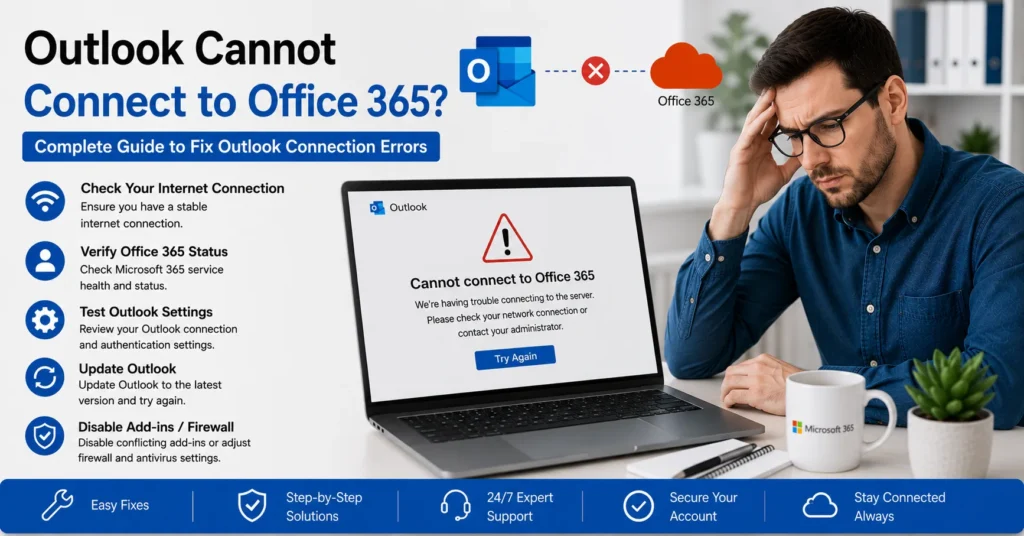
Microsoft Outlook is one of the most widely used email applications in the world and serves as a critical component of Microsoft 365. Businesses, organizations, and individual users rely on Outlook daily to manage emails, calendars, contacts, tasks, and collaboration. When Outlook cannot connect to Office 365, productivity can come to a standstill, causing missed communications, delayed responses, and significant frustration.
Users frequently encounter errors such as “Outlook cannot connect to Office 365,” “Trying to connect,” “Disconnected,” “Need Password,” or “Cannot connect to server.” These issues can result from internet connectivity problems, authentication failures, corrupted Outlook profiles, Microsoft 365 outages, DNS misconfigurations, firewall restrictions, or outdated software.
If you’re searching for solutions to Outlook connection problems, this comprehensive guide explains the most common causes and provides step-by-step fixes to restore access to your Microsoft 365 mailbox.
Understanding the Outlook Cannot Connect to Office 365 Error
Outlook connects to Microsoft 365 through Exchange Online, Microsoft’s cloud-based email platform.
When the connection fails, Outlook may display messages such as:
- Outlook cannot connect to Office 365
- Trying to connect
- Disconnected
- Need Password
- Cannot connect to server
- Exchange connection unavailable
- Authentication required
- Connection lost
The exact error often provides clues about the underlying cause.
Common Symptoms of Outlook Connection Problems
Users experiencing Outlook connectivity issues may notice:
Emails Not Sending
Outgoing messages remain in the Outbox folder and fail to send.
Emails Not Receiving
New emails stop arriving even though the mailbox is active.
Outlook Stuck on “Trying to Connect”
The status bar continuously displays connection attempts.
Continuous Password Prompts
Outlook repeatedly requests login credentials.
Synchronization Failures
Mailbox folders fail to update properly.
Calendar and Contacts Not Updating
Exchange synchronization stops affecting more than just email.
Why Outlook Cannot Connect to Office 365
Several factors can interrupt Outlook’s connection to Microsoft 365.
1. Internet Connectivity Problems
A stable internet connection is essential for Outlook to communicate with Exchange Online.
Common network-related issues include:
- Weak Wi-Fi signals
- ISP outages
- Router failures
- VPN conflicts
- Proxy server problems
Even temporary interruptions may cause Outlook to disconnect.
2. Microsoft 365 Service Outages
Sometimes the problem isn’t on your device.
Microsoft occasionally experiences outages affecting:
- Exchange Online
- Outlook
- Azure Active Directory
- Microsoft Authentication Services
During an outage, Outlook may be unable to connect regardless of local troubleshooting.
3. Incorrect Credentials
Authentication issues are among the most common causes.
Examples include:
- Wrong password
- Expired password
- Changed password
- Disabled account
- Locked account
If authentication fails, Outlook cannot establish a secure connection.
4. Multi-Factor Authentication Problems
Many organizations require Multi-Factor Authentication (MFA).
Issues can arise due to:
- Lost devices
- Expired verification methods
- Authenticator app failures
- Time synchronization problems
Failed MFA verification prevents Outlook from accessing Exchange Online.
5. Corrupted Outlook Profile
The Outlook profile contains account settings, synchronization information, and mailbox configurations.
Profile corruption may result from:
- System crashes
- Incomplete updates
- Software conflicts
- Improper shutdowns
A damaged profile can prevent successful connections.
6. Cached Credentials Issues
Windows stores authentication credentials locally.
Outdated or corrupted credentials can cause:
- Login loops
- Password prompts
- Authentication failures
Removing stored credentials often resolves these issues.
7. Outdated Outlook Version
Older Outlook versions may no longer support modern Microsoft authentication methods.
Common problems include:
- Authentication failures
- Exchange connectivity issues
- Synchronization errors
Microsoft regularly updates Outlook to maintain compatibility.
8. DNS Configuration Problems
DNS plays a critical role in Microsoft 365 connectivity.
Issues involving:
- Autodiscover records
- DNS resolution failures
- Incorrect MX records
can prevent Outlook from locating Exchange Online services.
9. Firewall and Antivirus Restrictions
Security software may interfere with Outlook communications.
Potential issues include:
- Blocked ports
- SSL inspection conflicts
- Authentication interference
- Exchange connection restrictions
10. Damaged OST Files
Outlook stores mailbox data locally in Offline Storage Table (OST) files.
Corrupted OST files may cause:
- Synchronization failures
- Connection issues
- Missing emails
Rebuilding the OST often restores functionality.
How to Fix Outlook Cannot Connect to Office 365
Let’s explore practical solutions.
Solution 1: Verify Internet Connectivity
Before investigating Outlook, ensure your network is functioning correctly.
Test Internet Access
Try:
- Opening websites
- Accessing Microsoft services
- Running a speed test
If internet access is unstable:
- Restart modem
- Restart router
- Reconnect Wi-Fi
Then reopen Outlook.
Solution 2: Restart Outlook
Temporary software glitches can disrupt connectivity.
Steps
- Close Outlook completely.
- Wait 30 seconds.
- Reopen Outlook.
- Allow synchronization to begin.
This often resolves temporary connection issues.
Solution 3: Check Microsoft 365 Service Health
If Microsoft services are experiencing an outage, local troubleshooting may not help.
Check whether:
- Exchange Online is operational
- Authentication services are available
- Outlook services are functioning normally
Service disruptions affect large numbers of users simultaneously.
Solution 4: Verify Account Credentials
Ensure your Microsoft 365 login information is correct.
Verify:
- Email address
- Username
- Password
If necessary:
- Reset password
- Sign out
- Sign back in
Authentication issues account for many Outlook connection failures.
Solution 5: Remove Stored Credentials
Cached credentials may become outdated after password changes.
Windows Credential Manager
- Open Credential Manager.
- Locate Microsoft entries.
- Remove Outlook-related credentials.
- Restart Outlook.
- Sign in again.
This forces Outlook to authenticate using fresh credentials.
Solution 6: Update Outlook
Running the latest version improves compatibility and security.
Update Steps
- Open Outlook.
- Navigate to File.
- Select Office Account.
- Click Update Options.
- Choose Update Now.
Install all available updates.
Solution 7: Repair Microsoft 365
Microsoft includes built-in repair tools.
Quick Repair
- Open Control Panel.
- Select Programs and Features.
- Locate Microsoft 365.
- Click Change.
- Select Quick Repair.
Online Repair
If problems continue:
- Repeat the process.
- Select Online Repair.
This reinstalls damaged components.
Solution 8: Create a New Outlook Profile
Profile corruption is a frequent cause of connection problems.
Create New Profile
- Open Control Panel.
- Select Mail.
- Choose Show Profiles.
- Create New Profile.
- Add Microsoft 365 account.
Test connectivity using the new profile.
Solution 9: Disable Work Offline Mode
Outlook includes a Work Offline feature.
If enabled:
- Emails won’t send
- Mail won’t update
- Outlook appears disconnected
Fix
- Open Outlook.
- Select Send/Receive.
- Disable Work Offline.
Connection should resume automatically.
Solution 10: Rebuild the OST File
A damaged OST file can interfere with synchronization.
Steps
- Close Outlook.
- Locate OST file.
- Rename or delete the file.
- Reopen Outlook.
Outlook downloads a fresh copy of mailbox data.
Fix Continuous Password Prompts
Repeated password requests indicate authentication problems.
Common Causes
- Expired credentials
- MFA failures
- Corrupted tokens
- Cached password conflicts
Solutions
- Remove stored credentials
- Reauthenticate account
- Update Outlook
- Verify MFA settings
Fix Outlook Stuck on “Trying to Connect”
This issue often involves:
- Internet problems
- Firewall restrictions
- Exchange connectivity failures
Recommended Actions
- Restart Outlook
- Check internet connection
- Disable VPN
- Verify service health
Fix Outlook Synchronization Problems
Synchronization failures may affect:
- Contacts
- Calendar
- Tasks
Solutions
- Rebuild OST file
- Repair Office
- Update Outlook
- Create new profile
Fix Outlook Authentication Errors
Authentication failures prevent mailbox access.
Common Error Causes
- Wrong password
- Expired password
- MFA issues
- Azure Active Directory problems
Resolution
- Reset password
- Verify MFA
- Remove cached credentials
- Sign in again
Fix Outlook Connection Issues on Windows 11
Windows 11 users may encounter:
- Credential conflicts
- Update-related bugs
- Security restrictions
Recommended Steps
- Install Windows updates.
- Update Outlook.
- Remove cached credentials.
- Recreate Outlook profile.
Fix Outlook Connection Issues on Windows 10
Windows 10 users often experience:
- Profile corruption
- Authentication issues
- Network conflicts
Most problems are resolved through:
- Profile recreation
- Office repair
- Credential cleanup
Outlook Cannot Connect After Password Change
Many users encounter problems immediately after updating their password.
Why It Happens
Outlook may continue using old credentials.
Solution
- Remove cached credentials.
- Restart Outlook.
- Enter new password.
- Verify MFA if required.
Outlook Cannot Connect Through VPN
VPN services can interfere with Microsoft 365 connectivity.
Symptoms
- Connection timeouts
- Authentication failures
- Synchronization delays
Fix
Temporarily disable VPN and test Outlook.
If connectivity returns, adjust VPN settings.
Outlook Cannot Connect on Corporate Networks
Enterprise environments often involve additional security controls.
Possible causes include:
- Firewall rules
- Proxy configurations
- Conditional Access policies
- Device compliance requirements
IT administrators should review organizational policies.
How Administrators Can Troubleshoot Outlook Connectivity Issues
Administrators have access to advanced diagnostic tools.
Review Microsoft 365 Service Health
Check:
- Exchange Online status
- Authentication services
- Known incidents
Examine Sign-In Logs
Review:
- Azure Active Directory logs
- Failed login attempts
- Security alerts
Verify User Configuration
Confirm:
- Active license
- Enabled mailbox
- Proper permissions
Preventing Future Outlook Connection Problems
Proactive maintenance reduces disruptions.
Keep Outlook Updated
Install updates regularly.
Maintain Stable Internet Access
Reliable connectivity is essential.
Monitor Account Security
Enable:
- Multi-Factor Authentication
- Strong passwords
- Account activity monitoring
Update Recovery Information
Maintain current:
- Phone numbers
- Email addresses
- Authentication methods
Security Best Practices
Secure authentication improves reliability.
Enable Multi-Factor Authentication
MFA significantly reduces unauthorized access risks.
Use Strong Passwords
Avoid weak or reused credentials.
Monitor Sign-In Activity
Review unusual access attempts promptly.
Keep Devices Updated
Maintain updated:
- Windows
- Outlook
- Microsoft 365 Apps
When to Contact Microsoft Support
Professional assistance may be necessary when:
- Outlook remains disconnected after troubleshooting
- Authentication errors persist
- Exchange Online access fails
- Multiple users experience issues
- Service outages continue
- Enterprise-wide disruptions occur
Microsoft support can review logs, investigate service issues, and provide advanced troubleshooting.
Frequently Asked Questions
Why Does Outlook Say “Disconnected”?
This usually indicates internet, authentication, or Exchange connectivity issues.
Can Outlook Work Without Internet?
Only previously synchronized content is available offline. New emails require connectivity.
Will Recreating My Outlook Profile Delete Emails?
No. Emails remain stored on Exchange Online and will re-sync.
Why Does Outlook Keep Asking for My Password?
This often results from outdated credentials, MFA issues, or authentication token problems.
Can Antivirus Software Block Outlook?
Yes. Security software occasionally interferes with Outlook connections.
Conclusion
When Outlook cannot connect to Office 365, the issue may stem from internet connectivity problems, authentication failures, Outlook profile corruption, outdated software, firewall restrictions, damaged OST files, DNS misconfigurations, or Microsoft service outages. While the error can be frustrating, most connection problems can be resolved through systematic troubleshooting.
By verifying internet access, checking Microsoft 365 service health, updating Outlook, removing cached credentials, repairing Office, recreating Outlook profiles, and rebuilding OST files, users can restore access to Exchange Online and resume normal email operations. For organizations, proactive account management, regular updates, and strong security practices help minimize connectivity disruptions and maintain reliable communication through Microsoft Outlook and Microsoft 365.