
Introduction
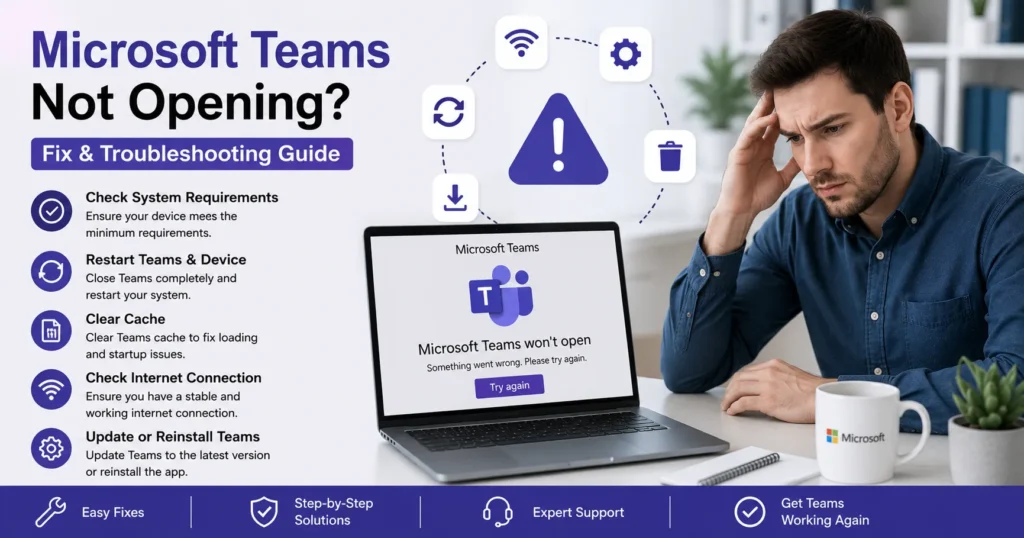
Microsoft Teams has become one of the most important collaboration and communication platforms for businesses, schools, and remote workers. Millions of users rely on Teams daily for meetings, chat, file sharing, project collaboration, and video conferencing. However, like any software application, Microsoft Teams can occasionally experience problems that prevent it from opening properly.
If Microsoft Teams won’t launch, gets stuck on the loading screen, crashes immediately after opening, shows a blank screen, or refuses to start altogether, the issue can significantly impact productivity and communication.
This comprehensive guide explains the most common reasons Microsoft Teams is not opening and provides step-by-step solutions to get Teams working again.
Understanding Microsoft Teams Startup Problems
When Teams fails to open, users may experience symptoms such as:
- Teams won’t launch
- Teams stuck on loading screen
- Teams opens and immediately closes
- Blank white screen
- Black screen on startup
- Teams crashes during launch
- Sign-in window never appears
- Application becomes unresponsive
- Teams icon appears but application never opens
- Error messages during startup
Understanding the root cause helps determine the most effective solution.
Common Reasons Microsoft Teams Is Not Opening
Several factors can prevent Microsoft Teams from launching successfully.
Corrupted Teams Cache
One of the most common causes is corrupted cache data.
Teams stores temporary files to improve performance. Over time these files may become damaged and prevent the application from opening properly.
Common symptoms include:
- Loading screen freezes
- Blank screen
- Endless startup loop
- Login failures
Outdated Teams Application
Using an older version of Teams can lead to compatibility issues.
Problems may occur due to:
- Missing security updates
- Authentication changes
- Operating system compatibility issues
- Unsupported Teams builds
Corrupted Installation Files
Installation files may become damaged because of:
- Interrupted updates
- System crashes
- Disk errors
- Malware infections
Damaged program files often prevent Teams from starting.
Microsoft 365 Authentication Problems
Teams depends heavily on Microsoft account authentication.
Issues involving:
- Expired credentials
- Password changes
- Multi-Factor Authentication failures
- Azure Active Directory problems
can prevent Teams from launching correctly.
Internet Connectivity Issues
Teams requires internet connectivity for authentication and synchronization.
Poor connectivity can result in:
- Startup delays
- Login failures
- Frozen loading screens
- Connection errors
Antivirus or Firewall Restrictions
Security software may block Teams processes.
Potential issues include:
- Application launch restrictions
- Blocked network communication
- Authentication failures
- Background service interruptions
Insufficient System Resources
Teams can consume significant system resources.
If a device has:
- Low RAM
- High CPU usage
- Limited storage space
Teams may fail to open or become unstable.
Windows Profile Corruption
User profile corruption occasionally affects application startup.
Symptoms may include:
- Multiple applications failing
- Teams startup errors
- Authentication issues
Background Process Conflicts
Teams relies on several background services.
Conflicts involving:
- Office applications
- Third-party software
- Security tools
may prevent Teams from opening.
How to Fix Microsoft Teams Not Opening
Let’s explore the most effective troubleshooting methods.
Solution 1: Restart Your Computer
Many Teams startup problems are temporary.
A restart can:
- Clear memory issues
- Stop conflicting processes
- Refresh network connections
- Reset application services
Steps
- Save your work.
- Restart your computer.
- Launch Teams again.
This simple step often resolves startup issues.
Solution 2: Check Internet Connectivity
Teams requires stable internet access.
Verify Connection
Test whether:
- Websites load properly
- Other Microsoft services work
- Network speed is adequate
Restart Network Equipment
Restart:
- Router
- Modem
- Network adapter
Then reopen Teams.
Solution 3: Fully Close Microsoft Teams
Teams may remain running in the background even after closing.
Windows
- Press Ctrl + Shift + Esc.
- Open Task Manager.
- Locate Microsoft Teams.
- Select End Task.
Mac
- Open Activity Monitor.
- Find Teams.
- Force Quit the process.
Restart Teams afterward.
Solution 4: Clear Microsoft Teams Cache
Clearing cache is one of the most effective solutions.
Windows Cache Reset
- Exit Teams completely.
- Open Run dialog.
- Navigate to Teams cache folders.
- Delete cached files.
- Restart Teams.
Benefits
Clearing cache resolves:
- Login issues
- Startup failures
- Loading loops
- Synchronization problems
Solution 5: Update Microsoft Teams
Running the latest version improves stability and security.
Check for Updates
- Open Teams if possible.
- Select your profile picture.
- Click Check for Updates.
If Teams won’t open, reinstalling the latest version may be necessary.
Solution 6: Repair Microsoft 365
Teams is integrated with Microsoft 365.
Repairing Office may fix Teams startup issues.
Quick Repair
- Open Control Panel.
- Select Programs and Features.
- Locate Microsoft 365.
- Click Change.
- Select Quick Repair.
Online Repair
If Quick Repair fails:
- Repeat the process.
- Select Online Repair.
Allow repair to complete.
Solution 7: Sign Out and Sign In Again
Authentication issues often prevent Teams from loading.
Refresh Credentials
- Sign out of Teams.
- Close Teams.
- Restart computer.
- Sign back in.
This refreshes authentication tokens.
Solution 8: Remove Stored Credentials
Windows Credential Manager may contain outdated credentials.
Steps
- Open Credential Manager.
- Select Windows Credentials.
- Remove Teams-related entries.
- Restart Teams.
- Sign in again.
This often resolves authentication conflicts.
Solution 9: Run Teams as Administrator
Permission restrictions sometimes block startup.
Steps
- Right-click Teams.
- Select Run as Administrator.
- Accept permissions prompt.
If Teams opens successfully, permission settings may require adjustment.
Solution 10: Check Available Disk Space
Low storage can prevent applications from functioning properly.
Recommended Free Space
Maintain:
- At least 10 GB free storage
- Adequate temporary file space
Delete unnecessary files if storage is limited.
Solution 11: Disable Antivirus Temporarily
Some security programs interfere with Teams.
Test Procedure
Temporarily disable:
- Real-time protection
- Application control
- Network filtering
Attempt to open Teams.
If Teams launches successfully, add Teams to security software exclusions.
Solution 12: Check Firewall Settings
Firewall rules may block Teams communication.
Verify Teams is allowed through:
- Windows Firewall
- Corporate firewalls
- Security appliances
Blocked communication may prevent startup and authentication.
Solution 13: Reinstall Microsoft Teams
Reinstallation is often the most reliable solution.
Uninstall Teams
- Open Settings.
- Select Apps.
- Locate Microsoft Teams.
- Uninstall application.
Install Latest Version
Download and install the newest Teams version.
A fresh installation removes corrupted files.
Fix Teams Stuck on Loading Screen
One of the most common complaints is Teams freezing on startup.
Common Causes
- Cache corruption
- Authentication failures
- Network problems
- Damaged profile settings
Recommended Fixes
- Clear Teams cache
- Remove credentials
- Update Teams
- Reinstall application
These steps resolve most loading screen issues.
Fix Microsoft Teams Blank White Screen
A white screen usually indicates rendering issues.
Potential Causes
- Graphics driver problems
- Cache corruption
- Hardware acceleration conflicts
Solutions
- Clear cache
- Update graphics drivers
- Disable hardware acceleration
- Reinstall Teams
Fix Teams Crashing on Startup
If Teams opens briefly and then closes:
Possible Causes
- Corrupted installation
- Conflicting software
- Missing updates
- Damaged profile data
Recommended Actions
- Update Windows
- Reinstall Teams
- Run Office Repair
- Create new Teams profile
Fix Teams Login Issues
Sometimes Teams appears not to open when the actual issue is authentication.
Common Login Problems
- Incorrect password
- MFA failures
- Expired tokens
- Account lockouts
Solutions
- Reset password
- Verify MFA device
- Reauthenticate account
- Remove cached credentials
Fix Teams Not Opening on Windows 11
Windows 11 users may encounter additional compatibility issues.
Recommended Steps
- Install Windows updates.
- Update Teams.
- Run compatibility troubleshooting.
- Repair Microsoft 365.
- Reinstall Teams.
Keeping both Windows and Teams updated is critical.
Fix Teams Not Opening on Windows 10
Windows 10 systems can experience:
- Cache corruption
- Authentication issues
- Update failures
Common fixes include:
- Clearing cache
- Removing credentials
- Updating Teams
- Running Office Repair
Fix Teams Not Opening on Mac
Mac users occasionally encounter startup problems.
Solutions
- Clear Teams cache
- Update macOS
- Update Teams
- Reinstall Teams
- Remove corrupted preferences
Many Mac-related issues stem from outdated software.
Fix Teams Not Opening After an Update
Updates occasionally introduce temporary issues.
Recommended Actions
- Restart device
- Clear cache
- Repair Office
- Reinstall Teams
A fresh installation often resolves update-related problems.
Fix Teams Not Opening in Corporate Environments
Business environments may involve additional restrictions.
Potential Causes
- Group policies
- Conditional Access policies
- Security restrictions
- Network filtering
IT administrators should review:
- Azure Active Directory settings
- Microsoft 365 policies
- Firewall rules
- Device compliance requirements
How IT Administrators Can Troubleshoot Teams Startup Issues
Administrators should examine:
Service Health
Check Microsoft 365 Service Health Dashboard.
Authentication Logs
Review:
- Azure AD sign-in logs
- Conditional Access reports
- Security alerts
Endpoint Management
Verify:
- Teams installation status
- Device compliance
- Software deployment success
Preventing Future Teams Startup Problems
Prevention reduces recurring issues.
Keep Teams Updated
Install updates regularly.
Maintain Windows Updates
Ensure operating system patches remain current.
Clear Cache Periodically
Routine maintenance prevents corruption.
Monitor Storage Space
Avoid running devices with critically low storage.
Use Stable Internet Connections
Reliable connectivity improves authentication and synchronization.
Security Best Practices
Secure Teams usage helps prevent access problems.
Enable Multi-Factor Authentication
MFA protects accounts against unauthorized access.
Use Strong Passwords
Avoid weak or reused passwords.
Monitor Sign-In Activity
Review suspicious login attempts regularly.
Keep Security Software Updated
Modern protection helps prevent malware-related corruption.
When to Contact Microsoft Teams Support
Professional assistance may be necessary when:
- Teams repeatedly fails to open
- Reinstallation does not help
- Authentication problems persist
- Service outages continue
- Multiple users are affected
- Enterprise-wide issues occur
Microsoft support can analyze logs, investigate tenant settings, and identify advanced technical problems.
Conclusion
Microsoft Teams not opening is a common issue that can result from corrupted cache files, outdated software, authentication failures, installation corruption, network problems, insufficient system resources, or security software conflicts. Fortunately, most startup problems can be resolved using proven troubleshooting techniques such as clearing the Teams cache, updating the application, repairing Microsoft 365, removing stored credentials, checking network connectivity, and reinstalling Teams.
By following the solutions outlined in this guide and maintaining regular software updates, users can restore Teams functionality quickly and reduce the likelihood of future startup issues. Whether you are an individual user, remote worker, student, or enterprise administrator, understanding how to troubleshoot Microsoft Teams launch problems can help ensure uninterrupted communication, collaboration, and productivity across your organization.