
Introduction
Data loss can be one of the most stressful situations for any QuickBooks user. Whether you’re a small business owner, accountant, bookkeeper, or financial manager, losing access to your QuickBooks company file can disrupt daily operations, delay payroll, affect tax preparation, and create serious financial concerns.
QuickBooks company files contain critical business information, including customer records, invoices, payroll data, vendor information, tax records, inventory details, and financial reports. If these files become corrupted, deleted, inaccessible, or damaged, immediate recovery efforts are necessary to prevent long-term business disruption.
Fortunately, QuickBooks provides several built-in recovery options, backup tools, and repair utilities designed to help users restore lost data and recover damaged company files. Understanding these recovery methods can significantly increase the chances of successful data restoration.
This comprehensive guide covers everything you need to know about QuickBooks File Recovery, including causes of file loss, recovery methods, backup restoration, Auto Data Recovery (ADR), troubleshooting steps, prevention strategies, and best practices for protecting valuable financial information.
What Is QuickBooks File Recovery?
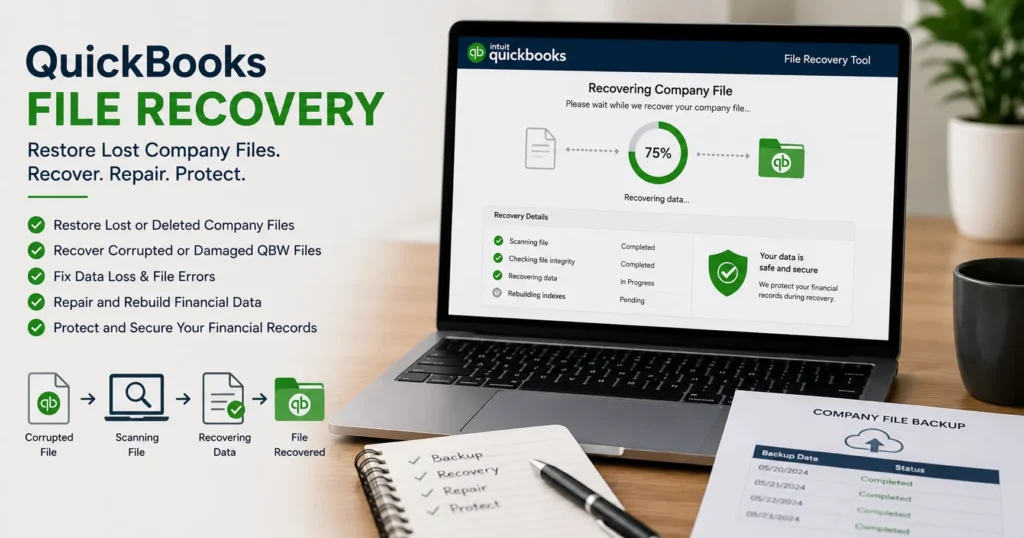
QuickBooks File Recovery is the process of restoring lost, deleted, corrupted, inaccessible, or damaged QuickBooks company files and recovering financial data needed for business operations.
Recovery may involve:
- Restoring backup files
- Using QuickBooks Auto Data Recovery
- Repairing damaged company files
- Recovering deleted records
- Fixing data corruption
- Rebuilding damaged data structures
The primary goal is to recover accurate financial information while minimizing data loss and downtime.
Understanding QuickBooks Company Files
Before discussing recovery methods, it’s important to understand the primary file types used by QuickBooks.
QBW File
The QBW file is the main QuickBooks company file.
It contains:
- Customer information
- Vendor records
- Payroll data
- Banking transactions
- Inventory details
- Financial reports
Most recovery efforts focus on restoring this file.
QBB File
A QBB file is a QuickBooks backup file.
It serves as a recovery source when the primary company file becomes unavailable.
QBM File
QBM files are portable company files used for transferring data between systems.
ADR Files
ADR stands for Auto Data Recovery.
These files are automatically generated by QuickBooks to assist in emergency recovery situations.
Common Causes of QuickBooks Data Loss
Several issues can cause company file damage or loss.
Accidental File Deletion
Users may accidentally:
- Delete company files
- Remove backup files
- Overwrite important data
Human error remains a leading cause of data loss.
Hard Drive Failure
Physical storage devices can fail unexpectedly.
Common causes include:
- Mechanical damage
- Bad sectors
- Power surges
- Aging hardware
System Crashes
Unexpected system shutdowns may damage QuickBooks files during active transactions.
Examples include:
- Power outages
- Operating system crashes
- Hardware failures
Malware and Ransomware Attacks
Cyberattacks can:
- Encrypt company files
- Corrupt databases
- Delete financial records
Strong security practices help reduce these risks.
Network Interruptions
In multi-user environments, network disruptions can damage files while data is being written to the server.
Improper QuickBooks Shutdown
Closing QuickBooks improperly may result in:
- File corruption
- Data inconsistencies
- Transaction errors
Signs You Need QuickBooks File Recovery
You may require file recovery if:
- Company files won’t open.
- QuickBooks crashes repeatedly.
- Data appears missing.
- Reports show incorrect information.
- Error messages reference file damage.
- Transactions disappear unexpectedly.
- Backup files fail to restore.
Common QuickBooks File Recovery Errors
Users frequently encounter:
Error -6000 Series
Company file access problems.
Examples:
- Error 6000
- Error 6000 77
- Error 6000 80
- Error 6000 301
Error H202
Multi-user access issues preventing file availability.
Error 6150
QuickBooks cannot open the company file.
Error 80029C4A
Damaged QuickBooks components affecting file access.
Data Damage Errors
Corrupted records preventing normal operations.
First Steps Before Attempting Recovery
Before performing recovery procedures:
Stop Using the Affected File
Continued activity may worsen corruption.
Create a Backup
Even damaged files should be copied before repair attempts.
Document Error Messages
Record:
- Error codes
- Warning messages
- Recovery attempts
This information assists troubleshooting.
Method 1: Restore a QuickBooks Backup File
The simplest recovery method involves restoring a recent backup.
Steps to Restore a Backup
- Open QuickBooks.
- Select File.
- Choose Open or Restore Company.
- Click Restore a Backup Copy.
- Select Local Backup.
- Browse to the QBB file.
- Follow restoration prompts.
Benefits of Backup Restoration
- Fast recovery
- Reliable results
- Minimal risk
The primary limitation is that data entered after the backup date may be lost.
Method 2: Use QuickBooks Auto Data Recovery (ADR)
ADR is a built-in recovery feature available in certain QuickBooks Desktop versions.
What ADR Does
Auto Data Recovery creates:
- Backup transaction logs
- Recovery company file copies
These files can be used to reconstruct damaged company files.
Benefits of ADR
- No additional software required
- Can recover recent transactions
- Useful when backups are unavailable
Method 3: QuickBooks File Doctor
QuickBooks File Doctor is designed to repair:
- Company file corruption
- Network issues
- Data damage
Features
- File diagnostics
- Repair utilities
- Connectivity testing
Many file-related issues can be resolved using this tool.
Method 4: Verify and Rebuild Data
QuickBooks includes internal repair tools.
Verify Data
Verify Data scans the company file for problems.
To Run Verify Data
- Select File.
- Choose Utilities.
- Click Verify Data.
QuickBooks identifies potential issues.
Rebuild Data
If problems are found:
- Select File.
- Choose Utilities.
- Click Rebuild Data.
QuickBooks repairs damaged data structures.
Recovering Deleted QuickBooks Files
If a company file was deleted:
Check Recycle Bin
Windows may still contain the file.
Restore Previous Versions
Windows File History may provide older versions.
Use Backup Copies
Restore from:
- Local backups
- External drives
- Cloud backups
Recovering Data After Hardware Failure
When hardware fails:
Remove the Drive
Connect it to another system if possible.
Use Recovery Software
Professional recovery tools may retrieve:
- QBW files
- QBB files
- ADR files
Seek Professional Recovery
Severely damaged drives may require specialized services.
Multi-User File Recovery Considerations
Server-hosted QuickBooks environments require additional steps.
Verify Network Access
Ensure workstations can access the server.
Check Hosting Configuration
Incorrect hosting settings may create file access issues.
Review Server Backups
Most server environments maintain automatic backup schedules.
Cloud-Based QuickBooks Recovery
QuickBooks Online users benefit from cloud infrastructure.
Recovery options may include:
- Audit logs
- Historical data restoration
- Third-party backup services
Cloud storage reduces certain risks associated with local hardware failures.
How to Prevent Future QuickBooks Data Loss
Prevention is always easier than recovery.
Schedule Automatic Backups
Create:
- Daily backups
- Weekly backups
- Monthly archives
Store backups in multiple locations.
Use Cloud Storage
Cloud backups provide:
- Redundancy
- Remote access
- Disaster recovery protection
Install Reliable Antivirus Software
Protect against:
- Malware
- Ransomware
- Unauthorized access
Maintain Hardware Health
Monitor:
- Hard drive condition
- Storage capacity
- System performance
Replace aging hardware proactively.
Use Uninterruptible Power Supplies (UPS)
Power interruptions can corrupt active company files.
UPS devices reduce this risk.
Restrict File Access
Limit permissions to authorized users only.
Strong access controls reduce accidental deletions.
Best Practices for QuickBooks File Recovery
Test Backups Regularly
A backup is only useful if it can be restored successfully.
Maintain Multiple Backup Copies
Follow the 3-2-1 backup strategy:
- 3 copies of data
- 2 different storage types
- 1 offsite backup
Document Recovery Procedures
Create a recovery plan before emergencies occur.
Train Staff
Employees should understand:
- Backup procedures
- File handling policies
- Recovery reporting processes
Update QuickBooks Frequently
Software updates often include:
- Stability improvements
- Data protection enhancements
- Bug fixes
When to Contact QuickBooks Recovery Support
Professional assistance may be necessary when:
- Backups are unavailable.
- Severe file corruption exists.
- Recovery attempts fail repeatedly.
- Hardware damage prevents access.
- Large amounts of financial data are affected.
- Compliance requirements demand accurate restoration.
Recovery specialists can perform advanced diagnostics and increase the likelihood of successful data restoration.
Frequently Asked Questions
Can QuickBooks recover deleted company files?
Yes. Deleted files may be recovered using backups, Auto Data Recovery, Windows recovery options, or professional recovery tools.
What is QuickBooks Auto Data Recovery?
ADR is a built-in feature that automatically creates recovery copies and transaction logs to assist in restoring damaged company files.
Can corrupted QuickBooks files be repaired?
Yes. Tools such as QuickBooks File Doctor, Verify Data, and Rebuild Data can repair many file corruption issues.
How often should I back up QuickBooks?
Most businesses should perform daily backups and maintain multiple backup copies.
Can I recover QuickBooks data after a hard drive failure?
In many cases, yes. Recovery may be possible through backups, recovery software, or professional data recovery services.
What is the safest recovery method?
Restoring a verified backup remains the safest and most reliable recovery option.
Conclusion
QuickBooks file recovery is essential for protecting the financial health and operational continuity of any business. Whether data loss results from accidental deletion, file corruption, hardware failure, malware attacks, or system crashes, understanding the available recovery options can significantly improve recovery outcomes.
By utilizing QuickBooks backups, Auto Data Recovery, File Doctor, Verify and Rebuild utilities, and proactive data protection strategies, businesses can minimize downtime and preserve critical financial information. A well-planned backup and recovery strategy remains the best defense against unexpected data loss, ensuring your QuickBooks company files remain secure, accessible, and recoverable when needed.