
Introduction
QuickBooks Online is one of the most popular cloud-based accounting solutions used by small businesses, accountants, freelancers, and enterprises worldwide. The software simplifies bookkeeping, invoicing, payroll processing, bank reconciliation, inventory management, tax preparation, and financial reporting.
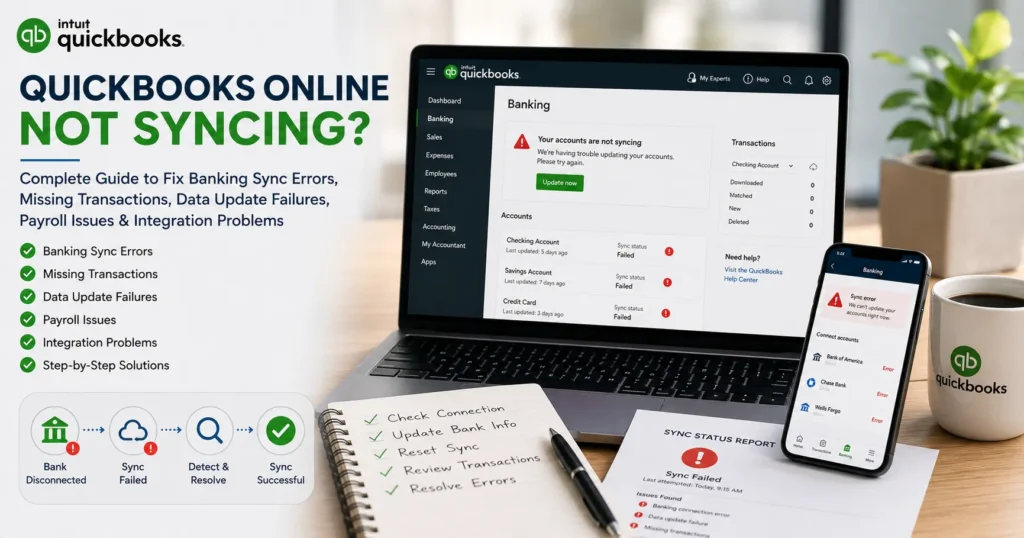
One of the biggest advantages of QuickBooks Online is its ability to synchronize data automatically across devices, bank accounts, payment processors, and third-party applications. However, users occasionally encounter a frustrating problem: QuickBooks Online not syncing.
When synchronization stops working properly, transactions may fail to download, invoices may not update, payroll information can become inaccurate, and reports may display outdated data. These issues can disrupt business operations and create accounting discrepancies if not resolved quickly.
This comprehensive guide explains why QuickBooks Online stops syncing, common symptoms, troubleshooting methods, preventive measures, and best practices to ensure seamless synchronization.
What Does QuickBooks Online Syncing Mean?
Synchronization refers to the automatic exchange and updating of data between QuickBooks Online and connected services.
These services include:
- Bank accounts
- Credit card accounts
- Payroll systems
- Payment processors
- Mobile applications
- CRM software
- Inventory management tools
- E-commerce platforms
When synchronization functions correctly, information updates automatically without requiring manual entry.
Examples include:
- New bank transactions appearing automatically
- Customer payments syncing instantly
- Payroll records updating across reports
- Inventory changes reflecting in real time
When syncing fails, important financial information may become outdated or inaccurate.
Signs That QuickBooks Online Is Not Syncing
Several warning signs indicate synchronization issues.
Missing Transactions
Bank transactions fail to download into QuickBooks.
Delayed Updates
Changes made in QuickBooks take hours or days to appear.
Duplicate Entries
The same transaction appears multiple times.
Reconciliation Problems
Bank balances fail to match financial records.
Third-Party App Errors
Connected applications stop transferring information.
Payroll Inconsistencies
Employee data or tax calculations fail to update properly.
Recognizing these symptoms early helps prevent larger accounting problems.
Common Causes of QuickBooks Online Sync Problems
Understanding the root cause makes troubleshooting easier.
Internet Connectivity Issues
QuickBooks Online relies on a stable internet connection.
Poor connectivity may interrupt communication between servers.
Common causes include:
- Weak Wi-Fi signals
- ISP outages
- Network instability
- VPN conflicts
Browser Cache and Cookies
Cached browser files sometimes become corrupted.
This may prevent QuickBooks from loading updated information correctly.
Common symptoms include:
- Endless loading screens
- Delayed updates
- Missing transactions
Bank Authentication Changes
Banks frequently update their security systems.
Changes may include:
- Password updates
- Multi-factor authentication
- Security questions
- API modifications
These changes can temporarily interrupt synchronization.
Expired Login Credentials
QuickBooks requires valid authentication tokens to connect with financial institutions.
Expired credentials can stop synchronization completely.
Third-Party Integration Failures
Businesses often connect QuickBooks Online with:
- Shopify
- Stripe
- PayPal
- Amazon
- Salesforce
- HubSpot
An integration failure may prevent data from updating properly.
Software Updates
QuickBooks periodically introduces system updates.
Temporary syncing issues may occur during maintenance windows.
How to Fix QuickBooks Online Not Syncing
The following troubleshooting methods resolve most synchronization problems.
Solution 1: Verify Internet Connectivity
Start by checking your network connection.
Steps:
- Open multiple websites.
- Run an internet speed test.
- Restart your router.
- Disable VPN connections temporarily.
- Reconnect to QuickBooks Online.
A stable connection is essential for proper synchronization.
Solution 2: Refresh the Bank Feed
Bank feeds occasionally become stuck.
To refresh:
- Open Banking.
- Select Update.
- Wait for synchronization to complete.
- Review downloaded transactions.
This often resolves temporary connection issues.
Solution 3: Reconnect the Bank Account
If refreshing fails:
- Disconnect the bank account.
- Wait several minutes.
- Reconnect the account.
- Re-enter banking credentials.
- Initiate a fresh sync.
This method resolves many authentication-related problems.
Solution 4: Clear Browser Cache
Corrupted browser data frequently causes syncing failures.
Steps:
- Open browser settings.
- Clear cache and cookies.
- Close the browser.
- Restart the browser.
- Log into QuickBooks again.
Many users report immediate improvement after clearing cached files.
Solution 5: Use an Incognito Window
Private browsing disables stored cache and extensions.
Test QuickBooks in:
- Chrome Incognito
- Firefox Private Mode
- Edge InPrivate Mode
If syncing works properly, browser extensions are likely causing the issue.
Solution 6: Disable Browser Extensions
Extensions can interfere with QuickBooks Online.
Common offenders include:
- Ad blockers
- Security plugins
- Script blockers
Disable extensions temporarily and test synchronization again.
Solution 7: Update Banking Credentials
Many synchronization failures occur after password changes.
Verify:
- Username
- Password
- Security questions
- Multi-factor authentication settings
Reconnect the account using updated credentials.
Fixing Bank Feed Sync Issues
Bank feed errors are among the most common QuickBooks support requests.
Why Bank Feeds Stop Syncing
Common reasons include:
- Bank server maintenance
- Password changes
- Security upgrades
- Connection timeouts
How to Resolve Bank Feed Errors
Refresh the Connection
Manually update the feed.
Verify Bank Status
Check whether the bank is experiencing outages.
Reconnect the Account
Disconnect and reconnect the institution.
Review Transaction History
Ensure downloaded transactions are not hidden or categorized incorrectly.
QuickBooks Online Not Syncing with Shopify
Many e-commerce businesses rely on Shopify integration.
Common issues include:
- Missing orders
- Duplicate sales
- Tax calculation mismatches
- Delayed inventory updates
Solutions
- Reauthorize the integration
- Verify API permissions
- Update the Shopify connector
- Run a manual synchronization
QuickBooks Online Not Syncing with PayPal
PayPal synchronization problems often result from authentication issues.
Common symptoms include:
- Missing customer payments
- Duplicate deposits
- Failed imports
Resolution Steps
- Verify PayPal login credentials
- Reconnect PayPal
- Update connector settings
- Review transaction mapping rules
QuickBooks Online Not Syncing with Stripe
Stripe integration failures can impact payment processing.
Symptoms include:
- Missing payments
- Duplicate invoices
- Incorrect reconciliation
Solutions:
- Refresh API tokens
- Reconnect Stripe
- Verify account permissions
- Run manual imports if necessary
Payroll Synchronization Issues
Payroll accuracy is essential for every business.
Sync failures may result in:
- Incorrect employee records
- Missing payroll runs
- Tax reporting errors
Common Causes
- Payroll subscription issues
- Tax table update failures
- Employee information conflicts
Solutions
- Update payroll settings
- Verify employee profiles
- Recalculate payroll records
- Review payroll subscription status
Mobile App Synchronization Problems
Users often access QuickBooks from mobile devices.
Common mobile sync issues include:
- Delayed updates
- Missing invoices
- Outdated customer records
Fixes
- Force close the app
- Refresh manually
- Update the application
- Reinstall if necessary
Third-Party App Sync Failures
Businesses frequently connect QuickBooks with external tools.
Popular integrations include:
- CRM software
- Inventory platforms
- E-commerce systems
- Expense tracking apps
Synchronization may fail due to:
- Expired API credentials
- Permission changes
- Software updates
Regular integration audits help prevent these problems.
Preventing Future Sync Problems
Proactive maintenance significantly reduces synchronization issues.
Weekly Tasks
- Review banking activity
- Check synchronization logs
- Monitor integration status
Monthly Tasks
- Reconcile accounts
- Review permissions
- Update passwords
Quarterly Tasks
- Audit connected applications
- Verify API access
- Review security settings
Best Practices for QuickBooks Online Users
Follow these recommendations:
Maintain Strong Internet Connectivity
Reliable internet improves synchronization consistency.
Update Credentials Promptly
Immediately update passwords after banking changes.
Limit Unnecessary Integrations
Too many connected apps can create conflicts.
Review Banking Connections Regularly
Verify accounts remain connected and active.
Monitor Audit Logs
Audit logs help identify synchronization failures quickly.
Frequently Asked Questions
Why is QuickBooks Online not syncing transactions?
Common causes include internet connectivity issues, expired credentials, bank server outages, and browser-related problems.
How do I force QuickBooks Online to sync?
Use the Update option within Banking or reconnect the affected account.
Can browser cache affect QuickBooks synchronization?
Yes. Corrupted cache files often interfere with data updates and bank feeds.
Why are my bank transactions missing?
Authentication failures, bank maintenance, or connection interruptions may prevent transaction downloads.
How often should QuickBooks Online sync?
Most bank feeds update automatically several times daily, although timing varies by financial institution.
Conclusion
QuickBooks Online synchronization issues can affect banking, payroll, reporting, payment processing, and daily accounting activities. While these problems can be frustrating, most are caused by connectivity issues, authentication failures, browser conflicts, or integration errors.
By understanding the root causes and applying the troubleshooting methods outlined in this guide, businesses can restore synchronization quickly and maintain accurate financial records. Regular maintenance, credential management, integration monitoring, and reconciliation practices are the best defenses against future syncing problems.
A properly synchronized QuickBooks Online account ensures accurate reporting, efficient bookkeeping, and smoother business operations throughout the year.