
Introduction
Managing accounting software subscriptions is an important part of running a business. While QuickBooks offers powerful accounting, payroll, invoicing, banking, and reporting features, there may come a time when you decide to cancel your QuickBooks subscription. Businesses often cancel subscriptions due to budget constraints, switching accounting platforms, downsizing operations, consolidating software tools, or moving to a different QuickBooks plan.
However, canceling a QuickBooks subscription without understanding the consequences can result in lost access to important financial records, payroll information, bank feeds, customer invoices, and tax data. Many users are unsure how cancellation works, whether their data remains accessible, what happens to payroll services, and how recurring billing can be stopped properly.
This comprehensive guide explains everything you need to know about canceling a QuickBooks subscription, including preparation steps, cancellation procedures, billing considerations, data retention policies, payroll impacts, and best practices for protecting your financial information.
Understanding QuickBooks Subscription Services
QuickBooks operates on a subscription-based model for many of its products and services.
Common subscription services include:
- QuickBooks Online
- QuickBooks Desktop Plus
- QuickBooks Enterprise
- QuickBooks Payroll
- QuickBooks Payments
- QuickBooks Time
- QuickBooks Live Bookkeeping
- QuickBooks Online Advanced
Subscriptions are typically billed monthly or annually and renew automatically unless canceled.
Why Businesses Cancel QuickBooks Subscriptions
There are many legitimate reasons for canceling a QuickBooks account.
Business Closure
When a business permanently closes, accounting software may no longer be needed.
Switching Accounting Software
Organizations sometimes migrate to:
- Xero
- Sage
- FreshBooks
- Zoho Books
- NetSuite
Cost Reduction
Small businesses often reduce software expenses by canceling unused subscriptions.
Downgrading Services
Instead of maintaining premium plans, businesses may move to lower-cost alternatives.
Duplicate Accounts
Some users accidentally create multiple QuickBooks subscriptions and later cancel the unnecessary account.
Seasonal Operations
Businesses with seasonal activity may suspend services during slower periods.
Things to Consider Before Canceling QuickBooks
Before canceling, it’s important to evaluate several factors.
Access to Financial Records
Your QuickBooks account contains:
- Income records
- Expense reports
- Customer invoices
- Vendor bills
- Tax information
- Payroll history
Ensure these records are backed up before cancellation.
Payroll Data Preservation
Payroll information includes:
- Employee records
- Tax filings
- Pay stubs
- Direct deposit history
Businesses should save payroll records before ending payroll services.
Tax Compliance
Historical tax documents may be required for:
- Audits
- Tax filing corrections
- Financial reporting
- Government compliance
Download relevant reports before cancellation.
Active Integrations
QuickBooks often connects with:
- Banks
- Credit card processors
- Inventory systems
- CRM platforms
- E-commerce websites
Canceling may interrupt these integrations.
What Happens When You Cancel QuickBooks?
Many users assume cancellation immediately deletes everything. This is not usually the case.
Potential effects include:
- Loss of subscription features
- Disabled bank feeds
- Payroll service termination
- Limited account access
- Read-only access during retention periods
- Eventual account deactivation
Policies vary depending on the subscription type.
QuickBooks Online Subscription Cancellation
QuickBooks Online users can generally manage cancellation directly through account settings.
Common cancellation scenarios include:
Monthly Subscription Cancellation
The account remains active until the current billing cycle ends.
Annual Subscription Cancellation
Service may continue through the paid subscription period.
Promotional Subscription Cancellation
Special terms may apply depending on promotional agreements.
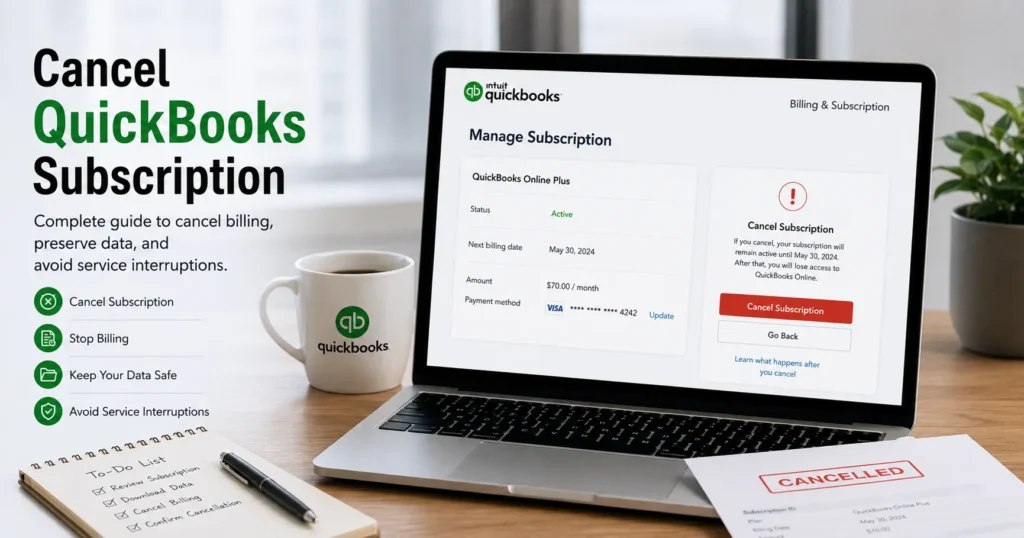
How to Cancel QuickBooks Online Subscription
Step 1: Sign In
Log in using administrator credentials.
Step 2: Open Account Settings
Navigate to:
Settings → Account and Settings
Step 3: Select Billing & Subscription
Review:
- Current plan
- Billing frequency
- Renewal date
Step 4: Choose Cancel Subscription
Select the cancellation option.
Step 5: Complete Verification
The system may request:
- Password confirmation
- Security verification
- Cancellation reason
Step 6: Confirm Cancellation
Review all information carefully before submitting.
Canceling QuickBooks Desktop Subscription
QuickBooks Desktop Plus and Enterprise subscriptions may require cancellation through subscription management portals.
Steps typically include:
- Sign into the customer account.
- Locate subscription management.
- Select active subscription.
- Choose cancellation.
- Confirm termination request.
Some plans may require additional verification.
Canceling QuickBooks Payroll Subscription
Payroll subscriptions require special attention because payroll records are often needed for years.
Before cancellation:
Download:
- Payroll summaries
- Tax forms
- Employee records
- W-2 forms
- 1099 forms
- Direct deposit reports
Failure to save payroll data can create future compliance challenges.
Canceling QuickBooks Payments
QuickBooks Payments users should review:
- Outstanding invoices
- Pending transactions
- Customer payment schedules
Canceling payment services may prevent:
- Online invoice payments
- Credit card processing
- ACH transfers
Ensure all transactions are completed before cancellation.
Canceling QuickBooks Time
QuickBooks Time users should export:
- Employee timesheets
- Attendance reports
- Scheduling records
- Payroll-related tracking data
Historical records may be needed later.
Common Reasons Cancellation Fails
Users occasionally encounter errors during cancellation.
Administrative Access Issues
Only authorized administrators can cancel subscriptions.
Outstanding Balances
Unpaid invoices may prevent cancellation.
Browser Problems
Cache and cookies sometimes interfere with account management.
Account Verification Problems
Incorrect login credentials can block cancellation requests.
Multiple Accounts
Users may attempt to cancel the wrong subscription.
How to Avoid Billing After Cancellation
One of the biggest concerns is recurring charges.
To avoid future billing:
Verify Cancellation Confirmation
Always save:
- Confirmation emails
- Cancellation receipts
- Reference numbers
Check Billing Statements
Review bank statements for several months after cancellation.
Remove Unused Payment Methods
Update billing settings if appropriate.
Keep Documentation
Maintain proof of cancellation.
Can You Reactivate a Canceled QuickBooks Subscription?
In many situations, yes.
Reactivation may allow:
- Restoration of company data
- Recovery of account settings
- Reconnection of services
- Access to historical records
Availability depends on:
- Subscription type
- Time since cancellation
- Data retention policies
How Long Is QuickBooks Data Retained?
Data retention periods vary.
Factors include:
- Product version
- Subscription plan
- Regulatory requirements
- Company policies
Businesses should not rely solely on retention policies.
Always create backups before canceling.
Best Practices Before Canceling QuickBooks
Export Company Data
Download:
- Profit and loss reports
- Balance sheets
- Customer lists
- Vendor lists
- Transaction history
Save Tax Documents
Store:
- Tax returns
- Payroll filings
- W-2 forms
- 1099 forms
Backup Company Files
Maintain secure copies of all accounting records.
Notify Internal Teams
Inform:
- Accountants
- Bookkeepers
- Payroll staff
- Financial managers
Complete Outstanding Transactions
Finish:
- Customer invoices
- Vendor payments
- Payroll processing
- Bank reconciliations
Risks of Canceling Without Preparation
Businesses that cancel without proper planning may face:
Missing Financial Records
Historical data may become difficult to access.
Payroll Reporting Challenges
Employee tax information may be unavailable when needed.
Audit Complications
Financial audits often require historical records.
Interrupted Operations
Integrated services may stop unexpectedly.
Customer Payment Problems
Online payment processing may be disrupted.
Alternatives to Canceling QuickBooks
Instead of canceling completely, consider:
Downgrading Plans
Move to a lower-cost subscription.
Removing Add-On Services
Cancel:
- Payroll
- Time Tracking
- Payments
while keeping core accounting features.
Seasonal Suspension
Some businesses reduce costs by adjusting services temporarily.
Consolidating Accounts
Eliminate duplicate subscriptions.
Signs It’s Time to Cancel
You may consider cancellation if:
- The business has closed.
- You no longer use QuickBooks.
- A different accounting platform better meets your needs.
- Subscription costs exceed business value.
- Financial management has shifted to another system.
Frequently Asked Questions
Will I lose my company data after canceling QuickBooks?
Not immediately in most cases, but access may become limited. Always export and back up data before cancellation.
Can I cancel QuickBooks at any time?
Most subscriptions can be canceled at any time, though billing terms may vary depending on the plan.
Does cancellation stop automatic billing?
Yes, after successful cancellation recurring billing should stop. Always verify through confirmation notices.
Can I reactivate my subscription later?
Many accounts can be reactivated, depending on product policies and retention periods.
What happens to payroll after cancellation?
Payroll services stop functioning, and users may lose access to certain payroll features. Save payroll reports beforehand.
Should I back up my QuickBooks data before canceling?
Absolutely. Backups protect financial records and ensure future access if needed.
Conclusion
Canceling a QuickBooks subscription is a significant business decision that should be approached carefully. Whether you’re switching accounting platforms, reducing software expenses, closing a business, or simply no longer requiring the service, proper planning can help prevent data loss, billing complications, payroll disruptions, and compliance issues.
Before canceling, export all critical reports, preserve payroll records, complete outstanding transactions, and save company backups. Verify cancellation confirmations and monitor billing statements to ensure recurring charges have stopped. Taking these precautions will help ensure a smooth transition while protecting valuable financial information and maintaining compliance with tax and recordkeeping requirements.
With the right preparation, businesses can confidently cancel QuickBooks subscriptions while preserving access to the accounting data needed for future reporting, audits, and financial management.