
Introduction
Microsoft OneDrive is one of the most popular cloud storage platforms used by individuals, businesses, schools, and enterprises worldwide. Integrated with Microsoft 365, OneDrive allows users to securely store, access, share, and synchronize files across multiple devices. Whether you’re working with documents, photos, videos, spreadsheets, or presentations, OneDrive makes it easy to keep data accessible from anywhere.
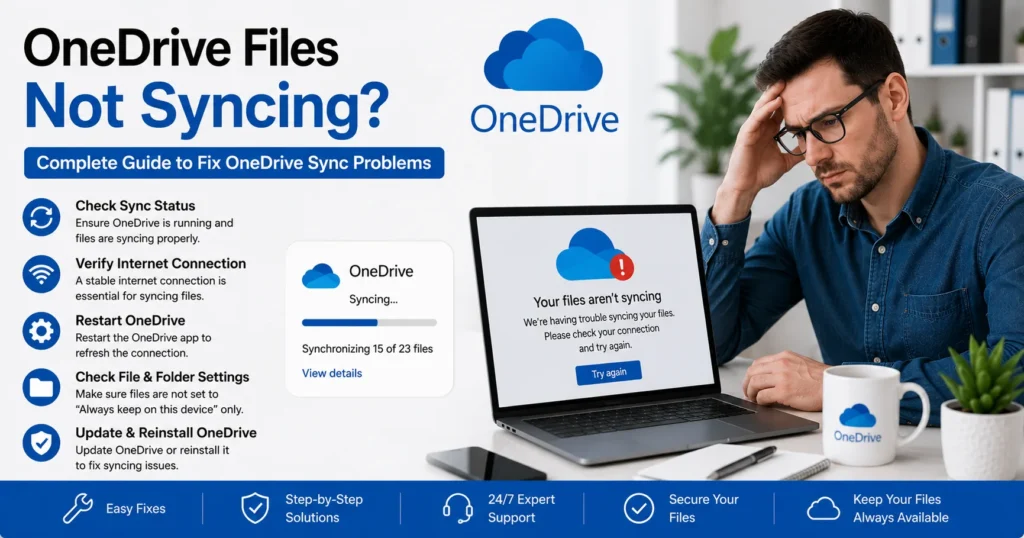
However, OneDrive synchronization issues can occasionally disrupt productivity. Users often report problems such as files not uploading, folders not updating, synchronization getting stuck, missing files, or OneDrive displaying sync error messages. When these issues occur, important documents may fail to update across devices, creating confusion and workflow interruptions.
If you’re searching for a reliable OneDrive files not syncing solution, this comprehensive guide will help you identify the root cause and apply proven fixes to restore proper synchronization.
Understanding OneDrive Sync Problems
OneDrive synchronization allows files stored locally on a device to stay updated with Microsoft’s cloud servers.
When syncing works correctly:
- Changes appear across devices automatically
- Files upload instantly
- Documents remain current
- Collaboration functions smoothly
When syncing fails, users may experience:
- Files not uploading
- Files not downloading
- Sync pending status
- Stuck synchronization
- Duplicate files
- Missing folders
- Error messages
- Delayed updates
Understanding the cause is the first step toward resolving the issue.
Common Signs That OneDrive Is Not Syncing
Before troubleshooting, identify the symptoms.
Files Not Uploading
Newly created files remain on the local device and never appear in OneDrive.
Files Not Downloading
Cloud files fail to download to the computer.
Sync Pending Error
OneDrive displays a continuous “Processing Changes” or “Sync Pending” status.
Missing Files
Documents appear on one device but not on another.
OneDrive Not Connected
The application shows:
- Not signed in
- Disconnected
- Can’t connect
- Connection lost
Slow Synchronization
Files eventually sync but take much longer than expected.
Why Are OneDrive Files Not Syncing?
Several factors can interrupt synchronization.
1. Poor Internet Connection
OneDrive relies on a stable internet connection.
Without reliable connectivity:
- Uploads fail
- Downloads stop
- Synchronization pauses
Common causes include:
- Weak Wi-Fi
- Router issues
- ISP disruptions
- VPN conflicts
2. OneDrive Not Running
Sometimes the OneDrive application closes unexpectedly.
If the sync client is not running:
- Files remain local
- Cloud updates stop
- Synchronization pauses indefinitely
3. Storage Space Limit Reached
OneDrive accounts have storage limits.
When storage becomes full:
- Uploads fail
- New files stop syncing
- Synchronization errors appear
This is particularly common in personal accounts with limited storage plans.
4. File Name Restrictions
OneDrive does not allow certain file names or characters.
Examples include:
- Invalid symbols
- Reserved characters
- Unsupported naming conventions
Files with restricted names may fail to sync.
5. File Size Limitations
Extremely large files can sometimes create synchronization challenges.
Large uploads may:
- Timeout
- Stall
- Remain pending
Slow internet connections worsen this issue.
6. Account Authentication Problems
OneDrive depends on Microsoft account authentication.
Issues may include:
- Expired passwords
- Sign-in failures
- Token expiration
- Multi-Factor Authentication problems
Authentication errors often stop synchronization completely.
7. Corrupted OneDrive Cache
The OneDrive client stores temporary data.
Corrupted cache files can cause:
- Sync loops
- Missing files
- Upload failures
- Download problems
8. Outdated OneDrive Application
Older versions of OneDrive may experience compatibility problems.
Common symptoms include:
- Frequent crashes
- Failed synchronization
- Missing updates
Microsoft regularly releases improvements and bug fixes.
9. Windows Update Issues
Operating system problems can interfere with OneDrive.
Examples include:
- Incomplete updates
- System file corruption
- Security conflicts
Keeping Windows updated is essential.
10. Antivirus and Firewall Restrictions
Security software occasionally blocks OneDrive communication.
This may prevent:
- Uploads
- Downloads
- Authentication
- Synchronization
Some security suites mistakenly identify OneDrive traffic as suspicious.
How to Fix OneDrive Files Not Syncing
Let’s explore the most effective solutions.
Solution 1: Verify Internet Connectivity
Check whether your internet connection is functioning properly.
Test Connectivity
Try:
- Opening websites
- Streaming videos
- Accessing Microsoft services
If internet performance is unstable, restart:
- Router
- Modem
- Computer
Then test OneDrive again.
Solution 2: Restart OneDrive
A simple restart often resolves temporary issues.
Steps
- Close OneDrive completely.
- Wait a few seconds.
- Reopen OneDrive.
- Allow synchronization to restart.
This refreshes the connection to Microsoft’s servers.
Solution 3: Check OneDrive Status
Verify whether OneDrive is actively running.
Look for the OneDrive icon in:
- Windows system tray
- Mac menu bar
If the icon is missing:
- Launch OneDrive manually
- Sign in if prompted
Solution 4: Pause and Resume Sync
Temporary sync interruptions can often be resolved by restarting synchronization.
Steps
- Open OneDrive settings.
- Pause syncing.
- Wait several minutes.
- Resume syncing.
This refreshes synchronization processes.
Solution 5: Sign Out and Sign Back In
Authentication problems frequently prevent syncing.
Steps
- Open OneDrive settings.
- Sign out of the account.
- Close OneDrive.
- Restart computer.
- Sign in again.
This refreshes account credentials.
Solution 6: Check Available Storage
Review OneDrive storage usage.
If Storage Is Full
Delete:
- Old files
- Duplicate content
- Unnecessary backups
Alternatively, upgrade your storage plan.
After freeing space, synchronization should resume.
Solution 7: Rename Problematic Files
Unsupported file names often block synchronization.
Avoid:
- Special characters
- Excessively long names
- Reserved symbols
Rename affected files and attempt synchronization again.
Solution 8: Close Open Files
OneDrive may struggle to sync files currently being edited.
Examples include:
- Word documents
- Excel spreadsheets
- PowerPoint presentations
Save and close files before syncing.
Solution 9: Reset OneDrive
Resetting OneDrive resolves many persistent issues.
Benefits
A reset can fix:
- Sync loops
- Upload failures
- Missing files
- Cache corruption
After resetting, OneDrive rebuilds synchronization settings automatically.
Solution 10: Update OneDrive
Keeping OneDrive updated is essential.
Check for Updates
Install:
- OneDrive updates
- Microsoft 365 updates
- Windows updates
New versions often resolve synchronization bugs.
Solution 11: Clear OneDrive Cache
Corrupted cache files can interfere with syncing.
Symptoms
- Processing changes indefinitely
- Missing updates
- Synchronization delays
Clearing cache forces OneDrive to rebuild synchronization data.
Solution 12: Disable Antivirus Temporarily
Security software occasionally blocks OneDrive.
Test Procedure
Temporarily disable:
- Real-time scanning
- Network monitoring
- Cloud protection features
Then test synchronization.
If syncing resumes, create exclusions for OneDrive.
Solution 13: Check Firewall Settings
Firewalls may block communication with Microsoft servers.
Ensure OneDrive is allowed through:
- Windows Firewall
- Corporate security appliances
- Third-party firewall software
Fix OneDrive Sync Pending Errors
One of the most common problems is the Sync Pending status.
Causes
- Large files
- Open documents
- Cache corruption
- Connectivity issues
Solutions
- Close files
- Restart OneDrive
- Clear cache
- Reset synchronization
These steps resolve most pending errors.
Fix OneDrive Upload Failures
When files won’t upload:
Verify
- Internet connection
- Storage availability
- File size
- File name restrictions
Additional Steps
- Sign out and sign back in
- Update OneDrive
- Reset application
Fix OneDrive Download Problems
Files may fail to download from the cloud.
Common Causes
- Authentication issues
- Storage limitations
- Connectivity problems
Recommended Fixes
- Reauthenticate account
- Verify internet access
- Restart OneDrive
Fix Missing OneDrive Files
Users occasionally report missing documents.
Check
- Recycle Bin
- OneDrive web version
- Shared folders
- Synchronization status
Many files are recoverable through OneDrive’s recovery features.
Fix OneDrive Not Syncing Shared Folders
Shared folders may encounter unique issues.
Verify Permissions
Ensure you have:
- Viewing permissions
- Editing permissions
- Access to the shared content
Permission changes frequently affect synchronization.
Fix OneDrive Sync Problems on Windows 11
Windows 11 users may experience:
- Authentication failures
- Update conflicts
- File Explorer integration issues
Recommended Actions
- Install Windows updates.
- Update OneDrive.
- Reset synchronization.
- Reauthenticate account.
Fix OneDrive Sync Problems on Windows 10
Windows 10 synchronization issues often involve:
- Cache corruption
- Authentication failures
- Network problems
Solutions include:
- Resetting OneDrive
- Updating software
- Removing stored credentials
Fix OneDrive Sync Problems on Mac
Mac users may encounter:
- Permission conflicts
- Outdated software
- Authentication problems
Solutions
- Update macOS
- Update OneDrive
- Reauthenticate account
- Reset OneDrive
OneDrive Business Sync Problems
Organizations using OneDrive for Business may face additional challenges.
Examples include:
- SharePoint integration issues
- Policy restrictions
- Storage quotas
- Conditional Access policies
IT administrators should verify organizational settings.
How Administrators Can Troubleshoot OneDrive Sync Issues
Administrators should review:
Microsoft 365 Service Health
Check for:
- Service outages
- Known synchronization problems
User Account Status
Verify:
- Active license
- OneDrive availability
- Account authentication
Security Policies
Review:
- Conditional Access
- MFA requirements
- Device compliance
Preventing Future OneDrive Sync Issues
Proactive maintenance improves reliability.
Keep OneDrive Updated
Install updates regularly.
Monitor Storage Usage
Avoid reaching storage limits.
Maintain Stable Internet
Reliable connectivity reduces synchronization failures.
Organize Files Properly
Use supported file names and folder structures.
Update Operating Systems
Maintain current versions of:
- Windows
- macOS
- Microsoft 365 Apps
Security Best Practices for OneDrive
Protecting your OneDrive account improves reliability and security.
Enable Multi-Factor Authentication
MFA helps secure cloud storage access.
Use Strong Passwords
Avoid weak or reused credentials.
Review Sign-In Activity
Monitor account access regularly.
Keep Recovery Information Updated
Maintain accurate:
- Phone numbers
- Email addresses
- Authentication methods
When to Contact Microsoft Support
Professional assistance may be necessary if:
- Files remain unsynced after troubleshooting
- OneDrive repeatedly crashes
- Authentication problems persist
- Shared folders fail to synchronize
- Enterprise-wide synchronization issues occur
Microsoft support can analyze logs and identify advanced synchronization problems.
Conclusion
OneDrive synchronization issues can arise from internet connectivity problems, authentication failures, storage limitations, cache corruption, outdated software, file restrictions, or security software conflicts. Fortunately, most problems can be resolved through systematic troubleshooting.
By verifying internet connectivity, restarting OneDrive, checking storage capacity, updating the application, resetting synchronization settings, and addressing authentication issues, users can restore normal file synchronization quickly. Regular maintenance, software updates, and proactive monitoring further reduce the likelihood of future OneDrive sync problems.
Whether you’re using OneDrive for personal storage, remote work, education, or enterprise collaboration, understanding how to troubleshoot and fix synchronization issues ensures your files remain accessible, secure, and consistently updated across all devices.