
Introduction
QuickBooks is designed to help businesses manage accounting, payroll, invoicing, and financial reporting efficiently. One of its most valuable features is Multi-User Mode, which allows multiple employees to work on the same company file simultaneously. However, when network communication breaks down, users may encounter the frustrating QuickBooks Error H202.
Error H202 is among the most common networking errors in QuickBooks Desktop. It typically occurs when a workstation cannot communicate with the server hosting the company file. As a result, users are unable to switch to Multi-User Mode or access company data stored on another computer.
This comprehensive guide explains everything you need to know about QuickBooks Error H202, including causes, symptoms, troubleshooting methods, advanced fixes, prevention strategies, and best practices for maintaining a stable multi-user environment.
What Is QuickBooks Error H202?
QuickBooks Error H202 belongs to the H-Series of hosting errors, which include:
- Error H101
- Error H202
- Error H303
- Error H505
These errors indicate that QuickBooks is unable to establish a connection to the server hosting the company file.
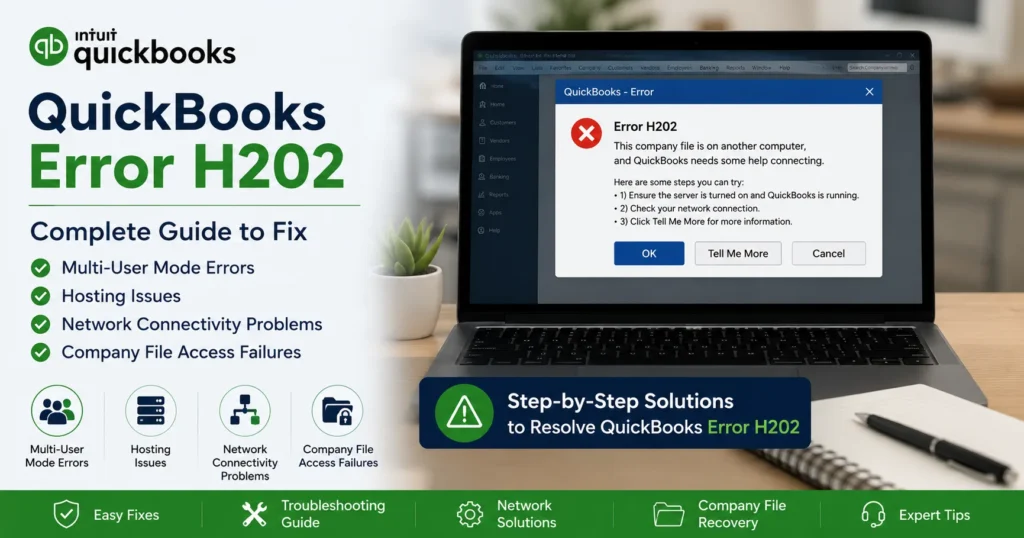
A typical error message may read:
“This company file is on another computer, and QuickBooks needs some help connecting.”
or
“Error Code H202: QuickBooks cannot reach the server.”
The error prevents users from accessing company files in Multi-User Mode, disrupting accounting workflows and collaboration.
Why Does QuickBooks Error H202 Occur?
Error H202 usually indicates a communication problem between the workstation and the server.
The issue may involve:
- Network configuration
- Firewall settings
- Hosting setup
- QuickBooks services
- DNS resolution
- Damaged network files
When QuickBooks cannot locate or communicate with the server, Error H202 appears.
Common Symptoms of QuickBooks Error H202
Users experiencing Error H202 often notice the following symptoms:
Inability to Access Company Files
Workstations cannot open files hosted on the server.
Multi-User Mode Failure
QuickBooks refuses to switch into Multi-User Mode.
Slow Performance
Company files take longer than usual to open.
Server Connection Errors
QuickBooks displays communication or hosting warnings.
Program Freezing
The software may become unresponsive while accessing shared files.
Network Interruptions
Frequent disconnections occur between workstations and the server.
Major Causes of QuickBooks Error H202
Understanding the root cause helps identify the appropriate solution.
1. Incorrect Hosting Configuration
Only the server should host the company file.
Error H202 often appears when:
- Multiple computers are hosting
- Workstations are configured as hosts
- Hosting settings conflict
2. Firewall Blocking QuickBooks
Security software can block communication between QuickBooks workstations and the server.
Blocked ports prevent:
- Database access
- File sharing
- Multi-user communication
3. QuickBooks Database Server Manager Issues
The Database Server Manager handles multi-user access.
If it:
- Stops running
- Is improperly configured
- Is outdated
QuickBooks may display Error H202.
4. DNS Configuration Problems
QuickBooks relies on network name resolution.
Problems occur when:
- Server names cannot be resolved
- DNS settings are incorrect
- Network mapping fails
5. Damaged Network Data Files
QuickBooks creates .ND files that store connection information.
Example:
CompanyFile.qbw.nd
If the file becomes damaged, QuickBooks may fail to locate the server.
6. Network Connectivity Issues
Communication failures may result from:
- Router issues
- Weak network infrastructure
- VPN conflicts
- Server downtime
Understanding the QuickBooks Hosting Environment
Before troubleshooting, it helps to understand how QuickBooks Multi-User Mode works.
Server Computer
Stores the company file and hosts QuickBooks Database Server Manager.
Workstations
Access the company file over the network.
Database Manager
Controls communication between users and company files.
If any component fails, Error H202 may occur.
Step-by-Step Solutions to Fix QuickBooks Error H202
Solution 1: Verify Hosting Settings
Incorrect hosting is one of the most common causes.
On Workstations
- Open QuickBooks.
- Click File.
- Select Utilities.
If you see:
Host Multi-User Access
Do not select it.
If you see:
Stop Hosting Multi-User Access
Click it.
Repeat on every workstation.
On Server
- Open QuickBooks.
- File → Utilities.
- Confirm:
Host Multi-User Access
is enabled.
Only the server should host the company file.
Solution 2: Run QuickBooks Database Server Manager
Steps
- Open QuickBooks Tool Hub.
- Select Network Issues.
- Launch Database Server Manager.
- Browse to company file location.
- Click Start Scan.
The scan:
- Repairs network settings
- Recreates ND files
- Updates hosting information
Solution 3: Test Network Connectivity
Verify that workstations can communicate with the server.
Open Command Prompt
Run:
ping ServerName
Example:
ping QBServer
Results should show successful replies.
If requests time out:
- Network issue exists
- Server may be unreachable
Solution 4: Check QuickBooks Services
The following services must be running:
QuickBooksDBXX
(Database version varies)
QBCFMonitorService
Steps
- Press Windows + R.
- Type:
services.msc
- Locate services.
- Ensure:
- Status = Running
- Startup Type = Automatic
Restart services if necessary.
Solution 5: Configure Firewall Exceptions
Windows Firewall often blocks QuickBooks communication.
Allow:
QBDBMgrN.exe
QuickBooks.exe
QBCFMonitorService.exe
Also open QuickBooks ports according to your version.
Common QuickBooks Ports
QuickBooks 2024
8019
56728
55378-55382
QuickBooks 2023
8019
56727
55373-55377
Verify the correct ports for your installed version.
Solution 6: Rename ND Files
Damaged ND files frequently cause Error H202.
Locate Company File Folder
Example:
CompanyFile.qbw.nd
Rename:
CompanyFile.qbw.nd.old
Open QuickBooks Database Server Manager and scan again.
A new ND file will be created automatically.
Solution 7: Use QuickBooks File Doctor
QuickBooks File Doctor is specifically designed to diagnose network issues.
Steps
- Open Tool Hub.
- Select Company File Issues.
- Launch File Doctor.
- Choose company file.
- Run scan.
The utility can repair:
- Network issues
- Company file corruption
- Hosting problems
Solution 8: Verify DNS Settings
QuickBooks relies on proper server name resolution.
Test DNS
Open Command Prompt:
ping ServerName
and
ping ServerIP
If IP works but hostname fails:
DNS configuration requires correction.
Solution 9: Add Server to Windows Hosts File
If DNS resolution fails:
Steps
- Open Notepad as Administrator.
- Open:
C:\Windows\System32\Drivers\Etc\Hosts
- Add:
192.168.1.100 QBServer
Save and restart workstation.
Solution 10: Disable Antivirus Temporarily
Certain antivirus programs interfere with QuickBooks communication.
Temporarily disable:
- Antivirus
- Endpoint protection
- Network security suites
Test QuickBooks afterward.
Advanced Troubleshooting for Persistent H202 Errors
Check Event Viewer
Windows Event Viewer may reveal hidden networking problems.
Look for:
- Database service failures
- Network disconnects
- Permission errors
Verify Folder Permissions
Users need full access to:
- Company file folders
- Shared directories
- QuickBooks data folders
Recommended permissions:
- Read
- Write
- Modify
Restart Database Services
Restart:
QuickBooksDBXX
QBCFMonitorService
Then reopen QuickBooks.
Recreate Shared Folder
If sharing settings become corrupted:
- Create a new folder.
- Move company file.
- Share folder.
- Grant permissions.
- Scan using Database Server Manager.
How to Prevent QuickBooks Error H202
Preventive maintenance significantly reduces recurring issues.
Keep QuickBooks Updated
Install:
- Maintenance releases
- Security patches
- Database Manager updates
Monitor Server Health
Check:
- Available disk space
- CPU usage
- RAM utilization
- Server uptime
Use Reliable Networking Equipment
Invest in:
- Business-grade routers
- Managed switches
- Quality cabling
Schedule Regular Backups
Backups protect against:
- Corruption
- Hardware failure
- Accidental deletion
Audit Firewall Rules
Review firewall exceptions after:
- Windows updates
- Security updates
- Antivirus upgrades
Frequently Asked Questions
What does QuickBooks Error H202 mean?
It indicates that QuickBooks cannot communicate with the server hosting the company file in a multi-user environment.
Is Error H202 a company file issue?
Not usually. It is generally a network or hosting configuration problem rather than a damaged company file.
Can QuickBooks File Doctor fix H202?
Yes. File Doctor can repair many network-related issues and is one of the first troubleshooting tools recommended.
Why does H202 happen only in Multi-User Mode?
Because the error is directly related to communication between workstations and the server hosting the company file.
Will reinstalling QuickBooks fix Error H202?
Sometimes, but only if the issue involves damaged QuickBooks components. Most H202 errors stem from networking or hosting settings.
Conclusion
QuickBooks Error H202 is one of the most common Multi-User Mode issues affecting businesses that share company files across a network. Although the error can interrupt workflow and prevent access to critical financial data, it is usually caused by identifiable problems such as incorrect hosting settings, firewall restrictions, damaged network files, DNS issues, or database service failures.
By systematically applying the troubleshooting steps outlined in this guide—including verifying hosting configurations, using QuickBooks Database Server Manager, repairing ND files, checking firewall settings, testing network connectivity, and maintaining server health—most users can resolve Error H202 quickly and restore normal multi-user operations.
A proactive approach that includes regular updates, reliable network infrastructure, routine backups, and periodic system audits can help ensure that QuickBooks remains stable, secure, and accessible for all users in your organization.