
Introduction
Microsoft OneDrive is one of the most popular cloud storage services available today. Integrated with Microsoft 365, Windows, and mobile devices, OneDrive enables users to store, share, access, and synchronize files seamlessly across multiple devices.
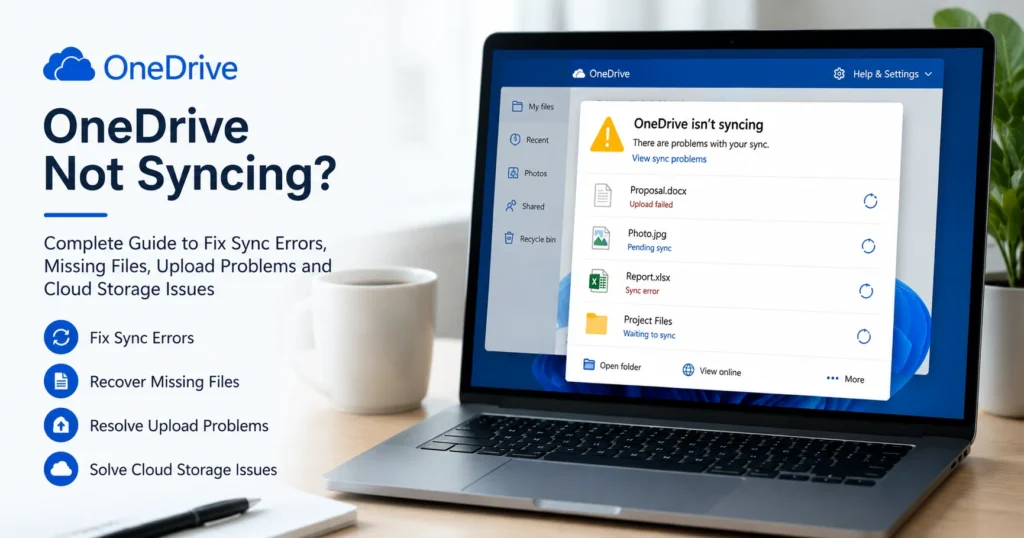
However, many users encounter a frustrating issue where OneDrive stops syncing files properly. When OneDrive fails to synchronize, files may not upload, changes may not appear across devices, folders may disappear, or synchronization may become stuck indefinitely.
If you’re experiencing OneDrive not syncing, this comprehensive guide will help you understand the causes, identify symptoms, and apply effective troubleshooting methods to restore normal operation.
What Does OneDrive Not Syncing Mean?
OneDrive synchronization allows files stored on your device to communicate with Microsoft’s cloud servers.
When synchronization stops working, changes made on one device fail to appear on others.
Examples include:
- Files not uploading
- Files not downloading
- Sync pending notifications
- Missing folders
- Duplicate documents
- Red X icons
- Cloud connection failures
- Stuck synchronization
- Delayed updates
The issue can affect personal OneDrive accounts, Microsoft 365 Business accounts, educational accounts, and enterprise environments.
Common Symptoms of OneDrive Not Syncing
Users report several indicators that synchronization has stopped functioning correctly.
Files Remain Stuck
Documents stay in a pending state.
Changes Do Not Update
Edited files never update across devices.
Upload Failures
Files fail to reach cloud storage.
Download Problems
Cloud files fail to appear locally.
Red Error Icons
OneDrive displays warning symbols.
Missing Documents
Files disappear unexpectedly.
Duplicate Versions
Multiple copies of the same document appear.
OneDrive Shows Sync Pending
Synchronization never completes.
Folder Synchronization Stops
Entire directories stop updating.
Cloud Connection Errors
OneDrive cannot connect to Microsoft servers.
Why Is OneDrive Not Syncing?
Several factors may interrupt synchronization.
Internet Connectivity Issues
OneDrive relies heavily on stable internet access.
Connection interruptions frequently stop syncing.
OneDrive Service Problems
Microsoft cloud services occasionally experience outages.
Authentication Failures
Account login problems interrupt synchronization.
Storage Quota Limits
Full storage prevents new uploads.
Corrupted OneDrive Cache
Damaged temporary files affect synchronization.
Unsupported File Names
Special characters may block syncing.
Software Bugs
Outdated OneDrive versions can contain synchronization defects.
Security Restrictions
Firewalls, VPNs, or antivirus software may interfere.
OneDrive Not Syncing Files
This is the most commonly reported synchronization problem.
Symptoms
- New files never upload
- Existing files never update
- Cloud changes do not appear locally
Possible Causes
Internet Instability
Network interruptions disrupt uploads.
Paused Synchronization
OneDrive may be paused unintentionally.
Account Disconnection
Microsoft account verification may fail.
Corrupted Configuration
Damaged settings can interrupt syncing.
Recommended Solutions
Verify Internet Connectivity
Check network reliability.
Resume OneDrive Sync
Confirm synchronization is enabled.
Restart OneDrive
Refresh background processes.
Reconnect Microsoft Account
Sign out and sign back in.
OneDrive Sync Pending Error
Many users see a “Sync Pending” notification that never disappears.
Why It Happens
Large File Uploads
Huge files require more processing time.
Unsupported File Formats
Certain file types may trigger errors.
Temporary Software Issues
Synchronization services become stuck.
Network Interruptions
Uploads fail midway.
How to Fix Sync Pending
Restart OneDrive
Refresh the synchronization queue.
Rename Problematic Files
Remove unsupported characters.
Reduce File Size
Split large files if possible.
Reboot Computer
Clear temporary system errors.
OneDrive Upload Problems
Users often find files refusing to upload.
Common Symptoms
- Upload never starts
- Upload freezes midway
- Upload repeatedly fails
Causes
Storage Full
Insufficient cloud storage.
Authentication Problems
Account access issues.
Unsupported File Names
Restricted naming conventions.
Internet Instability
Upload interruption.
Fixes
Check Available Storage
Ensure adequate space remains.
Verify Login Credentials
Reconnect account if necessary.
Retry Upload
Attempt synchronization again.
Update OneDrive Application
Install latest version.
OneDrive Download Problems
Sometimes files exist in the cloud but fail to download locally.
Symptoms
- Missing local files
- Cloud-only documents unavailable
- Downloads never complete
Common Causes
Network Connectivity Problems
Internet disruptions block downloads.
Corrupted Cache
Temporary files interfere with synchronization.
Storage Limitations
Local disk space may be insufficient.
Solutions
Check Available Disk Space
Ensure local storage exists.
Restart OneDrive
Refresh download services.
Clear Temporary Cache
Remove corrupted synchronization data.
Missing Files in OneDrive
Disappearing files can be alarming.
Why Files Seem Missing
Account Confusion
Users may log into the wrong account.
Accidental Deletion
Files may have been removed.
Sync Failure
Updates never reached the cloud.
Folder Deselection
Certain folders stop syncing.
Recovery Steps
Check OneDrive Online
Verify cloud contents.
Review Recycle Bin
Restore deleted files.
Verify Account
Confirm correct login credentials.
Restore Previous Versions
Recover earlier file copies.
OneDrive Sync Conflicts
Conflicts occur when multiple versions of the same file exist.
Symptoms
- Duplicate files appear
- Conflict copies created
- Multiple document versions exist
Common Causes
Simultaneous Editing
Multiple users modify files.
Offline Changes
Separate versions emerge.
Delayed Synchronization
Cloud updates arrive later.
Resolution Methods
Compare Versions
Determine most recent file.
Merge Changes
Combine edits manually.
Enable AutoSave
Reduce conflict likelihood.
OneDrive Red X Error
Red X icons indicate synchronization failure.
Causes
Missing Files
OneDrive cannot locate documents.
Permission Issues
Access rights may be insufficient.
Corrupted Sync Relationship
Synchronization metadata becomes damaged.
Solutions
Restart OneDrive
Refresh synchronization status.
Verify Permissions
Ensure account access.
Reconnect Folder
Rebuild synchronization links.
OneDrive Storage Limit Problems
When storage reaches capacity, synchronization stops.
Symptoms
- Upload failures
- Sync interruptions
- Storage warnings
Solutions
Remove Unnecessary Files
Free cloud storage space.
Empty Recycle Bin
Recover occupied capacity.
Purchase Additional Storage
Expand available space.
Archive Older Data
Reduce active storage usage.
OneDrive Not Syncing Shared Folders
Shared content occasionally stops synchronizing.
Causes
Permission Changes
Access may have been modified.
Ownership Updates
Folder settings may change.
Sync Configuration Errors
Shared folders may be deselected.
Solutions
Verify Sharing Permissions
Confirm continued access.
Re-add Shared Folder
Reconnect synchronization.
Contact Folder Owner
Request access verification.
OneDrive Slow Synchronization
Sometimes syncing works but performs extremely slowly.
Common Causes
Large Numbers of Files
Thousands of files require processing.
Bandwidth Restrictions
Slow internet connections reduce performance.
Resource Limitations
CPU or memory constraints affect synchronization.
Security Software
Antivirus scanning may delay uploads.
Solutions
Close Background Applications
Improve available resources.
Upgrade Internet Connection
Increase transfer speed.
Pause Large Transfers
Reduce simultaneous activity.
Schedule Sync During Off-Hours
Improve efficiency.
OneDrive Not Syncing After Windows Updates
Windows updates occasionally affect OneDrive.
Symptoms
- Sync stops suddenly
- Files remain pending
- OneDrive disconnects
Causes
Compatibility Changes
Updates modify system settings.
Network Driver Problems
Connectivity issues emerge.
Authentication Requirements
Users may need to sign in again.
Solutions
Reconnect Account
Refresh authentication.
Restart OneDrive
Restore services.
Install Additional Updates
Apply Microsoft fixes.
OneDrive Mobile Sync Problems
Mobile users frequently experience synchronization issues.
Symptoms
- Photos not uploading
- Files unavailable
- Delayed synchronization
Causes
Battery Optimization
Background sync is restricted.
Mobile Data Settings
Uploads may be disabled.
Insufficient Device Storage
Downloads fail.
Solutions
Enable Background Activity
Allow OneDrive to run continuously.
Connect to Wi-Fi
Improve reliability.
Update OneDrive App
Install latest version.
Advanced OneDrive Troubleshooting
When basic fixes fail, advanced troubleshooting may be required.
Reset OneDrive
Resetting clears corrupted synchronization settings.
Benefits include:
- Rebuilding synchronization databases
- Clearing corrupted cache
- Refreshing configuration
Reinstall OneDrive
A clean installation removes damaged files.
Clear Windows Credentials
Authentication problems often disappear.
Check Microsoft Service Health
Cloud outages occasionally affect synchronization.
Review Event Viewer Logs
Advanced diagnostics reveal hidden errors.
Preventing Future OneDrive Sync Issues
To maintain reliable synchronization:
Keep OneDrive Updated
Install updates promptly.
Maintain Stable Internet
Reliable connectivity improves syncing.
Monitor Storage Capacity
Avoid reaching limits.
Use Supported File Names
Prevent upload failures.
Verify Sync Status Regularly
Catch issues early.
Avoid Excessive Simultaneous Editing
Reduce synchronization conflicts.
Frequently Asked Questions
Why is OneDrive not syncing?
Common causes include internet issues, account authentication failures, storage limitations, corrupted cache, and software bugs.
How do I fix OneDrive sync pending errors?
Restart OneDrive, verify internet connectivity, rename problematic files, and reboot your device.
Why are files missing from OneDrive?
Files may be hidden due to sync failures, accidental deletion, incorrect account login, or folder deselection.
Does reinstalling OneDrive fix synchronization problems?
Yes. Reinstalling often resolves corrupted software components and configuration errors.
Why is OneDrive syncing so slowly?
Large file collections, limited bandwidth, antivirus scanning, and low system resources commonly affect performance.
Conclusion
OneDrive not syncing can disrupt productivity, collaboration, and access to important files. Whether you’re facing upload failures, download errors, sync pending notifications, duplicate files, missing folders, storage limitations, or cloud connection issues, identifying the root cause is the first step toward resolution.
Most synchronization problems can be fixed through account verification, connectivity checks, storage management, software updates, cache clearing, or reinstalling OneDrive. Businesses and individual users alike can improve reliability by maintaining updated systems, monitoring storage usage, and following synchronization best practices.
By applying the troubleshooting techniques outlined in this guide, users can restore normal OneDrive functionality, protect important data, and ensure seamless file synchronization across all devices and Microsoft 365 environments.