
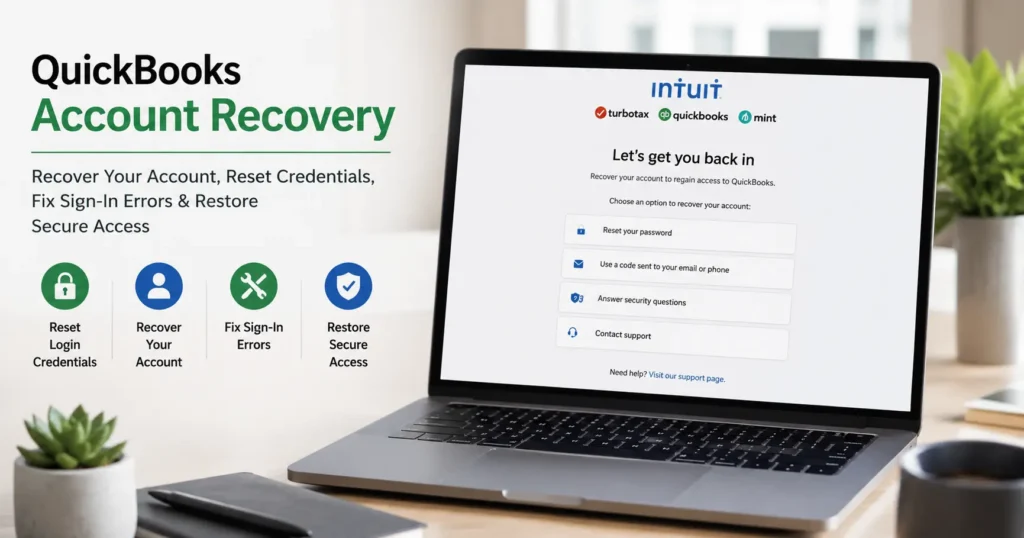
QuickBooks Account Recovery
Losing access to your QuickBooks account can be stressful, especially when your accounting data, payroll information, invoices, customer records, and financial reports depend on uninterrupted access. Whether you’ve forgotten your password, lost access to your registered email address, encountered repeated login failures, or been locked out due to security verification issues, QuickBooks account recovery options can help restore access quickly and securely.
This comprehensive guide explains how QuickBooks account recovery works, common reasons users lose access, recovery methods for QuickBooks Online and QuickBooks Desktop, password reset procedures, troubleshooting steps, and best practices for securing your account against future lockouts.
Understanding QuickBooks Account Recovery
QuickBooks account recovery refers to the process of restoring access to a QuickBooks account when a user cannot log in normally. Recovery methods are designed to verify ownership and protect sensitive financial information from unauthorized access.
Depending on the type of account involved, recovery options may include:
- Password reset verification
- Email-based recovery
- Phone verification
- Security challenge questions
- Administrator account verification
- Intuit account credential recovery
- Company file administrator recovery
- Multi-factor authentication verification
The exact recovery method depends on whether you’re using QuickBooks Online, QuickBooks Desktop, QuickBooks Enterprise, or an Intuit-connected service.
Common Reasons Users Need QuickBooks Account Recovery
Many users require account recovery for various reasons, including:
Forgotten Passwords
One of the most common issues is forgetting the account password after prolonged inactivity or multiple password changes.
Locked Accounts
Repeated failed login attempts may trigger temporary security lockouts designed to prevent unauthorized access.
Email Access Problems
Users often lose access to the email address associated with their Intuit account, making password recovery more difficult.
Multi-Factor Authentication Issues
Changes in phone numbers, lost devices, or authentication app failures may prevent successful verification.
Security Breaches
Suspicious account activity may trigger security measures that temporarily restrict access until identity verification is completed.
Company File Administrator Issues
QuickBooks Desktop users sometimes lose administrator credentials needed to access company files.
Browser and Cache Problems
Corrupted browser data or outdated authentication tokens can interfere with successful login attempts.
Signs That You Need QuickBooks Account Recovery
You may require account recovery if you encounter:
- Incorrect password messages
- User ID not recognized errors
- Security verification failures
- Administrator password issues
- Account locked notifications
- Two-factor authentication problems
- Missing verification emails
- Continuous login loops
- Unauthorized access warnings
Identifying the specific issue helps determine the most effective recovery solution.
How to Recover a QuickBooks Online Account
QuickBooks Online relies on Intuit account credentials for authentication. Recovery generally follows a secure identity verification process.
Step 1: Navigate to the Sign-In Page
Visit the QuickBooks Online login portal and select the option indicating that you’ve forgotten your password or cannot access your account.
Step 2: Enter Account Information
Provide one of the following:
- User ID
- Registered email address
- Phone number associated with the account
The system will attempt to identify your account.
Step 3: Complete Verification
Depending on your account settings, verification may occur through:
- Email confirmation
- SMS verification code
- Authentication application
- Security questions
Step 4: Create a New Password
Once verification succeeds:
- Choose a strong password
- Avoid previous passwords
- Use uppercase and lowercase letters
- Include numbers and symbols
Step 5: Sign In Again
Use your updated credentials to regain access to your QuickBooks account.
Recovering a QuickBooks Desktop Administrator Account
QuickBooks Desktop uses a different recovery process because credentials may be stored locally.
Verify Company Information
Before initiating recovery, gather:
- Company name
- License number
- Contact details
- Registered business information
Administrator Recovery Process
The administrator recovery system validates ownership by matching company information against registration records.
After successful verification, a temporary recovery credential or reset process may be provided.
Access Restoration
Once access is restored:
- Update administrator credentials immediately
- Create backup administrator access methods
- Store credentials securely
What to Do If Verification Emails Never Arrive
Missing verification emails are a common obstacle during account recovery.
Check Spam and Junk Folders
Many recovery emails are filtered incorrectly.
Verify Email Address Accuracy
Ensure the account is associated with the correct email address.
Add Safe Sender Rules
Whitelisting trusted domains may improve email delivery.
Wait for System Delays
High traffic periods occasionally delay delivery of verification messages.
Request a New Verification Link
Generating a new verification request often resolves temporary delivery issues.
Recovering Access Without Email Availability
Sometimes users lose access to their registered email accounts.
Possible alternatives include:
- Phone-based verification
- Identity confirmation procedures
- Account ownership validation
- Administrative verification processes
If alternative methods are available, they can provide a path to account recovery without relying on email access.
Fixing QuickBooks Password Errors
Password-related issues often prevent successful account access.
Common Password Errors
Examples include:
- Incorrect password
- Invalid credentials
- Authentication failed
- Password expired
- Security restrictions applied
Recommended Solutions
- Reset credentials
- Update browser settings
- Clear cache and cookies
- Verify keyboard settings
- Confirm account ownership
- Complete security verification
Resolving Account Lockouts
Account lockouts typically occur after repeated unsuccessful login attempts.
Immediate Steps
- Stop entering passwords repeatedly
- Wait for temporary restrictions to expire
- Initiate password recovery if necessary
Prevent Future Lockouts
- Use password managers
- Enable secure credential storage
- Update passwords regularly
- Avoid sharing login information
Multi-Factor Authentication Recovery
Multi-factor authentication improves account security but can complicate access if verification devices become unavailable.
Lost Phone Recovery
If your authentication device is unavailable:
- Use backup verification methods
- Update account recovery settings
- Verify ownership through alternate channels
Authentication App Issues
Synchronization problems with authentication applications can often be resolved by:
- Updating the app
- Re-syncing account settings
- Generating new verification credentials
How to Secure Your QuickBooks Account After Recovery
Regaining access is only the first step. Improving security reduces future risks.
Create Strong Passwords
A secure password should include:
- Uppercase letters
- Lowercase letters
- Numbers
- Special characters
- Unique combinations
Enable Multi-Factor Authentication
Additional verification significantly improves protection against unauthorized access.
Review Account Activity
Check for:
- Unknown logins
- Unauthorized changes
- Suspicious devices
- Security alerts
Update Recovery Information
Ensure your:
- Email address is current
- Phone number is accurate
- Backup recovery options are active
QuickBooks Account Recovery Best Practices
Organizations and individuals can reduce account recovery issues by following proven best practices.
Maintain Updated Contact Information
Outdated contact details are one of the leading causes of failed recovery attempts.
Document Administrative Access
Businesses should maintain records of authorized administrators.
Perform Regular Credential Reviews
Periodic password updates help maintain account security.
Use Dedicated Business Email Accounts
Business-specific email addresses improve continuity and recovery reliability.
Create Secure Credential Backups
Store recovery information in secure locations accessible to authorized personnel.
Frequently Asked Questions
How long does QuickBooks account recovery take?
Most recovery processes can be completed within minutes, although additional verification may extend the timeframe.
Can I recover my account if I forgot both my password and user ID?
Yes. Alternative account identifiers such as email addresses or phone numbers may help locate your account.
Why is my account still inaccessible after resetting my password?
Browser issues, authentication settings, or additional security requirements may prevent immediate access.
Can administrator accounts be recovered?
Yes. Administrator recovery options exist for verified account owners who can confirm ownership details.
Is account recovery secure?
Recovery systems are designed to verify identity and protect sensitive business information from unauthorized access.
Conclusion
QuickBooks account recovery is an essential process for restoring access to critical accounting and financial data when login issues occur. Whether you’re dealing with forgotten passwords, administrator access problems, security verification challenges, or account lockouts, following a structured recovery process can help restore access safely and efficiently.
Maintaining updated recovery information, implementing strong security practices, enabling multi-factor authentication, and regularly reviewing account settings can significantly reduce the likelihood of future access issues. By understanding the available recovery methods and acting promptly when problems arise, users can regain access quickly while keeping their financial information secure.