
Introduction
QuickBooks updates are designed to improve security, enhance performance, add new features, and fix existing software bugs. However, many users encounter an unexpected problem after installing an update: QuickBooks starts crashing, freezing, or closing unexpectedly.
Whether QuickBooks crashes immediately after launch, freezes while opening a company file, shuts down during payroll processing, or becomes unstable after an update, these issues can significantly disrupt business operations and prevent access to critical accounting data.
Update-related crashes can occur because of compatibility issues, damaged update files, incomplete installations, corrupted company data, Windows conflicts, outdated components, or third-party software interference.
This comprehensive guide explains why QuickBooks crashes after updates, common symptoms, troubleshooting methods, recovery options, and preventive measures to restore stable software performance.
What Does “QuickBooks Crashing After Update” Mean?
A QuickBooks crash occurs when the software unexpectedly closes, freezes, stops responding, or terminates during use following an update installation.
These crashes may occur:
- Immediately after updating
- During startup
- While opening company files
- During payroll processing
- During report generation
- While accessing multi-user environments
In many cases, the update itself is not defective but exposes underlying system or configuration issues.
Common Signs of QuickBooks Crashing After Update
Users often report the following symptoms:
Software Closes Unexpectedly
QuickBooks launches and immediately shuts down.
Freezing During Startup
The application becomes unresponsive while loading.
Company File Won’t Open
QuickBooks crashes when attempting to access company data.
Blank Screen Issues
A white or black screen appears before crashing.
Error Messages Appear
Users may receive various QuickBooks error codes.
Frequent Random Crashes
The software closes unexpectedly during normal operations.
Payroll Module Failures
Payroll processing triggers software crashes.
Why Does QuickBooks Crash After an Update?
Several factors can contribute to post-update instability.
Corrupted Update Installation
Damaged update files may affect software functionality.
Incomplete Update Process
Interrupted installations frequently create instability.
Windows Compatibility Issues
Recent Windows updates may conflict with QuickBooks.
Damaged Company Files
Corrupted company files can trigger crashes after updates.
Outdated Drivers
Graphics and system drivers may affect performance.
Microsoft Component Issues
QuickBooks relies on:
- .NET Framework
- MSXML
- Visual C++
components.
Antivirus Interference
Security software can block QuickBooks processes.
Common Error Messages Associated with Crashes
Users may encounter:
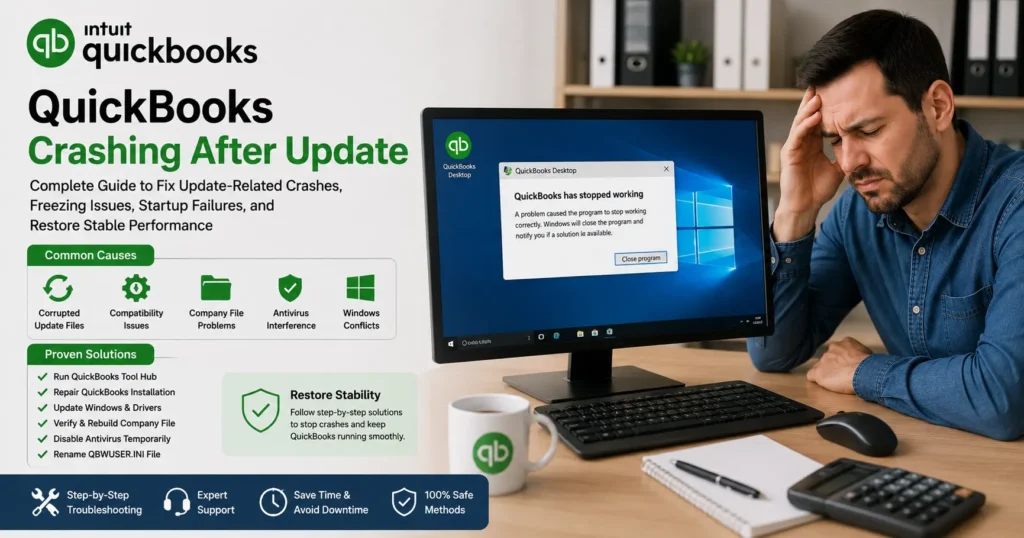
QuickBooks Has Stopped Working
A common Windows crash notification.
Unrecoverable Error
Unexpected system failures.
QuickBooks Not Responding
The software freezes indefinitely.
Fatal Application Error
Critical program failure.
Company File Errors
Crashes while loading accounting data.
Solution 1: Restart the Computer
Before attempting advanced repairs:
- Save work
- Restart Windows
- Relaunch QuickBooks
This resolves temporary conflicts and memory issues.
Solution 2: Open QuickBooks Without a Company File
Testing startup behavior helps isolate the issue.
Steps
Hold the CTRL key.
Launch QuickBooks.
Continue holding CTRL until the No Company Open window appears.
Results
If QuickBooks opens successfully:
The company file may be damaged.
If it crashes:
The software installation may be affected.
Solution 3: Update QuickBooks Again
Occasionally update files install incorrectly.
Recommended Action
Download the latest maintenance release.
Install all available patches.
Benefits
New releases often fix update-related bugs.
Solution 4: Repair QuickBooks Installation
Program files may become damaged.
Repair Process
Open:
Control Panel → Programs and Features
Select:
QuickBooks → Repair
Restart the system afterward.
Solution 5: Run QuickBooks Tool Hub
QuickBooks Tool Hub provides several repair utilities.
Tools Available
- Program Problems Tool
- Quick Fix My Program
- Company File Repair
- Installation Diagnostics
Benefits
Automated repairs often resolve crash-related issues.
Solution 6: Check Company File Integrity
Corrupted data files frequently cause crashes.
Indicators
- Crashes only occur with one company file
- Other files open normally
Recommended Actions
Use:
- Verify Data
- Rebuild Data
to identify and repair corruption.
Solution 7: Disable Antivirus Temporarily
Security software sometimes blocks QuickBooks operations.
Test Procedure
Temporarily disable antivirus protection.
Open QuickBooks.
If crashes stop:
Create QuickBooks exceptions within security software.
Solution 8: Update Windows
Outdated Windows components can trigger software instability.
Install Updates
Navigate to:
Settings → Windows Update
Install:
- Security updates
- Feature updates
- Optional updates
Benefits
Updated components improve compatibility.
Solution 9: Repair Microsoft .NET Framework
QuickBooks relies heavily on .NET Framework.
Common Symptoms
- Startup crashes
- Random shutdowns
- Installation failures
Resolution
Repair or reinstall affected .NET components.
Solution 10: Rename QBWUSER.INI File
Configuration files occasionally become corrupted.
Procedure
Locate:
QBWUSER.INI
Rename it.
Restart QuickBooks.
Result
QuickBooks automatically creates a fresh configuration file.
Solution 11: Create a New Windows User Profile
Corrupted Windows profiles may affect QuickBooks.
Test
Create a new administrator account.
Launch QuickBooks.
Outcome
Successful operation suggests profile corruption.
Solution 12: Reinstall QuickBooks
If crashes continue:
A clean reinstall may be required.
Benefits
Removes:
- Corrupted files
- Incorrect settings
- Damaged components
Recommended When
- Repairs fail
- Crashes persist
- Multiple files are affected
Multi-User Crash Issues After Updates
Network environments may experience additional challenges.
Common Causes
- Hosting conflicts
- Database server issues
- Firewall restrictions
- Connectivity failures
Resolution
Verify server configuration and hosting settings.
Payroll Crashes After Updating
Payroll users often encounter update-related issues.
Symptoms
- Payroll processing crashes
- Tax table update failures
- Employee center freezes
Recommended Actions
Update payroll components and verify subscription status.
Hardware-Related Causes
Sometimes hardware contributes to crashes.
Insufficient RAM
Limited memory can affect stability.
Storage Problems
Failing drives may corrupt files.
Overheating
Thermal issues can trigger shutdowns.
Graphics Driver Conflicts
Display-related crashes may occur.
Data Protection During Crash Recovery
Before making major changes:
Create Backups
Protect company data.
Copy Company Files
Maintain recovery options.
Document Error Messages
Assist troubleshooting efforts.
How to Prevent Future Crashes
Preventive maintenance significantly reduces risk.
Keep QuickBooks Updated
Install maintenance releases regularly.
Maintain Windows Updates
Keep system components current.
Monitor Hardware Health
Check storage and memory performance.
Use Reliable Antivirus Software
Avoid overly aggressive security tools.
Maintain Backups
Regular backups protect against corruption.
Train Employees
Proper usage reduces accidental damage.
Frequently Asked Questions
Why is QuickBooks crashing after an update?
Common causes include corrupted updates, damaged company files, Windows compatibility problems, antivirus interference, and outdated system components.
Can a QuickBooks update corrupt company files?
Although uncommon, interrupted updates may expose existing file issues or contribute to corruption.
Will reinstalling QuickBooks stop crashes?
In many cases, a clean installation resolves persistent update-related crashes.
Can antivirus software cause QuickBooks crashes?
Yes. Security applications may interfere with QuickBooks processes.
How do I know if my company file is damaged?
If QuickBooks crashes only when opening a specific file, corruption may be present.
Best Practices for Maintaining QuickBooks Stability
Businesses should implement:
Scheduled Backups
Protect financial records.
Routine Maintenance
Reduce software conflicts.
Hardware Monitoring
Identify problems early.
Employee Training
Promote proper software usage.
Software Updates
Maintain compatibility and security.
Conclusion
QuickBooks crashing after an update can be caused by corrupted update files, damaged company data, Windows compatibility issues, antivirus conflicts, outdated components, or hardware problems.
Fortunately, most crashes can be resolved through systematic troubleshooting, including repairing QuickBooks, updating Windows, repairing Microsoft components, validating company files, using QuickBooks Tool Hub, and maintaining healthy system configurations.
By following the solutions and preventive measures outlined in this guide, users can restore QuickBooks stability, protect valuable accounting data, and ensure smooth financial operations after future updates.