
Introduction
Bank reconciliation is one of the most important accounting tasks for any business using QuickBooks. Reconciling your bank account ensures that the transactions recorded in QuickBooks match the transactions appearing on your bank statement. When performed regularly, reconciliation helps identify missing transactions, duplicate entries, bank errors, unauthorized charges, and bookkeeping mistakes before they become major financial issues.
Many QuickBooks users encounter challenges during reconciliation, including beginning balance discrepancies, uncleared transactions, duplicate entries, incorrect deposits, and reconciliation reports that don’t balance. Understanding how the reconciliation process works can help you maintain accurate financial records and make informed business decisions.
This comprehensive guide explains everything you need to know about reconciling a bank account in QuickBooks, including setup procedures, reconciliation steps, common errors, troubleshooting methods, and best practices.
What Is Bank Reconciliation in QuickBooks?
Bank reconciliation is the process of comparing your QuickBooks records against your bank statement to ensure both balances match.
The goal is to verify:
- Every bank transaction is recorded in QuickBooks.
- No transactions are missing.
- No duplicate entries exist.
- Bank fees and interest are properly recorded.
- Financial reports remain accurate.
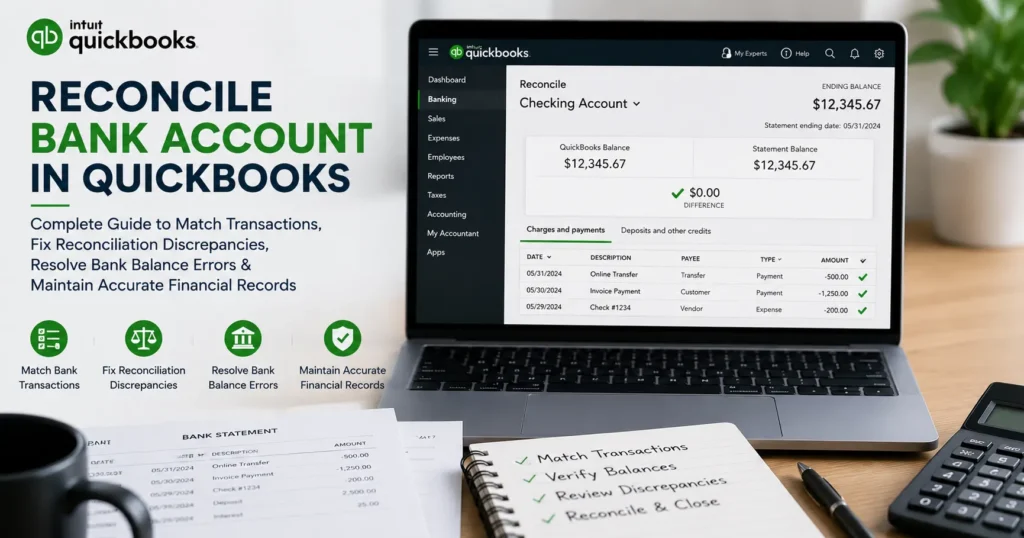
When reconciliation is complete, the difference between QuickBooks and your bank statement should be zero.
Why Bank Reconciliation Is Important
Regular reconciliation provides several benefits:
Detect Errors Quickly
Reconciliation helps identify:
- Duplicate transactions
- Missing entries
- Incorrect amounts
- Data entry mistakes
Prevent Fraud
Unexpected withdrawals or unauthorized transactions become easier to detect.
Improve Financial Accuracy
Accurate bookkeeping supports:
- Tax preparation
- Financial reporting
- Cash flow analysis
- Business planning
Maintain Audit Readiness
Well-reconciled accounts make audits easier and reduce compliance risks.
Signs Your Bank Account Needs Reconciliation
You should reconcile your account if you notice:
- Bank balances don’t match QuickBooks.
- Financial reports seem inaccurate.
- Missing deposits or withdrawals.
- Duplicate transactions.
- Outstanding checks remain unresolved.
- Reconciliation reports show discrepancies.
Information Needed Before Reconciling
Before beginning reconciliation, gather:
Bank Statement
You will need:
- Statement ending date
- Beginning balance
- Ending balance
QuickBooks Access
Ensure you have:
- Administrator or accounting permissions
- Current company file access
Transaction Records
Verify all:
- Deposits
- Withdrawals
- Transfers
- Bank charges
- Interest income
have been entered into QuickBooks.
How Reconciliation Works
QuickBooks compares transactions recorded in your books with transactions listed on your bank statement.
For each transaction, you verify:
- Date
- Amount
- Transaction type
- Reference information
Matching transactions are marked as cleared.
Once all items are cleared and balances match, reconciliation is completed.
How to Reconcile a Bank Account in QuickBooks Desktop
Step 1: Open Reconciliation Window
- Open QuickBooks Desktop.
- Navigate to Banking.
- Select Reconcile.
Step 2: Select Account
Choose the bank account you want to reconcile.
Verify:
- Beginning balance
- Statement date
- Ending balance
Enter information exactly as shown on your bank statement.
Step 3: Review Beginning Balance
The beginning balance should match the ending balance from your previous reconciliation.
If it doesn’t:
- A prior transaction may have been modified.
- A previously reconciled entry may have been deleted.
Investigate before proceeding.
Step 4: Enter Service Charges
If applicable, record:
- Monthly bank fees
- Maintenance charges
- Other service fees
QuickBooks allows you to enter these directly during reconciliation.
Step 5: Enter Interest Earned
Record:
- Interest income
- Savings account earnings
- Investment account interest
Step 6: Match Transactions
Compare each transaction against your bank statement.
Check:
- Deposits
- Checks
- Transfers
- Electronic payments
- ATM withdrawals
Mark transactions that appear on the statement.
Step 7: Verify Difference Amount
As transactions are marked cleared:
Difference = Statement Balance – Cleared Balance
Goal:
Difference = $0.00
Step 8: Complete Reconciliation
Once the difference reaches zero:
Click:
Finish Now
QuickBooks generates a reconciliation report.
How to Reconcile Bank Accounts in QuickBooks Online
Access Reconciliation
- Select Settings.
- Choose Reconcile.
- Select the account.
Enter Statement Information
Input:
- Ending balance
- Ending date
Review Transactions
QuickBooks displays:
- Payments
- Deposits
- Transfers
Mark cleared transactions.
Complete Reconciliation
When the difference equals zero:
Select Finish Now.
Understanding Cleared and Reconciled Transactions
Cleared Transactions
A cleared transaction has appeared on the bank statement.
Reconciled Transactions
A reconciled transaction has been verified and finalized through reconciliation.
QuickBooks marks reconciled transactions with an “R”.
Common Reconciliation Problems
Many users encounter reconciliation errors.
Let’s examine the most common issues.
Beginning Balance Doesn’t Match
This is among the most frequent reconciliation problems.
Causes
- Deleted reconciled transaction
- Modified transaction amount
- Changed transaction date
- Data corruption
Solution
Run a reconciliation discrepancy report.
Review:
- Edited transactions
- Deleted transactions
- Audit logs
Restore original values when possible.
Missing Transactions
Missing entries can prevent balances from matching.
Causes
- Unrecorded deposits
- Forgotten withdrawals
- Missing bank charges
Solution
Compare:
- Bank statement
- QuickBooks register
Add missing transactions.
Duplicate Transactions
Duplicates often occur when:
- Transactions are imported twice
- Manual and downloaded entries coexist
Symptoms
- Balance too high
- Reconciliation differences
Solution
Identify duplicates and remove incorrect entries.
Incorrect Transaction Amounts
Even a small error can affect reconciliation.
Example:
Bank statement: $1,250
QuickBooks: $1,205
Difference: $45
Review each transaction carefully.
Outstanding Checks
Checks written but not yet cashed remain outstanding.
Impact
They appear in QuickBooks but not on the bank statement.
Recommendation
Monitor old outstanding checks and investigate if they remain uncleared for long periods.
Deposits in Transit
A deposit may appear in QuickBooks before reaching the bank statement.
These are known as deposits in transit.
Such transactions should remain unchecked during reconciliation until they appear on future statements.
Bank Statement Errors
Although uncommon, banks occasionally make mistakes.
Examples include:
- Incorrect transaction amounts
- Duplicate charges
- Missing deposits
Contact your bank if you identify discrepancies.
Reconciliation Difference Isn’t Zero
If the difference remains non-zero:
Check Transaction Dates
Transactions may belong to another statement period.
Verify Amounts
Review each amount carefully.
Search for Missing Entries
Compare line-by-line against the statement.
Review Previously Reconciled Transactions
Changes to historical transactions can create discrepancies.
How to Find Reconciliation Discrepancies
QuickBooks provides several reports.
Reconciliation Discrepancy Report
Shows:
- Changed transactions
- Deleted entries
- Modified reconciled transactions
Audit Trail Report
Tracks:
- User activity
- Transaction modifications
- Deletions
Useful for identifying balance changes.
Missing Checks Report
Highlights checks not yet cleared.
Transaction Detail Report
Provides detailed transaction history for investigation.
Fixing Reconciliation Errors
Restore Deleted Transactions
Re-enter deleted transactions using original details.
Correct Transaction Dates
Ensure dates match bank records.
Correct Amount Errors
Adjust incorrect values to match statements.
Reconcile Again
After corrections:
Run reconciliation again until differences equal zero.
Undoing a Reconciliation
Sometimes reconciliation was completed incorrectly.
QuickBooks Online Accountant users may undo reconciliations directly.
For QuickBooks Desktop:
- Manually remove reconciliation status
- Or restore a backup
Use caution when modifying historical reconciliations.
Monthly Reconciliation Best Practices
Reconcile Every Month
Monthly reconciliation prevents errors from accumulating.
Avoid Backdating Transactions
Backdated entries can create future discrepancies.
Review Bank Feeds Regularly
Downloaded transactions should be categorized promptly.
Keep Supporting Documentation
Maintain:
- Bank statements
- Deposit records
- Receipts
- Check copies
Backup QuickBooks Frequently
Backups provide protection against data corruption and accidental changes.
Reconciling Credit Card Accounts
The process is similar to bank reconciliation.
Compare:
- Credit card statement
- QuickBooks credit card register
Verify:
- Purchases
- Payments
- Refunds
- Fees
- Interest charges
Benefits of Regular Reconciliation
Businesses that reconcile regularly experience:
Improved Accuracy
Financial reports remain reliable.
Better Cash Flow Visibility
Know exactly how much money is available.
Faster Tax Preparation
Accurate records reduce tax season stress.
Reduced Fraud Risk
Unauthorized transactions become easier to identify.
Stronger Financial Control
Management gains confidence in reported numbers.
Advanced Reconciliation Tips
Use Bank Feeds
Automatic transaction downloads reduce manual entry errors.
Separate Duties
Have different employees:
- Enter transactions
- Perform reconciliations
This improves internal controls.
Review Historical Reconciliations
Occasional reviews help detect previously overlooked issues.
Monitor Unusual Transactions
Large or unexpected transactions should always be investigated.
When to Contact QuickBooks Support
Professional assistance may be necessary if:
- Reconciliation discrepancies cannot be identified.
- Beginning balance errors persist.
- Reconciliation reports appear corrupted.
- Bank feeds import incorrect data.
- Company file damage affects accounting records.
- Historical reconciliations were accidentally altered.
Support specialists can analyze transaction history, identify discrepancies, and help restore accurate financial records.
Frequently Asked Questions
How often should I reconcile my bank account in QuickBooks?
Most businesses should reconcile monthly when bank statements become available.
What happens if I don’t reconcile?
Unreconciled accounts may contain errors, duplicate entries, missing transactions, and inaccurate balances.
Why is my beginning balance incorrect?
A previously reconciled transaction may have been modified, deleted, or corrupted.
Can I undo a reconciliation?
Yes. Depending on your QuickBooks version, you can undo reconciliations or manually adjust transaction statuses.
What should the reconciliation difference be?
The difference should always be zero before completing reconciliation.
Are bank feeds enough without reconciliation?
No. Bank feeds help import transactions but do not replace formal reconciliation.
Conclusion
Reconciling a bank account in QuickBooks is an essential accounting practice that ensures your books accurately reflect your bank activity. Regular reconciliation helps detect errors, prevent fraud, improve reporting accuracy, simplify tax preparation, and maintain confidence in your financial records.
By understanding the reconciliation process, reviewing transactions carefully, correcting discrepancies promptly, and following best practices, businesses can maintain clean books, reduce accounting errors, and make better financial decisions. Whether you use QuickBooks Desktop or QuickBooks Online, consistent bank reconciliation remains one of the most valuable habits for long-term financial success.