
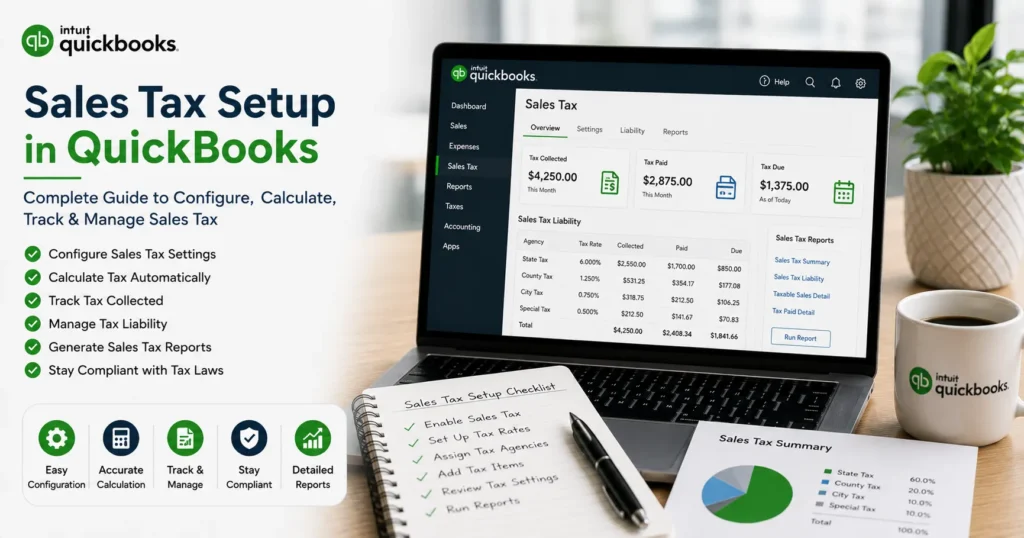
Introduction
Sales tax management is one of the most important responsibilities for businesses that sell products or taxable services. Incorrect tax calculations can lead to penalties, compliance issues, inaccurate financial reporting, and costly audits. Fortunately, QuickBooks offers powerful tools to help businesses automate tax calculations, track liabilities, and simplify tax filing.
Whether you’re starting a new company, migrating to QuickBooks, or updating existing tax settings, understanding proper Sales Tax Setup is essential for maintaining accurate books and meeting regulatory requirements.
This comprehensive guide explains everything you need to know about setting up sales tax in QuickBooks, including tax agencies, tax rates, tax codes, automated calculations, reporting, troubleshooting, and best practices.
What Is Sales Tax?
Sales tax is a government-imposed tax collected by businesses on taxable goods and services sold to customers.
Businesses collect sales tax on behalf of government agencies and periodically remit those funds according to local regulations.
Sales tax requirements vary based on:
- State
- Province
- County
- City
- Industry
- Product type
- Customer location
Because tax rules differ across jurisdictions, proper setup is critical.
Why Proper Sales Tax Setup Matters
Many businesses underestimate the importance of accurate tax configuration.
Improper setup can result in:
- Underpayment of taxes
- Overcollection of taxes
- Customer billing errors
- Tax penalties
- Compliance violations
- Audit risks
- Incorrect financial reports
A properly configured tax system ensures accurate calculations and reduces administrative burden.
Understanding Sales Tax in QuickBooks
QuickBooks provides tools that help businesses:
- Calculate sales tax automatically
- Track tax liabilities
- Generate tax reports
- Manage multiple tax jurisdictions
- Prepare tax filings
- Monitor tax payments
The system is designed to reduce manual calculations and improve accuracy.
Who Needs Sales Tax Setup?
Sales tax setup is important for:
Retail Businesses
Stores selling taxable goods must collect sales tax from customers.
E-Commerce Businesses
Online sellers often have tax obligations in multiple jurisdictions.
Service Providers
Many service-based businesses must collect tax depending on local laws.
Contractors
Construction and contracting companies may have complex sales tax requirements.
Manufacturers
Manufacturing businesses frequently manage multiple tax categories.
Before Configuring Sales Tax
Gather essential information before beginning setup.
Business Tax Information
Collect:
- Tax registration numbers
- State permits
- Local tax permits
- Federal identification numbers
Tax Agency Details
Identify agencies responsible for tax collection.
Examples include:
- State tax departments
- Provincial revenue agencies
- Local tax authorities
Current Tax Rates
Verify:
- State rates
- County rates
- City rates
- Special district rates
Using outdated rates can create compliance issues.
Automatic Sales Tax vs Manual Sales Tax
QuickBooks offers different tax management approaches.
Automated Sales Tax
Automated Sales Tax (AST) automatically calculates rates based on:
- Customer location
- Product type
- Tax jurisdiction
Benefits include:
- Reduced manual work
- Improved accuracy
- Automatic updates
- Easier compliance
Manual Sales Tax
Manual tax configuration allows users to:
- Create custom tax rates
- Define tax groups
- Manage specialized tax situations
This method is often used in complex business environments.
How to Set Up Sales Tax in QuickBooks
The setup process varies slightly depending on your QuickBooks version.
Step 1: Access Tax Settings
Navigate to:
Settings → Taxes → Sales Tax
QuickBooks will guide you through the setup process.
Step 2: Enter Business Location
Your business location helps determine applicable tax jurisdictions.
Include:
- Business address
- Tax registration information
- Filing frequency
Accurate location data improves tax calculations.
Step 3: Configure Tax Agency Information
Add the agencies to which sales tax will be remitted.
Information typically includes:
- Agency name
- Account number
- Filing schedule
- Payment requirements
Step 4: Verify Tax Rates
Review all applicable tax rates carefully.
Check:
- State tax
- County tax
- City tax
- Special district tax
Rates change periodically, so verification is important.
Step 5: Configure Product Taxability
Not every product is taxed equally.
Some items may be:
- Fully taxable
- Partially taxable
- Tax exempt
Assign appropriate tax categories to products and services.
Step 6: Configure Customer Tax Settings
Certain customers may qualify for exemptions.
Examples:
- Government entities
- Nonprofit organizations
- Resellers
Store exemption details within customer profiles.
Setting Up Tax Codes
Tax codes determine how QuickBooks applies taxes to transactions.
Common tax codes include:
Taxable
Applies sales tax automatically.
Non-Taxable
No sales tax collected.
Exempt
Customer qualifies for tax exemption.
Proper tax code assignment ensures accurate calculations.
Configuring Multiple Tax Rates
Businesses operating in multiple locations often require multiple tax rates.
Examples:
- Different state rates
- Local district taxes
- International tax jurisdictions
QuickBooks can manage multiple rates simultaneously.
Sales Tax Setup for E-Commerce Businesses
Online sellers face unique challenges.
Common requirements include:
- Multi-state tax collection
- Marketplace transactions
- Economic nexus compliance
- Cross-border sales
Proper setup helps avoid compliance issues as businesses expand.
Sales Tax Setup for Service Businesses
Service taxation varies significantly by location.
Examples of taxable services may include:
- Consulting
- Repair services
- Professional services
- Maintenance services
Review local regulations carefully.
Sales Tax Setup for Contractors
Construction businesses often face complex tax rules.
Potential tax considerations include:
- Materials
- Labor
- Subcontractor services
- Project locations
Proper configuration improves reporting accuracy.
Sales Tax Setup for Retail Businesses
Retail operations require detailed tax management.
Consider:
- Product categories
- Discounts
- Returns
- Promotional pricing
Accurate setup prevents tax discrepancies.
Recording Taxable Sales
After setup, QuickBooks automatically calculates taxes during sales transactions.
Examples include:
- Invoices
- Sales receipts
- Online payments
- Point-of-sale transactions
Tax amounts appear separately for transparency.
Recording Tax-Exempt Sales
When customers qualify for exemptions:
- Open customer profile.
- Enable tax exemption.
- Enter exemption details.
- Save records.
QuickBooks excludes sales tax automatically.
Tracking Sales Tax Liability
Sales tax collected belongs to government agencies, not the business.
QuickBooks tracks:
- Taxes collected
- Taxes owed
- Tax payments
- Filing periods
This simplifies compliance management.
Running Sales Tax Reports
Sales tax reports provide valuable insights.
Common reports include:
Sales Tax Liability Report
Shows:
- Taxes collected
- Taxes owed
- Filing obligations
Taxable Sales Report
Displays taxable revenue by period.
Tax Agency Summary
Provides breakdowns by jurisdiction.
Filing Sales Tax Returns
When filing deadlines arrive:
- Review liability reports.
- Verify tax balances.
- Prepare tax return.
- Submit payment.
- Record payment in QuickBooks.
Maintaining accurate records reduces filing errors.
Common Sales Tax Setup Problems
Many users encounter setup challenges.
Incorrect Tax Rate
Symptoms:
- Undercharged customers
- Overcharged customers
- Filing discrepancies
Solution:
Verify current tax rates with authorities.
Tax Not Calculating
Possible causes:
- Wrong tax code
- Incorrect customer setup
- Product tax category issues
Review transaction settings carefully.
Duplicate Tax Agencies
Duplicate entries may cause reporting confusion.
Remove unnecessary agency records.
Missing Tax Liability
If liability reports appear incorrect:
- Review transactions
- Check tax codes
- Verify tax agency assignments
Tax Exemptions Not Working
Common causes:
- Missing exemption settings
- Incorrect customer configuration
- Expired exemption certificates
Update customer records accordingly.
Sales Tax Setup Best Practices
Follow these recommendations for long-term success.
Review Tax Rates Regularly
Tax rates change frequently.
Schedule periodic reviews.
Maintain Exemption Documentation
Store:
- Resale certificates
- Nonprofit documentation
- Government exemption forms
These records support audit compliance.
Reconcile Tax Accounts Monthly
Monthly reconciliation helps identify:
- Missing transactions
- Duplicate entries
- Reporting discrepancies
Train Staff Properly
Employees creating invoices should understand:
- Taxable products
- Tax exemptions
- Customer tax classifications
Use Automated Tax Features
Automation reduces errors and saves time.
Whenever possible, use QuickBooks Automated Sales Tax.
Benefits of Proper Sales Tax Setup
A correctly configured system provides:
- Accurate tax calculations
- Faster invoicing
- Improved compliance
- Better reporting
- Easier audits
- Reduced penalties
- Increased efficiency
These benefits help businesses focus on growth rather than administrative challenges.
When to Seek Professional Sales Tax Setup Help
Professional assistance may be beneficial if:
- You operate in multiple states.
- You sell internationally.
- You manage complex tax categories.
- You are migrating from another accounting system.
- You face recurring tax calculation errors.
- You need audit preparation support.
Experts can help ensure compliance and prevent costly mistakes.
Frequently Asked Questions
How do I set up sales tax in QuickBooks?
Navigate to Taxes, configure your business location, add tax agencies, verify rates, and assign tax categories to products and customers.
Does QuickBooks automatically calculate sales tax?
Yes. Automated Sales Tax calculates rates based on customer location and applicable tax rules.
Can QuickBooks manage multiple tax rates?
Yes. QuickBooks supports multiple jurisdictions and varying tax rates.
How do I record tax-exempt customers?
Edit the customer profile and mark the customer as tax exempt, then enter exemption details.
Why is sales tax not calculating correctly?
Incorrect tax codes, outdated rates, or customer setup issues are common causes.
Conclusion
Sales Tax Setup is one of the most critical components of an effective accounting system. Proper configuration in QuickBooks helps businesses accurately calculate taxes, track liabilities, generate reports, comply with regulations, and reduce administrative workload.
Whether you’re a retailer, contractor, service provider, e-commerce seller, or growing enterprise, investing time in proper sales tax setup will improve accuracy, simplify filings, and protect your business from costly compliance issues. By following the best practices and setup procedures outlined in this guide, you can confidently manage sales tax obligations while focusing on business growth and profitability.