
Introduction
Microsoft Teams has become one of the most widely used collaboration platforms for businesses, schools, healthcare organizations, and remote workers. Teams enables video meetings, voice calls, webinars, team messaging, and collaborative workspaces that keep organizations connected.
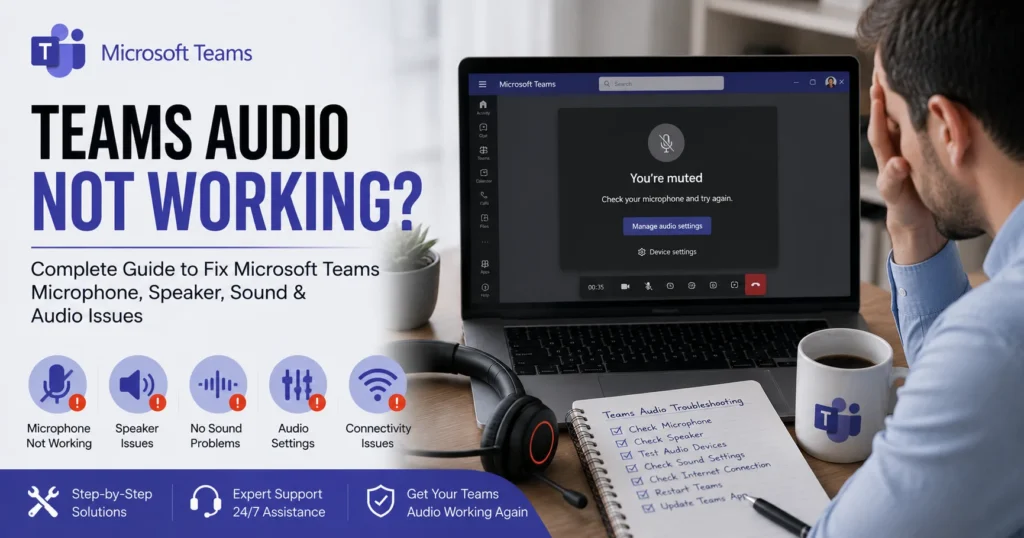
However, one of the most frustrating issues users encounter is audio problems during Microsoft Teams meetings. Whether participants cannot hear others, microphones stop working, speakers fail to produce sound, or audio becomes distorted, Teams audio issues can significantly disrupt communication and productivity.
If you’re searching for solutions because Teams audio is not working, this comprehensive guide explains the most common audio problems, their causes, troubleshooting steps, and best practices for maintaining reliable meeting audio.
Understanding Microsoft Teams Audio Functionality
Microsoft Teams relies on several components to deliver audio communication:
- Microphones
- Speakers
- Headsets
- Operating system audio services
- Device drivers
- Internet connectivity
- Microsoft cloud services
When any of these components experience problems, Teams audio may stop functioning properly.
Common Teams audio functions include:
- Meeting audio
- Voice calls
- VoIP communication
- Webinar participation
- Live event broadcasting
- Team collaboration sessions
Because Teams operates across multiple devices and environments, audio issues can arise from many different sources.
Common Teams Audio Problems
Users frequently report the following issues:
No Sound During Meetings
Participants cannot hear meeting audio.
Microphone Not Working
Others cannot hear your voice.
Audio Cutting In and Out
Sound intermittently disappears.
Echo and Feedback
Voices repeat or create noise disturbances.
Distorted Audio
Speech sounds robotic or garbled.
Teams Cannot Detect Audio Devices
Microphones or speakers fail to appear.
Headset Not Working
Connected devices are not recognized.
Delayed Audio
Conversations become unsynchronized.
One-Way Audio
Only one participant can hear the other.
Audio Drops During Calls
Sound suddenly disconnects during meetings.
Why Teams Audio Stops Working
Several technical factors can contribute to audio problems.
Incorrect Audio Device Selection
Teams may choose the wrong microphone or speaker.
Permission Restrictions
Operating systems may block microphone access.
Outdated Audio Drivers
Older drivers can create compatibility issues.
Corrupted Teams Cache
Damaged temporary files may affect functionality.
Internet Connectivity Problems
Poor connections impact audio quality.
Bluetooth Device Conflicts
Wireless devices may interfere with audio routing.
Hardware Failures
Faulty microphones, speakers, or headsets can cause issues.
Software Conflicts
Other communication applications may interfere.
Teams Microphone Not Working
Microphone issues are among the most reported Teams problems.
Symptoms
- Others cannot hear you
- Microphone appears muted
- Teams cannot detect microphone
- Voice cuts out during meetings
Causes
Incorrect Device Configuration
Teams may be using the wrong microphone.
Privacy Settings
Windows or macOS may block microphone access.
Driver Problems
Outdated or corrupted drivers affect performance.
Hardware Failures
Physical microphone damage may prevent operation.
Solutions
Verify Teams Audio Settings
Open Teams settings and confirm the correct microphone is selected.
Test the Microphone
Use Teams’ built-in test call feature.
Check Operating System Permissions
Ensure microphone access is enabled.
Update Audio Drivers
Install the latest hardware drivers.
Teams Speaker Not Working
Users may be unable to hear meeting participants.
Common Symptoms
- No meeting audio
- Missing notifications
- Silent calls
- Intermittent sound
Causes
- Wrong speaker selected
- Audio device disconnected
- Driver issues
- Hardware malfunction
Solutions
Verify Speaker Selection
Confirm Teams is using the correct output device.
Test System Audio
Play audio outside Teams.
Reconnect Devices
Disconnect and reconnect speakers or headsets.
Update Drivers
Install current speaker drivers.
Teams Headset Problems
Headsets provide better meeting quality but may introduce complications.
Common Issues
- Headset not detected
- No microphone input
- No audio output
- Bluetooth connection failures
Solutions
Reconnect Headset
Pair Bluetooth devices again.
Check Teams Settings
Ensure the headset is selected for input and output.
Update Firmware
Install manufacturer updates.
Restart Devices
Reboot both the computer and headset.
Teams Audio Cutting In and Out
Intermittent sound often points to connectivity issues.
Causes
Poor Internet Connection
Network instability affects audio transmission.
Bandwidth Limitations
Heavy traffic can impact call quality.
Wireless Interference
Wi-Fi signal problems may interrupt communication.
Solutions
Use Wired Internet
Ethernet connections provide greater stability.
Close Background Applications
Reduce bandwidth consumption.
Restart Network Equipment
Refresh routers and modems.
Echo and Feedback Problems
Echoes create confusion during meetings.
Causes
- Multiple devices in the same room
- Speaker volume too high
- Microphone picking up speaker output
- Poor headset configuration
Solutions
Use Headsets
Headsets significantly reduce feedback.
Lower Speaker Volume
Reduce audio leakage.
Mute Unused Devices
Disable additional microphones.
Teams Audio Delay Problems
Delayed audio affects conversation flow.
Causes
- Network latency
- Heavy system load
- Outdated software
- VPN interference
Solutions
Improve Internet Quality
Use faster and more stable connections.
Close Background Programs
Free system resources.
Update Teams
Install the latest version.
Teams Audio Not Working on Mobile Devices
Mobile users frequently experience unique issues.
Common Problems
- No microphone access
- No sound
- Bluetooth failures
- App crashes
Solutions
Update Teams App
Install current versions.
Verify Permissions
Allow microphone access.
Restart Device
Refresh mobile operating systems.
Reinstall Teams
Remove corrupted app files.
Teams Audio Problems After Updates
Occasionally updates introduce temporary issues.
Common Symptoms
- New audio failures
- Missing devices
- Microphone detection problems
Solutions
Restart Teams
Refresh application settings.
Check Device Settings
Confirm hardware configuration.
Install Driver Updates
Update related audio components.
Teams Audio Issues in Web Browser
Teams Web may behave differently than the desktop application.
Causes
- Browser permissions
- Unsupported browsers
- Extension conflicts
Solutions
Allow Microphone Access
Grant permissions when prompted.
Use Supported Browsers
Microsoft Edge and Google Chrome generally perform best.
Disable Extensions
Browser add-ons may interfere.
Teams Audio Quality Issues
Poor quality affects communication effectiveness.
Symptoms
- Robotic voices
- Distortion
- Static noise
- Choppy conversations
Causes
- Low bandwidth
- Packet loss
- Network congestion
- Hardware issues
Solutions
Improve Connectivity
Use stable internet access.
Upgrade Hardware
Quality headsets improve performance.
Reduce Network Usage
Limit bandwidth-intensive activities.
Advanced Teams Audio Troubleshooting
Clear Teams Cache
Removing corrupted cache files often resolves recurring problems.
Benefits include:
- Improved stability
- Better device detection
- Reduced glitches
Reinstall Microsoft Teams
A fresh installation resolves many persistent issues.
Update Operating System
Keep Windows or macOS current.
Check Microsoft Service Health
Verify there are no ongoing Microsoft outages.
Best Practices to Prevent Teams Audio Problems
Use Quality Headsets
Professional devices provide better audio quality.
Keep Drivers Updated
Maintain current hardware support.
Test Before Meetings
Verify microphone and speakers in advance.
Maintain Stable Internet
Reliable connectivity prevents most call issues.
Regularly Update Teams
New releases contain bug fixes and improvements.
Monitor Hardware Health
Replace aging or damaged equipment.
Frequently Asked Questions
Why can’t anyone hear me on Teams?
Common causes include muted microphones, permission restrictions, incorrect device selection, or driver problems.
Why can’t I hear others during Teams meetings?
Speaker configuration issues, audio device failures, or connectivity problems may be responsible.
Why is Teams audio cutting out?
Network instability, bandwidth limitations, or wireless interference often cause intermittent audio.
Why does Teams keep changing my microphone?
Automatic device switching or newly connected hardware may alter settings.
How do I test audio in Teams?
Use the built-in test call feature located within Teams settings.
Conclusion
Microsoft Teams audio problems can significantly disrupt communication, collaboration, and productivity. Issues such as microphone failures, speaker problems, headset conflicts, audio distortion, connectivity interruptions, and device detection errors are among the most common challenges users face.
Fortunately, most Teams audio issues can be resolved through systematic troubleshooting. Checking device settings, updating drivers, verifying permissions, improving internet connectivity, clearing cache files, and maintaining current Teams versions can restore reliable audio performance.
By understanding the root causes behind Teams audio not working and implementing proactive maintenance practices, organizations and individuals can ensure smooth meetings, effective communication, and uninterrupted collaboration across Microsoft 365 environments.