
Introduction
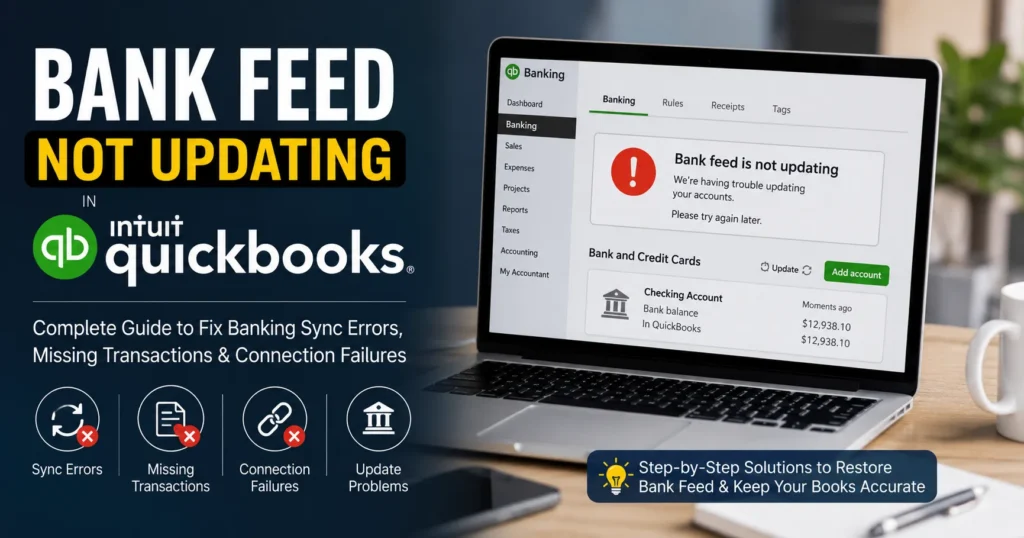
Bank feeds are one of the most valuable features in QuickBooks because they automatically import banking transactions into your accounting records. This automation saves time, reduces manual data entry, and helps businesses maintain accurate financial information. However, users occasionally encounter a frustrating issue where the bank feed stops updating, transactions fail to download, or account balances do not refresh correctly.
If your QuickBooks bank feed is not updating, you are not alone. Thousands of QuickBooks users experience banking connection errors, synchronization failures, missing transactions, authentication issues, and bank feed interruptions every year. Fortunately, most bank feed problems can be resolved with the right troubleshooting steps.
This comprehensive guide explains why bank feeds stop updating, common error messages you may encounter, and proven solutions to restore banking synchronization in QuickBooks Online and QuickBooks Desktop.
What Does “Bank Feed Not Updating” Mean?
When QuickBooks cannot successfully communicate with your financial institution to download recent transactions, the bank feed may stop updating.
Common symptoms include:
- Missing bank transactions
- Outdated account balances
- Banking refresh failures
- Bank connection errors
- Incomplete transaction downloads
- Continuous loading or syncing
- Authentication failures
- Banking dashboard not updating
The issue may affect one bank account or multiple connected financial institutions.
Common Signs of Bank Feed Update Problems
You may notice the following symptoms:
Missing Transactions
Recent deposits, withdrawals, or transfers do not appear.
Incorrect Account Balance
QuickBooks displays an outdated balance that differs from your bank’s actual balance.
Refresh Errors
The banking page shows an update error whenever you attempt to refresh.
Connection Timeout
The connection process takes too long and eventually fails.
Duplicate Transactions
Some updates create duplicate entries while others fail to import.
Bank Login Issues
QuickBooks may repeatedly request verification or account credentials.
Why Is My Bank Feed Not Updating?
Several factors can prevent QuickBooks from downloading bank transactions.
1. Bank Server Maintenance
Banks periodically perform system upgrades and maintenance.
During maintenance windows:
- Online banking may be unavailable
- Transaction downloads may stop
- Banking APIs may become inaccessible
The issue often resolves automatically once maintenance is completed.
2. Changed Bank Credentials
Many users change:
- Passwords
- Security questions
- Multi-factor authentication settings
When login credentials change, QuickBooks may lose access to the account.
3. Bank Security Updates
Banks frequently strengthen security protocols.
Examples include:
- Two-factor authentication
- Additional verification prompts
- Device authorization requirements
These security enhancements may temporarily interrupt synchronization.
4. QuickBooks Connection Issues
Corrupted connection settings can prevent communication between QuickBooks and the bank.
Potential causes include:
- Cached login data
- Connection timeouts
- Banking profile corruption
5. Internet Connectivity Problems
An unstable internet connection can interrupt banking synchronization.
Common issues include:
- Packet loss
- Slow internet speed
- Firewall restrictions
- VPN interference
6. Browser Problems
For QuickBooks Online users, browser issues frequently contribute to banking update failures.
Examples:
- Corrupted cache
- Outdated browser versions
- Disabled cookies
- Browser extensions
7. Unsupported Bank Connection Method
Banks use different connection technologies:
- Direct Connect
- Web Connect
- Express Web Connect
If the bank changes its connection method, synchronization may fail.
Common Bank Feed Error Messages
Users often encounter messages such as:
Error 102
The bank’s website may be experiencing maintenance.
Error 103
Incorrect banking credentials.
Error 105
Bank server issues.
Error 106
Account changes require user action.
Error 108
Security notifications need attention.
Error 109
Expired login credentials.
Error 185
Additional security verification required.
Error 310
Bank account profile mismatch.
Error 324
QuickBooks cannot locate the account.
Error 350
Bank account information has changed.
How to Fix Bank Feed Not Updating in QuickBooks
Follow these troubleshooting methods carefully.
Solution 1: Verify Bank Website Access
Before troubleshooting QuickBooks:
- Open your bank’s website.
- Log in manually.
- Check account activity.
- Review notifications.
- Confirm account accessibility.
If login fails directly through the bank website, resolve the banking issue first.
Solution 2: Refresh the Bank Connection
QuickBooks Online
- Open Banking.
- Select Transactions.
- Click Update.
- Wait for synchronization.
Allow several minutes for large transaction downloads.
Solution 3: Re-enter Banking Credentials
Expired credentials often cause update failures.
Steps:
- Open Banking.
- Select the affected account.
- Choose Edit Account Information.
- Update login credentials.
- Save changes.
- Refresh the connection.
Solution 4: Check Multi-Factor Authentication
Many banks require:
- SMS verification
- Email verification
- Security questions
Complete any pending authentication requests before attempting another update.
Solution 5: Clear Browser Cache
QuickBooks Online users should clear cached files.
Google Chrome
- Open Settings.
- Select Privacy and Security.
- Click Clear Browsing Data.
- Remove cached files and cookies.
- Restart the browser.
Then attempt another banking update.
Solution 6: Use Incognito Mode
Private browsing disables most extensions and cached data.
Chrome
Press:
Ctrl + Shift + N
Then log into QuickBooks and test the bank feed.
Solution 7: Disable Browser Extensions
Certain extensions interfere with banking connections.
Examples:
- Ad blockers
- Security plugins
- Script blockers
- VPN extensions
Disable extensions temporarily and test synchronization.
Solution 8: Disconnect and Reconnect the Bank Account
If synchronization remains broken, reconnect the account.
Steps
- Open Banking.
- Select the affected account.
- Disconnect the account.
- Save changes.
- Reconnect the bank.
- Complete authorization.
Always verify transaction history after reconnecting.
Solution 9: Update QuickBooks Desktop
Outdated software may contain banking bugs.
Update Process
- Open QuickBooks.
- Select Help.
- Choose Update QuickBooks Desktop.
- Download updates.
- Restart QuickBooks.
Install all available updates.
Solution 10: Verify Internet Connectivity
Perform a network test.
Check:
- Download speed
- Upload speed
- Packet loss
- Firewall restrictions
Switch networks if necessary.
Solution 11: Disable Firewall Temporarily
Firewalls occasionally block QuickBooks services.
Temporarily disable:
- Windows Firewall
- Third-party security software
Test the bank feed.
If synchronization succeeds, create firewall exceptions for QuickBooks.
Solution 12: Import Transactions Manually
If automatic updates remain unavailable, manually import transactions.
Download from Bank
Export transactions as:
- CSV
- QBO
- OFX
Import into QuickBooks
- Open Banking.
- Upload file.
- Select account.
- Import transactions.
This provides temporary access while automatic feeds are repaired.
How to Fix Missing Transactions
Sometimes updates succeed but transactions remain missing.
Check Date Filters
Incorrect filters may hide transactions.
Review:
- Start date
- End date
- Account selection
Review Excluded Transactions
QuickBooks may automatically exclude imported entries.
Check:
- Excluded tab
- Banking review section
Restore any missing items.
Search by Amount
Use transaction search tools to locate missing entries manually.
Prevent Future Bank Feed Problems
Follow these best practices.
Keep Banking Credentials Updated
Update QuickBooks whenever:
- Passwords change
- Security settings change
- Account information changes
Perform Regular Updates
Refresh banking feeds daily.
Frequent updates reduce synchronization errors.
Maintain Stable Internet
Reliable internet minimizes interrupted downloads.
Monitor Bank Notifications
Pay attention to:
- Security alerts
- Service notices
- Scheduled maintenance announcements
Keep QuickBooks Updated
Software updates frequently contain banking fixes and security improvements.
QuickBooks Online vs QuickBooks Desktop Banking Issues
QuickBooks Online
Common causes:
- Browser cache
- Cookies
- Bank authentication failures
- Cloud synchronization issues
QuickBooks Desktop
Common causes:
- Outdated software
- Connection configuration errors
- Firewall restrictions
- Damaged banking settings
Understanding your platform helps narrow troubleshooting efforts.
Frequently Asked Questions
Why are my bank transactions not downloading?
The most common causes include:
- Bank maintenance
- Incorrect credentials
- Security verification requirements
- Connection interruptions
How often does QuickBooks update bank feeds?
Most banks update automatically several times per day, though timing varies by institution.
Can I manually upload transactions?
Yes. QuickBooks supports CSV, QBO, and OFX file imports.
Will reconnecting my account delete transactions?
Generally no, but reviewing existing transaction history before reconnecting is recommended.
Why does QuickBooks repeatedly ask for verification?
Your bank may require additional security authentication or device authorization.
When to Contact QuickBooks Support
Contact support if:
- Errors persist after troubleshooting
- Transactions continue missing
- Multiple accounts fail simultaneously
- Banking connections repeatedly disconnect
- Authentication problems remain unresolved
Support technicians can perform deeper diagnostics and identify account-specific issues.
Conclusion
Bank feed update failures can disrupt bookkeeping workflows, delay reconciliations, and create accounting inaccuracies. Fortunately, most QuickBooks banking synchronization issues result from credential changes, bank maintenance, browser problems, internet connectivity interruptions, or software configuration errors.
By verifying bank access, refreshing connections, updating credentials, clearing browser cache, reconnecting accounts, and maintaining updated QuickBooks software, users can usually restore normal banking operations quickly.
Regular monitoring of bank feeds, prompt response to security notifications, and routine QuickBooks updates will help prevent future synchronization issues and ensure your financial records remain accurate and up to date.