
Introduction
Setting up accounting software correctly is one of the most important steps for any business. A proper setup ensures accurate financial reporting, streamlined bookkeeping, efficient tax preparation, and better decision-making. However, many new users struggle with the initial configuration process, which can lead to errors, duplicate transactions, incorrect tax calculations, and reporting issues.
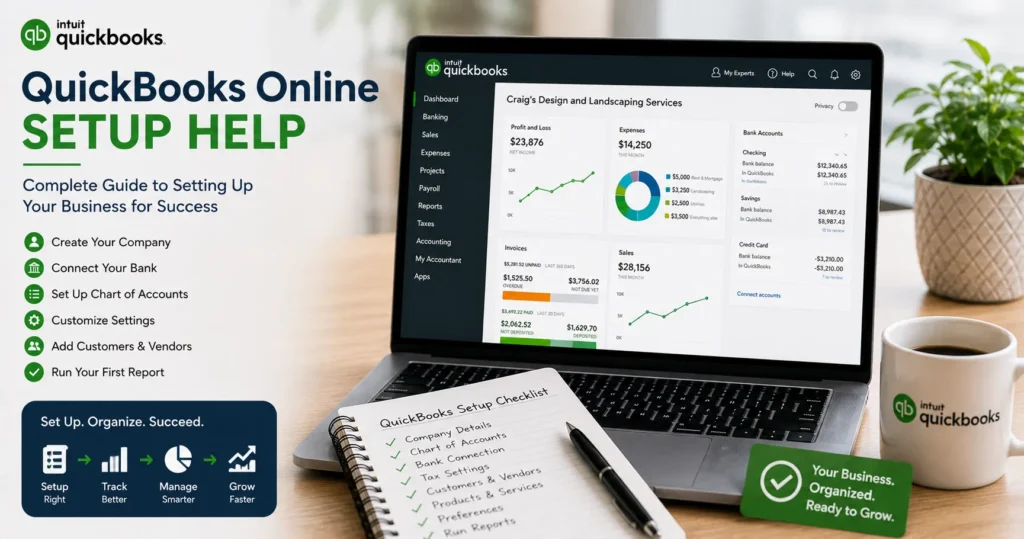
If you’re looking for QuickBooks Online Setup Help, this comprehensive guide walks you through every step of the setup process. Whether you’re a small business owner, freelancer, startup, accountant, or growing company, this guide will help you configure QuickBooks Online correctly from day one.
What Is QuickBooks Online?
QuickBooks Online (QBO) is a cloud-based accounting platform that helps businesses manage:
- Income and expenses
- Invoicing
- Payroll
- Banking transactions
- Tax calculations
- Financial reporting
- Inventory tracking
- Accounts payable and receivable
Unlike desktop accounting software, QuickBooks Online allows users to access financial information from anywhere using an internet connection.
Why Proper QuickBooks Online Setup Matters
Many business owners rush through the setup process and experience problems later.
Incorrect setup can cause:
- Inaccurate financial reports
- Reconciliation issues
- Tax filing errors
- Duplicate transactions
- Inventory discrepancies
- Payroll mistakes
- Lost productivity
A proper setup creates a strong accounting foundation that saves time and reduces costly errors.
Before Setting Up QuickBooks Online
Before creating your company file, gather the following information:
Business Information
Prepare:
- Legal business name
- Business address
- Phone number
- Email address
- Website
- Tax identification number
Banking Information
Collect:
- Business checking accounts
- Savings accounts
- Credit card accounts
- Merchant account information
Accounting Records
Have access to:
- Prior financial statements
- Existing bookkeeping records
- Trial balances
- Tax returns
- Chart of accounts
Customer and Vendor Information
Gather:
- Customer lists
- Vendor lists
- Contact details
- Outstanding balances
Creating Your QuickBooks Online Account
The first step is creating your company profile.
Sign Up for QuickBooks Online
Choose a plan that matches your business needs.
Popular options include:
Simple Start
Best for:
- Freelancers
- Solopreneurs
- New businesses
Essentials
Suitable for:
- Small businesses
- Service providers
- Teams needing bill management
Plus
Ideal for:
- Growing businesses
- Inventory tracking
- Project profitability
Advanced
Designed for:
- Larger organizations
- Complex reporting needs
- Multiple users
Enter Company Information
After registration, QuickBooks requests company details.
Enter:
- Company name
- Industry
- Business type
- Contact information
Accurate information improves reporting and tax settings.
Setting Up the Chart of Accounts
The Chart of Accounts serves as the foundation of your accounting system.
It organizes:
- Assets
- Liabilities
- Income
- Expenses
- Equity accounts
Common Asset Accounts
Examples include:
- Checking accounts
- Savings accounts
- Accounts receivable
- Inventory
- Fixed assets
Common Liability Accounts
Examples:
- Credit cards
- Loans payable
- Payroll liabilities
- Sales tax payable
Income Accounts
Typical income categories include:
- Product sales
- Service revenue
- Consulting income
- Subscription revenue
Expense Accounts
Common expense categories:
- Rent
- Utilities
- Payroll
- Marketing
- Software subscriptions
- Office supplies
Connecting Bank Accounts
One of QuickBooks Online’s most powerful features is automatic bank synchronization.
Why Connect Bank Accounts?
Benefits include:
- Automatic transaction imports
- Faster bookkeeping
- Reduced manual entry
- Improved accuracy
Steps to Connect a Bank Account
- Open Banking.
- Select Link Account.
- Search for your bank.
- Enter banking credentials.
- Select accounts to connect.
- Complete authorization.
QuickBooks begins importing transactions automatically.
Connecting Credit Card Accounts
Credit card feeds simplify expense tracking.
Benefits include:
- Automatic transaction downloads
- Expense categorization
- Easier reconciliation
Connect credit cards using the same process as bank accounts.
Importing Existing Financial Data
Many businesses migrate from spreadsheets or other accounting systems.
QuickBooks supports importing:
- Customers
- Vendors
- Products
- Services
- Chart of accounts
- Historical transactions
Customer Setup
Customer management is critical for invoicing and revenue tracking.
Add Customer Information
Include:
- Customer name
- Email address
- Phone number
- Billing address
- Payment terms
Customer Categories
Organize customers by:
- Industry
- Region
- Project type
- Service category
This improves reporting and marketing analysis.
Vendor Setup
Proper vendor management improves expense tracking.
Add:
- Vendor names
- Contact information
- Payment terms
- Tax details
Accurate vendor records simplify accounts payable processes.
Configuring Products and Services
Products and services drive invoicing accuracy.
Product Setup
Include:
- Product name
- SKU number
- Price
- Income account
- Inventory details
Service Setup
Include:
- Service name
- Rate
- Revenue account
- Description
Proper categorization improves financial reporting.
Setting Up Sales Tax
Tax configuration is essential.
QuickBooks can:
- Calculate sales tax automatically
- Track tax liabilities
- Generate tax reports
Verify Tax Rates
Review:
- State tax rates
- Local tax rates
- Industry-specific requirements
Incorrect tax settings can create compliance risks.
Creating Invoices
Invoices are often the first workflow businesses configure.
Customize Invoice Templates
Add:
- Company logo
- Brand colors
- Payment instructions
- Contact details
Professional invoices improve customer experience.
Invoice Settings
Configure:
- Payment terms
- Due dates
- Late fees
- Automated reminders
These features improve cash flow management.
Setting Up Online Payments
QuickBooks allows businesses to accept:
- Credit cards
- Debit cards
- ACH transfers
- Digital payments
Benefits include:
- Faster payments
- Reduced collection delays
- Improved customer convenience
Payroll Setup
Businesses with employees should configure payroll early.
Payroll Configuration
Set up:
- Employee records
- Tax information
- Direct deposit
- Benefits
- Payroll schedules
Employee Information
Include:
- Name
- Address
- Social Security information
- Tax withholding preferences
- Compensation details
Setting User Permissions
QuickBooks Online supports multiple users.
User Types
Common roles include:
Administrator
Full system access.
Accountant
Advanced accounting functions.
Standard User
Restricted access based on responsibilities.
Reports Only
View-only access to reports.
Configuring Financial Reports
Reports provide business insights.
Key reports include:
- Profit and Loss
- Balance Sheet
- Cash Flow Statement
- Accounts Receivable Aging
- Accounts Payable Aging
Customize reports to match business requirements.
Setting Up Budget Tracking
Budgeting improves financial planning.
QuickBooks allows users to:
- Create annual budgets
- Compare actual results
- Monitor performance
Budget reports support strategic decision-making.
Inventory Setup
Businesses selling products should configure inventory management.
Inventory Features
Track:
- Stock levels
- Cost of goods sold
- Purchase orders
- Reorder points
Accurate inventory setup prevents stock discrepancies.
Configuring Recurring Transactions
Automation saves time.
Examples include:
- Monthly invoices
- Rent payments
- Subscription expenses
- Loan payments
Recurring transactions reduce repetitive work.
QuickBooks Online Setup for Service Businesses
Service companies often require:
- Time tracking
- Project management
- Expense billing
- Recurring invoices
Examples include:
- Consultants
- Agencies
- Contractors
- Accountants
QuickBooks Online Setup for Retail Businesses
Retail businesses benefit from:
- Inventory tracking
- Sales tax management
- Point-of-sale integrations
- Vendor management
Proper setup improves profitability analysis.
QuickBooks Online Setup for Contractors
Contractors often need:
- Job costing
- Project tracking
- Mileage tracking
- Progress invoicing
These features improve project profitability reporting.
Common QuickBooks Online Setup Mistakes
Avoid these common errors.
Incorrect Chart of Accounts
Poor account structure creates reporting problems.
Duplicate Bank Connections
Multiple connections may create duplicate transactions.
Wrong Tax Settings
Incorrect tax rates can lead to compliance issues.
Missing Opening Balances
Opening balances ensure accurate financial reports.
Importing Bad Data
Review imported information carefully before proceeding.
Best Practices for QuickBooks Online Setup
Follow these recommendations:
Plan Before Starting
Understand your accounting requirements.
Keep Records Organized
Maintain clean customer, vendor, and banking data.
Reconcile Monthly
Identify discrepancies early.
Review Reports Regularly
Monitor business performance consistently.
Train Employees
Ensure users understand system procedures.
Troubleshooting Setup Problems
Users sometimes encounter issues during setup.
Common problems include:
- Bank connection failures
- Missing imported data
- Tax configuration errors
- Invoice customization issues
- User permission conflicts
Most problems can be resolved through proper review and configuration adjustments.
When to Seek Professional QuickBooks Setup Help
Professional assistance may be beneficial if:
- You are migrating from another accounting system.
- Your business has complex accounting requirements.
- You need payroll configuration.
- Inventory management is involved.
- Multiple users require customized permissions.
- Historical data migration is necessary.
Professional setup often saves time and prevents costly bookkeeping mistakes.
Frequently Asked Questions
How long does QuickBooks Online setup take?
Basic setups typically take a few hours, while complex businesses may require several days.
Can I import data from another accounting system?
Yes. QuickBooks supports importing customers, vendors, accounts, and certain transaction data.
Should I connect my bank account during setup?
Yes. Connecting accounts early improves bookkeeping efficiency and transaction accuracy.
Can multiple users access QuickBooks Online?
Yes. User permissions can be customized based on responsibilities.
Do I need professional setup help?
Businesses with payroll, inventory, multiple users, or complex accounting needs often benefit from professional assistance.
Conclusion
Proper QuickBooks Online setup is essential for accurate bookkeeping, streamlined financial management, and long-term business success. By carefully configuring company information, banking connections, chart of accounts, payroll, taxes, inventory, customers, vendors, and reporting tools, businesses can maximize the value of QuickBooks Online from the start.
Whether you’re launching a new company, transitioning from spreadsheets, or migrating from another accounting platform, investing time in a correct setup will reduce errors, improve efficiency, and provide reliable financial insights that support business growth.