
Introduction
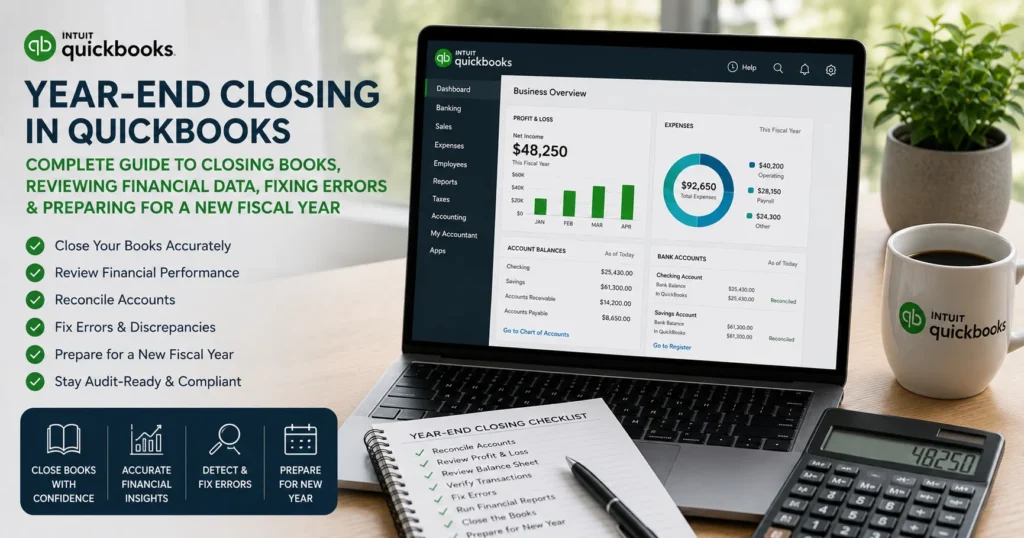
Year-end closing is one of the most important accounting processes for businesses using QuickBooks. Whether you run a small business, manage multiple entities, or provide bookkeeping services, closing your books properly ensures accurate financial reporting, tax compliance, and a smooth transition into the next fiscal year.
Many business owners wait until tax season to review their books, only to discover unreconciled accounts, missing transactions, duplicate entries, payroll discrepancies, and inaccurate financial statements. A structured year-end closing process helps eliminate these issues and provides a clear picture of your company’s financial health.
This comprehensive guide explains everything you need to know about Year-End Closing in QuickBooks, including preparation steps, reconciliations, reporting, common mistakes, troubleshooting, tax readiness, and best practices.
What Is Year-End Closing in QuickBooks?
Year-end closing is the process of reviewing, verifying, and finalizing financial records for a completed fiscal year.
The objective is to:
- Ensure accounting accuracy
- Verify account balances
- Reconcile financial data
- Prepare tax documents
- Generate year-end reports
- Lock prior-period transactions
- Begin the new year with clean books
Unlike some accounting systems, QuickBooks automatically handles many accounting functions, but users must still perform important reviews and reconciliations.
Why Year-End Closing Is Important
Closing your books properly provides several benefits.
Accurate Financial Reporting
Financial statements become more reliable and useful for decision-making.
Tax Compliance
Tax returns depend on accurate financial records.
Audit Readiness
Proper documentation helps during audits and compliance reviews.
Better Business Planning
Clean financial data improves forecasting and budgeting.
Reduced Accounting Errors
Reviewing records helps identify mistakes before they create larger issues.
When Should You Perform Year-End Closing?
Most businesses complete year-end closing after:
- Final payroll processing
- Bank reconciliations
- Vendor payment reviews
- Customer account reviews
- Tax preparation activities
The process generally occurs after the fiscal year ends and before filing taxes.
Preparing for Year-End Closing
Preparation is critical for a successful closing process.
Before making adjustments, gather:
- Bank statements
- Credit card statements
- Payroll records
- Vendor reports
- Customer reports
- Tax documents
- Fixed asset records
- Loan statements
Having complete documentation reduces delays and errors.
Step 1: Back Up Your QuickBooks Company File
Before making any year-end changes, create a backup.
A backup protects against:
- Data corruption
- Accidental deletions
- Incorrect adjustments
- System failures
Backup files provide a recovery point if something goes wrong during closing activities.
Step 2: Update QuickBooks
Ensure your QuickBooks version is current.
Updates often include:
- Tax table changes
- Payroll updates
- Security enhancements
- Performance improvements
- Bug fixes
Using outdated software may result in reporting inaccuracies.
Step 3: Review the Chart of Accounts
The Chart of Accounts forms the foundation of your accounting system.
Review:
- Duplicate accounts
- Inactive accounts
- Misclassified expenses
- Incorrect account types
- Unused categories
Proper account organization improves reporting accuracy.
Step 4: Reconcile Bank Accounts
Bank reconciliation is one of the most important year-end tasks.
The goal is to ensure QuickBooks matches bank records.
Verify:
- Deposits
- Withdrawals
- Service charges
- Interest income
- Outstanding checks
Unreconciled transactions should be investigated immediately.
Step 5: Reconcile Credit Card Accounts
Credit card reconciliations often reveal:
- Missing expenses
- Duplicate charges
- Uncategorized transactions
- Incorrect vendor entries
Review every statement carefully.
Step 6: Review Accounts Receivable
Accounts Receivable represents money customers owe your business.
Run aging reports to identify:
- Overdue invoices
- Customer disputes
- Unapplied payments
- Duplicate invoices
Resolving these issues improves cash flow management.
Step 7: Review Accounts Payable
Accounts Payable reflects outstanding vendor obligations.
Check for:
- Duplicate bills
- Missing payments
- Incorrect balances
- Vendor discrepancies
Accurate payable records help prevent vendor disputes.
Step 8: Verify Payroll Information
Payroll accounts require special attention.
Review:
- Employee wages
- Payroll liabilities
- Tax withholdings
- Benefit deductions
- Payroll tax payments
Payroll errors can create significant compliance risks.
Step 9: Review Fixed Assets
Fixed assets include:
- Equipment
- Vehicles
- Furniture
- Computers
- Machinery
Verify:
- Purchase records
- Depreciation entries
- Asset disposals
- Asset additions
Accurate asset tracking is essential for tax reporting.
Step 10: Examine Loan Accounts
Review all loan balances.
Confirm:
- Principal payments
- Interest expenses
- Outstanding balances
- New loans
- Loan modifications
Compare QuickBooks balances with lender statements.
Step 11: Review Inventory Records
Businesses managing inventory should verify:
- Inventory quantities
- Cost valuations
- Damaged inventory
- Obsolete inventory
- Inventory adjustments
Inventory discrepancies can significantly impact profits.
Step 12: Review Income Accounts
Analyze revenue accounts for:
- Duplicate sales
- Missing transactions
- Incorrect classifications
- Customer payment discrepancies
Accurate revenue reporting improves financial transparency.
Step 13: Review Expense Accounts
Expense reviews often uncover:
- Duplicate transactions
- Personal expenses
- Misclassified costs
- Missing documentation
Proper expense categorization supports tax deductions.
Important Financial Reports for Year-End Closing
QuickBooks provides several reports that assist in year-end review.
Profit and Loss Report
The Profit and Loss Report summarizes:
- Revenue
- Expenses
- Net profit
- Net loss
Review unusual fluctuations and unexpected balances.
Balance Sheet Report
The Balance Sheet shows:
- Assets
- Liabilities
- Equity
Ensure balances appear reasonable and accurate.
Statement of Cash Flows
This report tracks:
- Operating activities
- Investing activities
- Financing activities
It provides insight into cash management performance.
General Ledger Report
The General Ledger provides transaction-level detail.
Review:
- Large journal entries
- Unusual transactions
- Suspicious adjustments
Trial Balance Report
The Trial Balance helps identify:
- Posting errors
- Account imbalances
- Incorrect adjustments
It is a critical review tool before finalizing records.
Common Year-End Closing Errors
Many businesses encounter similar challenges.
Duplicate Transactions
Duplicates can inflate revenue or expenses.
Solution
Review transaction reports and remove duplicates.
Missing Transactions
Incomplete records lead to inaccurate financial statements.
Solution
Compare QuickBooks against source documents.
Incorrect Account Mapping
Transactions posted to the wrong accounts create reporting errors.
Solution
Reclassify entries appropriately.
Unreconciled Accounts
Unresolved differences often indicate accounting issues.
Solution
Investigate discrepancies before closing.
Payroll Discrepancies
Payroll balances may not match tax filings.
Solution
Review payroll reports and tax records.
Adjusting Journal Entries
Accountants often make year-end adjustments.
Examples include:
- Depreciation
- Accruals
- Prepaid expenses
- Bad debt allowances
- Inventory adjustments
These entries improve financial accuracy.
Working with Your Accountant
Many businesses collaborate with accounting professionals during year-end.
Provide:
- Backup files
- Financial reports
- Bank reconciliations
- Tax documents
- Supporting records
Professional review helps identify overlooked issues.
Closing the Accounting Period
After completing reviews and adjustments, consider closing the books.
Benefits include:
- Preventing accidental changes
- Preserving historical data
- Improving audit controls
- Protecting finalized financial statements
QuickBooks allows users to set a closing date and password.
How to Set a Closing Date in QuickBooks
Typical process:
- Open Account Settings.
- Access Advanced Settings.
- Select Accounting Preferences.
- Enter Closing Date.
- Create a password.
- Save changes.
This prevents unauthorized modifications.
Tax Preparation Benefits
Year-end closing simplifies tax preparation.
Benefits include:
- Accurate income reporting
- Proper deduction tracking
- Reduced filing delays
- Better compliance
- Fewer IRS inquiries
Tax professionals can work more efficiently with clean records.
Best Practices for Future Year-End Closings
Reconcile Monthly
Monthly reconciliations prevent year-end surprises.
Review Financial Reports Regularly
Frequent reviews improve data quality.
Maintain Organized Documentation
Store:
- Receipts
- Invoices
- Contracts
- Statements
- Tax records
Use Automation Features
QuickBooks automation reduces manual errors.
Perform Quarterly Reviews
Quarterly reviews identify issues before year-end.
Troubleshooting Year-End Closing Problems
If problems arise:
Verify Data Integrity
Run QuickBooks diagnostic tools.
Review Audit Logs
Identify unexpected changes.
Compare Reports
Cross-check report balances.
Restore Backups
Use backup files if corruption occurs.
Consult Professionals
Seek assistance for complex accounting issues.
Frequently Asked Questions
Does QuickBooks automatically close the books?
QuickBooks handles certain accounting functions automatically, but users should still review and finalize records manually.
Should I reconcile all accounts before year-end?
Yes. Reconciliation is one of the most important year-end activities.
Can I make changes after closing the books?
Yes, but it is generally recommended to restrict changes using a closing date and password.
Why is my balance sheet incorrect?
Common causes include unreconciled accounts, duplicate entries, incorrect journal entries, and account mapping errors.
What reports should I review before closing?
Review:
- Profit and Loss
- Balance Sheet
- Cash Flow Statement
- General Ledger
- Trial Balance
- Accounts Receivable Aging
- Accounts Payable Aging
How often should I back up my QuickBooks file?
Businesses should create backups regularly and always before major accounting activities such as year-end closing.
Conclusion
Year-End Closing in QuickBooks is more than just an accounting task—it’s a critical process that ensures financial accuracy, tax compliance, operational transparency, and informed decision-making. By reconciling accounts, reviewing financial reports, correcting discrepancies, verifying payroll data, and setting a closing date, businesses can confidently transition into a new fiscal year.
A thorough year-end review not only prevents costly errors and compliance issues but also provides a solid financial foundation for growth. Whether you’re a small business owner, bookkeeper, accountant, or QuickBooks user, following a structured year-end closing process will help maintain accurate records, simplify tax preparation, and improve overall financial management.