
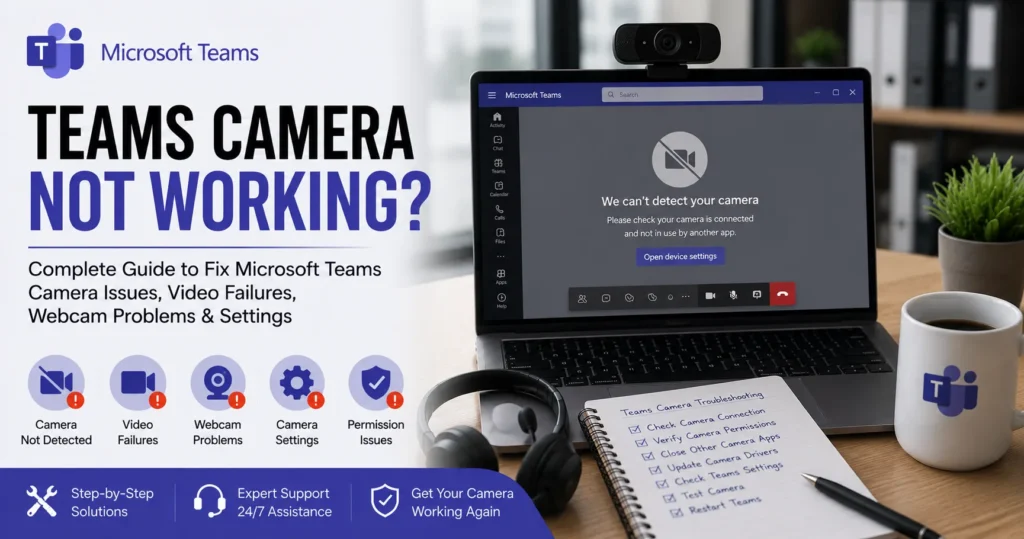
Introduction
Microsoft Teams has become one of the most widely used collaboration platforms for businesses, educational institutions, healthcare organizations, and remote workers. Video meetings have become an essential part of daily communication, allowing teams to collaborate effectively regardless of location.
However, one of the most frustrating issues users encounter is when the Teams camera stops working. Whether you’re unable to turn on your webcam, experiencing a black screen, receiving camera error messages, or finding that Teams cannot detect your device, camera problems can disrupt important meetings and reduce productivity.
If you’re searching for solutions because your Teams camera is not working, this comprehensive guide explains the most common causes, troubleshooting methods, and preventive measures to restore video functionality quickly.
Understanding Microsoft Teams Camera Functionality
Microsoft Teams relies on several components to enable video communication:
- Webcam hardware
- Device drivers
- Operating system permissions
- Microsoft Teams software
- Internet connectivity
- Graphics processing resources
- Microsoft cloud services
If any of these components fail or become misconfigured, camera issues may occur during meetings.
Teams camera functionality supports:
- Video conferencing
- Virtual interviews
- Team collaboration
- Client meetings
- Webinars
- Live events
- Online training sessions
Because Teams operates across multiple platforms and devices, camera issues can originate from different sources.
Common Teams Camera Problems
Users frequently report the following camera-related issues:
Camera Not Detected
Teams cannot recognize the webcam.
Black Screen During Meetings
The camera activates but displays no image.
Camera Not Available Error
Teams indicates that the camera is unavailable.
Video Freezing
The webcam image freezes during meetings.
Camera Turns Off Randomly
Video unexpectedly disconnects.
Teams Cannot Access Camera
Permissions prevent Teams from using the webcam.
Poor Video Quality
The camera image appears blurry or pixelated.
External Webcam Not Working
USB cameras fail to function correctly.
Teams Camera Crashes
Video causes Teams to freeze or crash.
Camera Works Elsewhere But Not in Teams
The webcam functions in other applications but fails inside Teams.
Why Teams Camera Stops Working
Several factors contribute to camera failures.
Permission Restrictions
Operating systems often require explicit permission before applications can access webcams.
Outdated Camera Drivers
Old or corrupted drivers may prevent proper communication.
Hardware Conflicts
Multiple applications may attempt to use the same camera simultaneously.
Teams Software Issues
Corrupted settings or outdated Teams versions can interfere with camera functionality.
Operating System Problems
System updates or configuration errors may impact device detection.
Network Connectivity Issues
Poor internet connections can affect video quality and stability.
Faulty Hardware
Physical webcam damage can prevent proper operation.
Teams Cannot Detect Camera
One of the most common issues occurs when Teams cannot find the webcam.
Symptoms
- No camera listed in settings
- Camera unavailable error
- Device missing from Teams
Causes
Camera Disconnected
USB devices may become disconnected.
Driver Issues
Drivers may be corrupted or outdated.
Hardware Failure
The webcam may not be functioning properly.
Operating System Restrictions
Security settings may block device detection.
Solutions
Verify Physical Connections
Reconnect USB webcams securely.
Restart Computer
A reboot may refresh device recognition.
Update Camera Drivers
Install current manufacturer drivers.
Check Device Manager
Verify the camera appears correctly.
Teams Camera Black Screen Problem
Users often report seeing only a black screen.
Symptoms
- Camera activates but displays black image
- Participants cannot see video
- Preview window remains dark
Causes
Camera Access Blocked
Permissions may prevent image capture.
Hardware Conflicts
Another application may be using the webcam.
Driver Problems
Corrupted drivers may interfere with video transmission.
Solutions
Close Other Applications
Programs like Zoom, Skype, OBS, or Webex may occupy the camera.
Verify Camera Permissions
Allow Teams to access the webcam.
Restart Teams
Refresh camera services.
Teams Camera Permission Issues
Operating systems prioritize privacy and may block camera access.
Windows Camera Permissions
Windows requires permission settings to be enabled.
Check Camera Access
Navigate to:
Settings → Privacy → Camera
Verify:
- Camera access is enabled
- Teams has permission
macOS Camera Permissions
Mac users should verify permissions under:
System Settings → Privacy & Security → Camera
Ensure Teams is allowed access.
Teams Camera Not Working After Update
Some users experience camera issues following software updates.
Causes
- Driver incompatibilities
- Permission resets
- Teams configuration changes
- Operating system modifications
Solutions
Recheck Permissions
Updates sometimes reset privacy settings.
Update Drivers
Install compatible versions.
Reinstall Teams
A fresh installation may resolve conflicts.
Teams Camera Freezing During Meetings
Video freezing can disrupt communication significantly.
Symptoms
- Frozen image
- Delayed video
- Choppy movement
Causes
Low Bandwidth
Insufficient internet speed impacts video performance.
High CPU Usage
Limited system resources affect Teams functionality.
Graphics Driver Issues
Video rendering may become unstable.
Solutions
Improve Internet Connectivity
Use stable broadband connections.
Close Background Applications
Reduce resource consumption.
Update Graphics Drivers
Install current versions.
Teams External Webcam Not Working
Many users prefer external webcams for better video quality.
Common Issues
- Device not detected
- Black screen
- Driver conflicts
- Intermittent disconnections
Solutions
Test Webcam in Other Applications
Confirm the hardware functions correctly.
Change USB Ports
Faulty ports may prevent detection.
Update Webcam Drivers
Install manufacturer software.
Reconnect Device
Refresh hardware connections.
Teams Video Quality Problems
Poor video quality affects meeting professionalism.
Symptoms
- Blurry image
- Pixelation
- Low resolution
- Delayed video
Causes
Weak Internet Connection
Video quality adjusts based on bandwidth.
Poor Lighting
Inadequate lighting impacts image clarity.
Camera Hardware Limitations
Older webcams may provide lower quality.
Solutions
Improve Lighting
Use adequate front-facing illumination.
Upgrade Webcam
Modern cameras provide better resolution.
Optimize Network Performance
Reduce bandwidth congestion.
Teams Camera Crashing During Meetings
Camera-related crashes may affect Teams stability.
Causes
Corrupted Cache Files
Damaged data may interfere with operation.
Driver Conflicts
Hardware drivers may become unstable.
Resource Constraints
Low memory or CPU availability can trigger crashes.
Solutions
Clear Teams Cache
Remove temporary files.
Restart Computer
Refresh system resources.
Reinstall Teams
Resolve software corruption.
Teams Camera Not Working on Mobile Devices
Mobile users frequently experience camera issues.
Common Problems
- Camera unavailable
- Video not starting
- Black screen
- Permission failures
Solutions
Update Teams Mobile App
Install the latest release.
Verify Camera Permissions
Allow access through device settings.
Restart Device
Refresh operating system services.
Reinstall Teams
Remove corrupted application files.
Browser-Based Teams Camera Problems
Teams Web may present unique challenges.
Causes
- Browser restrictions
- Missing permissions
- Unsupported browsers
- Extension conflicts
Solutions
Use Supported Browsers
Microsoft Edge and Google Chrome are recommended.
Enable Camera Permissions
Allow access when prompted.
Disable Browser Extensions
Certain add-ons interfere with video functionality.
Advanced Teams Camera Troubleshooting
Clear Teams Cache
Cache corruption frequently causes recurring issues.
Benefits include:
- Better device detection
- Improved stability
- Faster startup
- Reduced errors
Update Operating System
System updates improve compatibility.
Update Graphics Drivers
Video processing depends on GPU performance.
Check Microsoft Service Health
Verify no Microsoft outages affect Teams services.
Reinstall Teams
A fresh installation resolves many persistent issues.
Best Practices to Prevent Teams Camera Problems
Keep Teams Updated
Install software updates regularly.
Maintain Driver Updates
Keep camera and graphics drivers current.
Use Reliable Hardware
Invest in quality webcams.
Test Before Important Meetings
Verify video functionality beforehand.
Maintain Stable Internet
Strong connectivity improves video performance.
Monitor System Resources
Avoid excessive background applications.
Frequently Asked Questions
Why is my camera not working in Teams?
Common causes include permission restrictions, driver issues, hardware conflicts, or outdated Teams software.
Why does Teams show a black screen?
Camera permissions, hardware conflicts, or corrupted drivers often cause black screen issues.
Why can’t Teams detect my webcam?
Device disconnections, driver problems, or operating system restrictions may prevent detection.
Why does my video freeze during meetings?
Network instability, insufficient resources, or graphics driver issues commonly cause freezing.
Does reinstalling Teams fix camera problems?
Yes, a fresh installation often resolves persistent software-related issues.
Conclusion
Microsoft Teams camera problems can significantly affect communication, collaboration, and productivity. Issues such as camera detection failures, black screens, frozen video, permission errors, poor video quality, and webcam crashes are among the most common challenges users face.
Fortunately, most Teams camera issues can be resolved through systematic troubleshooting. Verifying permissions, updating drivers, improving internet connectivity, clearing cache files, and maintaining current software versions can restore reliable video functionality.
By understanding the root causes behind Teams camera not working and implementing proactive maintenance practices, users and organizations can ensure smooth video meetings, professional communication, and uninterrupted collaboration across Microsoft 365 environments.