
Introduction
QuickBooks Online is one of the most widely used cloud-based accounting solutions for businesses of all sizes. It helps streamline bookkeeping, invoicing, payroll management, expense tracking, inventory management, and financial reporting. However, users occasionally encounter synchronization issues that can disrupt daily operations and create confusion in financial records.
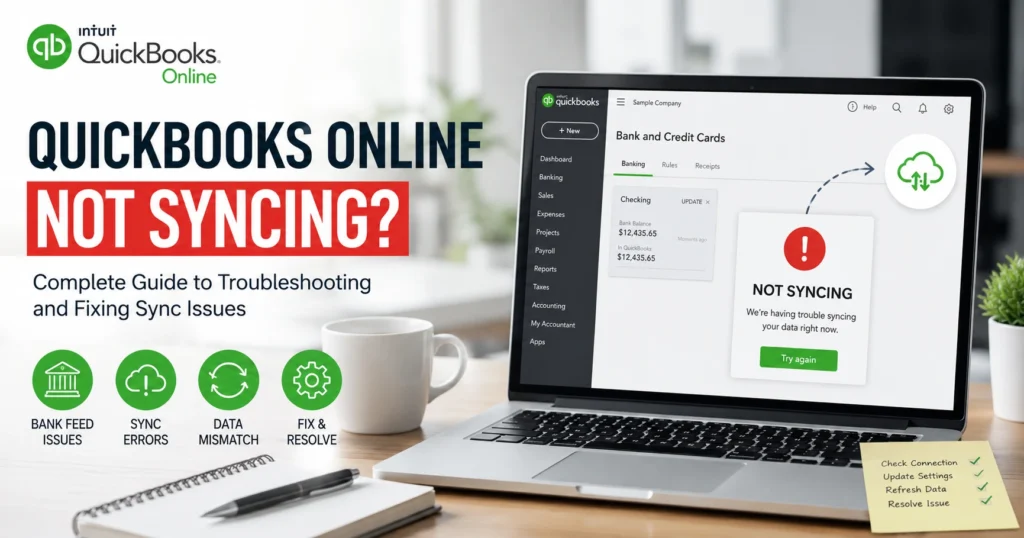
If you’re experiencing a QuickBooks Online not syncing issue, you’re not alone. Sync problems can occur between bank accounts, third-party applications, payroll services, inventory systems, payment processors, and other integrated platforms. When synchronization fails, transactions may not appear correctly, balances may become inaccurate, and business workflows can be interrupted.
This comprehensive guide explains the most common causes of QuickBooks Online sync problems, provides step-by-step troubleshooting methods, and offers practical solutions to restore smooth synchronization.
Understanding QuickBooks Online Sync Issues
Synchronization is the process of transferring data between QuickBooks Online and connected services. This may include:
- Bank account transactions
- Credit card activity
- Payroll information
- Customer records
- Vendor information
- Inventory data
- Payment processing records
- Third-party application data
When synchronization fails, QuickBooks Online may stop updating information automatically, resulting in incomplete or outdated financial records.
Common symptoms include:
- Missing transactions
- Delayed bank feed updates
- Duplicate entries
- Payroll information not updating
- Inventory discrepancies
- Error messages during sync attempts
- Third-party integrations failing to connect
Common Reasons QuickBooks Online Is Not Syncing
Several factors can contribute to synchronization failures.
1. Internet Connectivity Problems
Since QuickBooks Online operates in the cloud, a stable internet connection is essential. Poor connectivity can interrupt data transfers and prevent updates from completing successfully.
Signs include:
- Slow page loading
- Frequent disconnects
- Timeout errors
- Partial updates
2. Browser Cache and Cookies
Corrupted browser cache files often interfere with QuickBooks functionality. Stored data may conflict with current platform updates and cause syncing failures.
3. Bank Server Issues
Financial institutions periodically perform maintenance or system updates. During these periods, QuickBooks may be unable to retrieve banking information.
Common indicators include:
- Delayed transaction downloads
- Connection warnings
- Temporary bank feed interruptions
4. Expired Bank Credentials
When login credentials change at the bank, QuickBooks may lose access to the account.
This often occurs after:
- Password changes
- Security updates
- Multi-factor authentication modifications
5. Third-Party Integration Errors
Many businesses connect QuickBooks Online to external applications such as:
- CRM platforms
- E-commerce stores
- Inventory management software
- Payment gateways
API failures or integration conflicts may interrupt synchronization.
6. Browser Compatibility Issues
Using outdated browsers can affect QuickBooks performance and create synchronization problems.
Supported browsers should always be updated to the latest version.
7. Duplicate or Corrupted Data
Inconsistent data structures may prevent successful synchronization between connected systems.
Examples include:
- Duplicate customer records
- Invalid transaction data
- Corrupted inventory entries
How to Fix QuickBooks Online Not Syncing Bank Transactions
Bank feed issues are among the most common synchronization problems.
Step 1: Check Bank Connection Status
Navigate to:
Banking → Transactions → Connected Accounts
Review any warning messages or notifications displayed beside the account.
Step 2: Update Bank Feed Manually
A manual update can often restore synchronization.
- Open Banking.
- Select the affected account.
- Click Update.
- Wait for QuickBooks to complete the refresh process.
Step 3: Verify Login Credentials
If synchronization has stopped after changing your banking password:
- Disconnect the affected account.
- Reconnect it using updated credentials.
- Verify successful authentication.
Step 4: Review Bank Maintenance Notices
Banks occasionally suspend data connections during maintenance periods. Check with your financial institution if updates are temporarily unavailable.
Fixing Payroll Synchronization Issues
Payroll sync failures can lead to inaccurate employee payments and tax calculations.
Common Payroll Sync Problems
- Employee records not updating
- Tax calculations missing
- Payroll reports showing outdated information
- Direct deposit delays
Solutions
Verify Subscription Status
Ensure your payroll subscription remains active and current.
Refresh Payroll Data
Sign out of QuickBooks Online and log back in to trigger a system refresh.
Review Employee Information
Check for:
- Missing fields
- Invalid tax information
- Incomplete employee profiles
Update Browser Settings
Disable unnecessary browser extensions that may interfere with payroll functions.
Troubleshooting Inventory Sync Problems
Inventory synchronization is critical for businesses managing stock across multiple channels.
Causes of Inventory Sync Errors
- Duplicate SKU numbers
- Product mapping conflicts
- Third-party integration failures
- Inventory tracking inconsistencies
How to Resolve Inventory Sync Issues
Verify Product Mapping
Ensure each product is linked correctly across connected systems.
Remove Duplicate SKUs
Duplicate identifiers can prevent inventory updates from processing correctly.
Reconnect Inventory Applications
Disconnect and reconnect affected inventory platforms to refresh data synchronization.
Fixing Third-Party App Synchronization Failures
Businesses often connect QuickBooks Online with external software.
Examples include:
- Shopify
- WooCommerce
- Salesforce
- HubSpot
- Inventory management platforms
Common Causes
- Expired API tokens
- Permission changes
- Application updates
- Authentication failures
Troubleshooting Steps
- Disconnect the integration.
- Reauthorize permissions.
- Verify API settings.
- Test synchronization manually.
- Check application update logs.
Browser-Based Troubleshooting Methods
Clear Cache and Cookies
Corrupted browser files frequently cause QuickBooks Online syncing issues.
Steps:
- Open browser settings.
- Clear cache and cookies.
- Restart the browser.
- Log back into QuickBooks Online.
Try Incognito Mode
Private browsing mode disables most extensions and cached data.
If synchronization works in incognito mode, the issue likely involves browser settings or extensions.
Update Your Browser
Ensure you’re running the latest version of:
- Google Chrome
- Microsoft Edge
- Mozilla Firefox
- Safari
How to Reconnect a Bank Account Safely
If synchronization continues to fail, reconnecting the account may help.
Important Preparation
Before disconnecting:
- Verify all downloaded transactions
- Back up reports
- Reconcile accounts where possible
Reconnection Process
- Open Banking.
- Select the affected account.
- Disconnect the connection.
- Reconnect using updated credentials.
- Perform a manual sync.
Advanced Solutions for Persistent Sync Problems
Review Error Messages
QuickBooks often provides specific error codes.
Common examples include:
- Bank feed errors
- Authentication failures
- API connection issues
- Timeout errors
Recording exact error details can significantly simplify troubleshooting.
Check Service Status
Temporary platform disruptions can affect synchronization.
If QuickBooks services are experiencing interruptions, waiting for service restoration may resolve the issue automatically.
Verify User Permissions
Insufficient permissions may prevent synchronization actions.
Review:
- Administrator access
- Banking permissions
- Payroll permissions
- Integration permissions
Preventing Future Synchronization Issues
Proactive maintenance can reduce future sync failures.
Best Practices
Maintain Updated Browsers
Regular updates improve compatibility and security.
Monitor Connected Accounts
Periodically review account connections and authorization settings.
Perform Routine Reconciliations
Frequent reconciliation helps identify missing transactions early.
Keep Integrations Updated
Install updates for connected applications promptly.
Use Strong Credential Management
Track password changes and update connected accounts immediately.
Benefits of Resolving Sync Issues Quickly
Prompt resolution provides several advantages:
Improved Financial Accuracy
Accurate synchronization ensures reliable financial reporting.
Better Cash Flow Visibility
Up-to-date transaction data helps businesses monitor cash flow effectively.
Reduced Administrative Work
Automated synchronization minimizes manual data entry.
Stronger Decision Making
Current financial information supports informed business decisions.
Enhanced Compliance
Accurate records assist with tax reporting and regulatory compliance.
Frequently Asked Questions
Why is QuickBooks Online not syncing with my bank account?
The issue may result from credential changes, bank maintenance, browser problems, or temporary connection interruptions.
How often does QuickBooks Online sync bank transactions?
Most connected accounts update automatically multiple times per day, though timing varies by institution.
Can browser cache cause synchronization issues?
Yes. Corrupted cache files frequently interfere with QuickBooks Online functionality.
Should I disconnect and reconnect my bank account?
Reconnecting often resolves persistent synchronization issues but should be performed carefully to avoid duplicate transactions.
Can third-party integrations affect synchronization?
Yes. Application conflicts, expired permissions, and API issues commonly disrupt data synchronization.
Conclusion
Experiencing a QuickBooks Online not syncing issue can be frustrating, especially when it impacts banking, payroll, inventory management, or financial reporting. Fortunately, most synchronization problems can be resolved through systematic troubleshooting, including checking internet connectivity, refreshing bank feeds, clearing browser cache, reviewing permissions, and reconnecting integrations.
By understanding the underlying causes and implementing the solutions outlined in this guide, businesses can restore accurate data synchronization, maintain reliable financial records, and continue operating efficiently. Regular system maintenance, timely updates, and proactive monitoring of connected accounts can help prevent future synchronization issues and keep QuickBooks Online running smoothly.