
Introduction
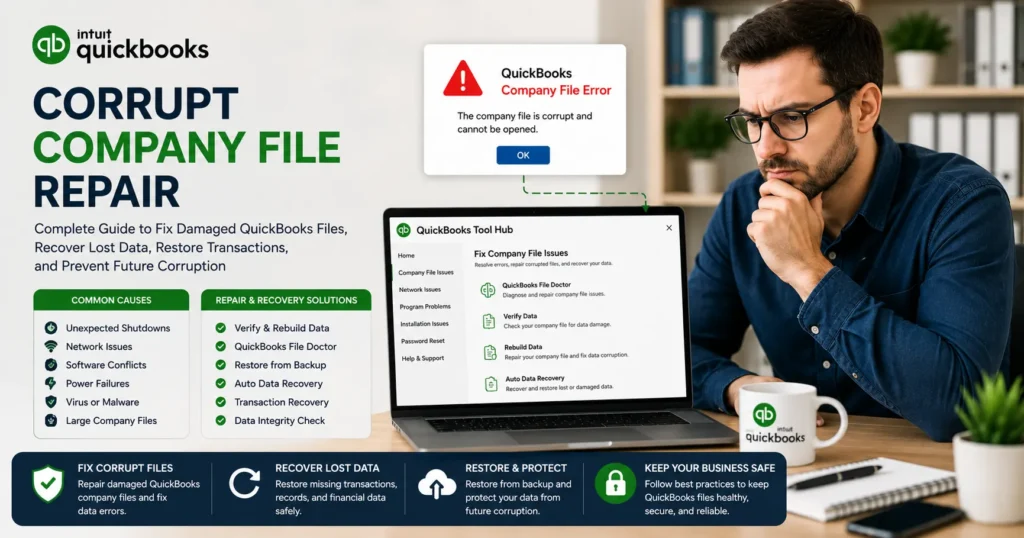
A corrupt QuickBooks company file can bring business operations to a standstill. Whether you’re unable to open your company file, experiencing missing transactions, receiving data damage errors, or encountering unexpected crashes, file corruption can put critical financial information at risk.
QuickBooks company files store everything from customer records and invoices to payroll information, vendor details, and tax data. When corruption occurs, businesses may lose access to essential accounting records, causing delays in bookkeeping, reporting, and daily operations.
Fortunately, most QuickBooks company file corruption issues can be repaired using built-in tools, backup restoration methods, and advanced recovery techniques. Understanding the causes, warning signs, and repair options can help you recover data quickly and minimize business disruption.
This comprehensive guide explains how to identify corruption, repair damaged QuickBooks company files, recover lost financial records, and prevent future data damage.
What Is a Corrupt QuickBooks Company File?
A QuickBooks company file becomes corrupted when its internal data structure is damaged, incomplete, or unreadable.
Corruption may affect:
- Customer records
- Vendor information
- Payroll data
- Inventory records
- Bank transactions
- Financial reports
- Account balances
- Tax information
The severity of corruption varies significantly. Some files may display minor errors while remaining accessible, while others become completely unusable.
Common Signs of Company File Corruption
Many users do not recognize corruption until serious issues occur.
Common warning signs include:
1. QuickBooks Crashes Frequently
QuickBooks may:
- Freeze unexpectedly
- Stop responding
- Close without warning
- Crash during specific tasks
2. Error Messages Appear
Common errors include:
- Data damage errors
- Verification failed errors
- Unrecoverable errors
- Company file access errors
- Database server errors
3. Missing Transactions
Users may notice:
- Disappearing invoices
- Missing payments
- Incomplete reports
- Incorrect balances
4. Reports Show Incorrect Data
Financial statements may contain:
- Negative balances
- Missing accounts
- Incorrect totals
- Duplicate transactions
5. Company File Will Not Open
In severe cases:
- File opening fails completely
- QuickBooks freezes during launch
- Network files become inaccessible
What Causes Company File Corruption?
Understanding the cause helps prevent future damage.
Hardware Failures
Storage devices can fail unexpectedly.
Examples include:
- Hard drive crashes
- SSD failures
- Network storage issues
- External drive corruption
Power Interruptions
Sudden shutdowns may damage company files during:
- Data entry
- Saving transactions
- Backup creation
- File transfers
Network Problems
Multi-user environments often experience corruption due to:
- Unstable connections
- Server interruptions
- Improper workstation shutdowns
Oversized Company Files
Large company files are more vulnerable to:
- Performance degradation
- Database errors
- Internal data corruption
Malware or Virus Infections
Malicious software can:
- Alter file structures
- Delete records
- Damage databases
Faulty Updates
Software updates occasionally create:
- Compatibility conflicts
- Incomplete installations
- File conversion issues
Immediate Steps to Take When Corruption Occurs
When corruption is suspected:
Stop Using the File
Continued activity may worsen damage.
Avoid:
- Adding transactions
- Running payroll
- Importing data
Create a Backup Copy
Even damaged files may contain recoverable information.
Always create:
- Local backup
- External backup
- Cloud backup
Document Error Messages
Record:
- Error codes
- Screenshots
- Failed operations
This information helps identify the repair method.
Method 1: Use Verify Data Utility
QuickBooks includes a built-in Verify Data utility.
This tool scans for:
- Data inconsistencies
- Missing links
- Damaged records
Steps
- Open QuickBooks.
- Select File.
- Choose Utilities.
- Click Verify Data.
- Wait for the scan to complete.
If problems are detected, QuickBooks will recommend rebuilding data.
Method 2: Run Rebuild Data Utility
Rebuild Data repairs internal database structures.
Steps
- Open QuickBooks.
- Select File.
- Choose Utilities.
- Click Rebuild Data.
- Create a backup.
- Allow QuickBooks to repair the file.
After completion:
- Run Verify Data again.
- Confirm errors are resolved.
Many corruption issues are fixed through this process.
Method 3: Use QuickBooks File Doctor
QuickBooks File Doctor is designed specifically for:
- Company file damage
- Network problems
- Database issues
Benefits
File Doctor can:
- Repair corruption
- Restore accessibility
- Fix network-related errors
How to Use It
- Install QuickBooks Tool Hub.
- Launch Tool Hub.
- Select Company File Issues.
- Open QuickBooks File Doctor.
- Scan the affected file.
- Follow repair recommendations.
Method 4: Restore a Backup File
Backup restoration remains one of the safest recovery methods.
Restore Process
- Open QuickBooks.
- Select Open or Restore Company.
- Choose Restore a Backup Copy.
- Select Local Backup.
- Locate the backup file.
- Follow restoration prompts.
After restoration:
- Verify financial data.
- Review recent transactions.
- Compare balances.
Method 5: Use Auto Data Recovery
QuickBooks Auto Data Recovery (ADR) can recover damaged files automatically.
ADR creates backup versions of:
- Company files
- Transaction logs
Recovery Benefits
ADR helps recover:
- Recent transactions
- Account balances
- Customer records
Many users successfully restore critical data without requiring professional assistance.
Method 6: Move the Company File
Sometimes corruption is caused by file location issues.
Try moving the company file to:
- Local desktop
- Different folder
- Alternate drive
After moving:
- Open QuickBooks.
- Browse to the new location.
- Attempt access.
Network-related corruption may disappear.
Method 7: Repair QuickBooks Installation
Damaged QuickBooks program files can mimic corruption symptoms.
Repair Steps
- Open Control Panel.
- Select Programs and Features.
- Locate QuickBooks.
- Choose Repair.
- Restart the computer.
Test the company file afterward.
Recovering Lost Transactions After Corruption
Many users worry about missing financial records.
Recovery options include:
Backup Restoration
Restore recent backups containing missing transactions.
Audit Log Review
Review:
- Deleted entries
- Modified records
- User activity
Bank Feeds
Download missing bank transactions again.
Accountant Copies
Professional accountants may possess additional copies of data.
Repairing Severe Company File Corruption
Some files experience extensive damage.
Signs include:
- Complete file failure
- Multiple data errors
- Missing account structures
- Corrupted indexes
Advanced repair techniques include:
Database Reconstruction
Technicians rebuild:
- Internal tables
- Relationships
- Data indexes
Transaction Recovery
Specialized recovery tools may restore:
- Invoices
- Payments
- Deposits
- Payroll records
File Extraction
Critical information can sometimes be extracted into a new company file.
How Long Does Company File Repair Take?
Repair time depends on:
- File size
- Corruption severity
- Available backups
- Hardware performance
Typical estimates:
| Scenario | Estimated Time |
| Minor corruption | 15–30 minutes |
| Moderate corruption | 1–3 hours |
| Severe corruption | Several hours |
| Advanced recovery | 1–3 days |
Preventing Future Company File Corruption
Prevention is easier than recovery.
Schedule Automatic Backups
Backups should occur:
- Daily
- Weekly
- Before major updates
Maintain multiple backup copies.
Keep QuickBooks Updated
Updates contain:
- Security fixes
- Database improvements
- Stability enhancements
Regular updates reduce corruption risks.
Use Reliable Hardware
Invest in:
- SSD storage
- Battery backup systems
- Reliable servers
Hardware failures are a leading cause of corruption.
Monitor File Size
Large files may require:
- Data archiving
- Condensing
- Cleanup procedures
Managing file size improves performance.
Protect Against Malware
Use:
- Antivirus software
- Firewalls
- Security updates
Cyber threats can damage financial databases.
Maintain Stable Networks
Multi-user environments should ensure:
- Reliable connectivity
- Proper server maintenance
- Controlled shutdown procedures
Common Company File Errors Associated with Corruption
Users frequently encounter:
Error 6000 Series
Includes:
- Error 6000
- Error 6000-77
- Error 6000-83
Usually related to:
- File access problems
- Network issues
- Corruption
Error 6150
Indicates:
- Damaged company files
- Improper file creation
Error 6123
Common during:
- File opening
- Restoration
- Conversion
Unrecoverable Errors
These errors often indicate:
- Data damage
- Corrupt transactions
- Internal file issues
When Professional Recovery Is Necessary
Seek expert assistance when:
- Backups fail
- File Doctor cannot repair damage
- Critical financial records are missing
- Payroll information is affected
- Tax filing deadlines are approaching
Professional repair services may recover information unavailable through standard recovery methods.
Benefits of Repairing Corrupt Files Quickly
Prompt repair helps:
- Prevent data loss
- Restore operations faster
- Maintain accurate reporting
- Protect payroll records
- Avoid compliance issues
Delaying repairs often increases recovery complexity.
Frequently Asked Questions
Can a corrupt QuickBooks company file be repaired?
Yes. Most company file corruption issues can be repaired using Verify Data, Rebuild Data, File Doctor, backup restoration, or advanced recovery methods.
Will I lose data during repair?
Not necessarily. Creating backups before repair significantly reduces the risk of data loss.
What causes QuickBooks file corruption?
Common causes include hardware failures, power outages, network interruptions, malware, oversized files, and software conflicts.
How do I know if my company file is corrupted?
Signs include crashes, missing transactions, verification errors, slow performance, incorrect reports, and file access problems.
Can File Doctor repair severe corruption?
File Doctor can resolve many issues, but severe corruption may require advanced recovery techniques or professional assistance.
Conclusion
A corrupt QuickBooks company file can disrupt accounting operations, delay financial reporting, and threaten critical business records. Fortunately, QuickBooks provides several powerful recovery tools that can repair damaged files, restore missing transactions, and recover important financial information.
Whether you’re dealing with data damage errors, inaccessible company files, missing records, or severe corruption, acting quickly is essential. Start by creating backups, running Verify and Rebuild Data utilities, using QuickBooks File Doctor, and restoring recent backups when available.
By implementing regular backup strategies, maintaining updated software, securing your systems, and monitoring file health, businesses can significantly reduce the risk of future corruption while ensuring long-term financial data integrity.