
Introduction
QuickBooks is one of the most widely used accounting software solutions for businesses of all sizes. However, users occasionally encounter technical issues that prevent the software from launching correctly. One of the most common startup and activation-related problems is QuickBooks Error 3371.
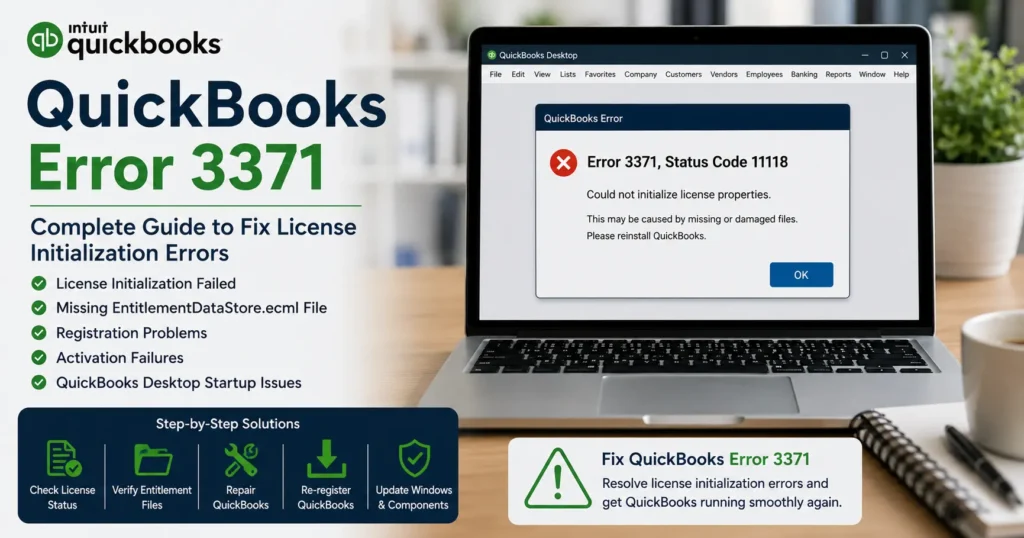
When this error appears, QuickBooks cannot load the license data needed to start the application. The error often displays messages such as:
- Error 3371 Status Code 11118
- Could not initialize license properties
- QuickBooks could not load the license data
- QuickBooks Error 3371 Status Code -1
- Error 3371 Status Code 11104
This comprehensive guide explains everything you need to know about QuickBooks Error 3371, including causes, symptoms, troubleshooting methods, prevention strategies, and frequently asked questions.
What is QuickBooks Error 3371?
QuickBooks Error 3371 occurs when the software is unable to initialize licensing properties required for startup. QuickBooks relies on specific files and system components to validate the software license.
If these files become damaged, missing, corrupted, or inaccessible, QuickBooks cannot verify the license information and refuses to launch.
The error usually appears during:
- Initial QuickBooks installation
- Software activation
- Windows updates
- System migrations
- Restoring QuickBooks on a new computer
- Reinstalling QuickBooks Desktop
Common Error Messages Associated with QuickBooks Error 3371
Users may encounter one of the following messages:
Error Message 1
Could not initialize license properties.
Error Message 2
Error 3371: QuickBooks could not load the license data.
Error Message 3
QuickBooks Error 3371 Status Code 11118.
Error Message 4
QuickBooks could not load the license data. This may be caused by missing or damaged files.
Error Message 5
Error 3371 Status Code -1.
All these messages point to licensing or registration file problems.
Why Does QuickBooks Error 3371 Occur?
Several factors can trigger Error 3371.
1. Damaged Entitlement File
QuickBooks stores activation information inside the EntitlementDataStore.ecml file.
If this file becomes corrupted:
- License validation fails
- QuickBooks cannot launch
- Activation process stops
2. Missing MSXML Component
Microsoft XML Core Services (MSXML) is essential for QuickBooks licensing operations.
If MSXML is:
- Corrupted
- Missing
- Improperly registered
QuickBooks may display Error 3371.
3. Interrupted Windows Update
An incomplete Windows update can damage system components required by QuickBooks.
This often causes:
- Startup failures
- Registration issues
- Licensing problems
4. Antivirus Restrictions
Certain antivirus programs may:
- Block QuickBooks files
- Restrict activation services
- Prevent licensing verification
5. Improper QuickBooks Installation
A damaged installation may result in:
- Missing licensing files
- Broken registration components
- Activation failures
6. Hard Drive Cloning
Users often encounter Error 3371 after:
- Moving QuickBooks to a new PC
- Cloning a hard drive
- Migrating system data
The licensing configuration may not transfer properly.
7. Damaged QBRegistration.dat File
This file stores registration information.
If corrupted:
- License validation fails
- QuickBooks startup is blocked
Symptoms of QuickBooks Error 3371
You may notice:
- QuickBooks refuses to open
- License validation errors
- Registration problems
- Startup crashes
- Activation failure messages
- QuickBooks closes immediately after launch
- Inability to access company files
How to Identify QuickBooks Error 3371
The issue is generally easy to recognize because QuickBooks displays a licensing-related message immediately upon startup.
Signs include:
✔ Program fails during launch
✔ License validation errors
✔ Activation screen appears repeatedly
✔ Registration cannot complete
✔ QuickBooks Desktop won’t start
QuickBooks Versions Affected
Error 3371 may affect:
- QuickBooks Desktop Pro
- QuickBooks Premier
- QuickBooks Enterprise
- QuickBooks Accountant
- QuickBooks Desktop Plus
The issue can occur in:
- 2021
- 2022
- 2023
- 2024
- 2025
- Earlier versions
Solution 1: Use QuickBooks Tool Hub
The Tool Hub is the simplest solution.
Step 1
Close QuickBooks.
Step 2
Download the latest QuickBooks Tool Hub.
Step 3
Install Tool Hub.
Step 4
Open Tool Hub.
Step 5
Select:
Installation Issues
Step 6
Run:
3371 Error Fix
Step 7
Wait for completion.
Step 8
Restart the computer.
Step 9
Open QuickBooks again.
Solution 2: Delete Entitlement File
Removing the damaged entitlement file often resolves Error 3371.
Step 1
Close QuickBooks.
Step 2
Press:
Windows + R
Step 3
Enter:
C:\ProgramData\Intuit\Entitlement Client\v8
(Version number may vary.)
Step 4
Locate:
EntitlementDataStore.ecml
Step 5
Delete the file.
Step 6
Restart QuickBooks.
Step 7
Re-register QuickBooks.
A fresh entitlement file will be created automatically.
Solution 3: Update Windows
Outdated Windows components frequently cause licensing issues.
Step 1
Open Settings.
Step 2
Select:
Update & Security
Step 3
Click:
Check for Updates
Step 4
Install all available updates.
Step 5
Restart the system.
Step 6
Launch QuickBooks again.
Solution 4: Repair MSXML Component
MSXML corruption can trigger Error 3371.
Step 1
Open Command Prompt as Administrator.
Step 2
Run:
regsvr32 MSXML6.dll
Step 3
Press Enter.
Step 4
Restart the computer.
Step 5
Open QuickBooks.
Solution 5: Reinstall QuickBooks Desktop
If program files are damaged, reinstalling QuickBooks may help.
Step 1
Open Control Panel.
Step 2
Select:
Programs and Features
Step 3
Choose QuickBooks.
Step 4
Click Uninstall.
Step 5
Restart the computer.
Step 6
Download the latest installer.
Step 7
Install QuickBooks again.
Step 8
Activate using license information.
Solution 6: Run System File Checker
Damaged Windows files can affect QuickBooks licensing.
Step 1
Open Command Prompt as Administrator.
Step 2
Enter:
sfc /scannow
Step 3
Press Enter.
Step 4
Wait for scanning.
Step 5
Restart Windows.
Step 6
Launch QuickBooks.
Solution 7: Verify Antivirus Settings
Some security software blocks QuickBooks activation services.
Check:
- Firewall rules
- Antivirus restrictions
- Quarantine folders
Add QuickBooks as an exception if necessary.
Solution 8: Repair QuickBooks Installation
Step 1
Open Control Panel.
Step 2
Select Programs and Features.
Step 3
Choose QuickBooks.
Step 4
Click:
Repair
Step 5
Allow repair to finish.
Step 6
Restart Windows.
Step 7
Launch QuickBooks.
Solution 9: Create a New Windows User
A damaged Windows profile may interfere with licensing.
Step 1
Create a new administrator account.
Step 2
Log into the new account.
Step 3
Open QuickBooks.
Step 4
Check whether Error 3371 disappears.
Solution 10: Restore Missing Registration Files
If QBRegistration.dat becomes damaged:
- Repair QuickBooks
- Reinstall QuickBooks
- Re-register the product
This often rebuilds licensing records.
Preventing QuickBooks Error 3371
Follow these best practices.
Keep Windows Updated
Regular updates maintain required system components.
Avoid Forced Shutdowns
Unexpected shutdowns can corrupt licensing files.
Maintain Antivirus Exceptions
Allow QuickBooks services through security software.
Create Backups Regularly
Store:
- Company files
- License information
- Installation files
Use Reliable Storage Devices
Faulty drives often cause file corruption.
Update QuickBooks Frequently
New releases fix licensing and activation bugs.
Impact of Error 3371 on Businesses
Ignoring Error 3371 may result in:
- Accounting interruptions
- Payroll delays
- Invoicing issues
- Financial reporting problems
- Reduced employee productivity
Quick resolution minimizes operational disruptions.
Frequently Asked Questions (FAQ)
What causes QuickBooks Error 3371?
The error usually occurs due to damaged entitlement files, corrupted licensing data, Windows issues, or installation problems.
Is Error 3371 related to company files?
No. It is primarily a licensing and activation issue rather than a company file corruption problem.
Can I fix Error 3371 without reinstalling QuickBooks?
Yes. Most users resolve it by deleting the entitlement file or using QuickBooks Tool Hub.
Does updating Windows help?
Yes. Many licensing issues are resolved after installing pending Windows updates.
Can antivirus software cause Error 3371?
Yes. Security programs may block QuickBooks licensing components.
What is EntitlementDataStore.ecml?
It is the file that stores QuickBooks license information and activation details.
Does Error 3371 affect all QuickBooks versions?
Yes. Multiple QuickBooks Desktop versions may experience this error.
Can system migration trigger Error 3371?
Yes. Moving QuickBooks to a new computer often causes licensing validation issues.
Is company data at risk?
Generally no. The issue affects software activation, not accounting data.
When should I seek professional support?
If all troubleshooting steps fail, professional QuickBooks support may be required to rebuild licensing components.
Conclusion
QuickBooks Error 3371 is one of the most common licensing and activation issues encountered by QuickBooks Desktop users. The error generally occurs when QuickBooks cannot access essential registration information due to damaged entitlement files, corrupted MSXML components, incomplete Windows updates, installation problems, or security software conflicts.
Fortunately, the issue is usually fixable using straightforward troubleshooting methods such as deleting the EntitlementDataStore.ecml file, running QuickBooks Tool Hub, updating Windows, repairing QuickBooks, or reinstalling the application.
By following the solutions outlined in this guide and implementing preventive maintenance practices, users can restore QuickBooks functionality, protect their accounting workflow, and avoid future licensing disruptions.