
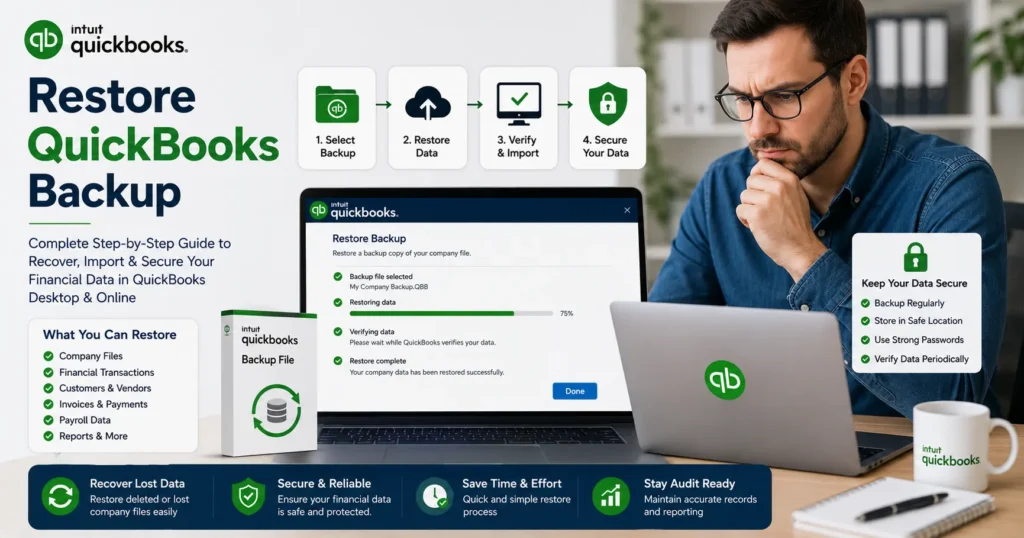
Introduction: Why Restoring QuickBooks Backup Is Critical
In modern business accounting, data is everything. From invoices and payroll records to tax filings and expense tracking, your financial ecosystem depends heavily on accurate and secure data storage. That’s why QuickBooks has become one of the most widely used accounting platforms for small and medium-sized businesses.
However, even the most reliable systems are not immune to issues like:
- System crashes
- Corrupted company files
- Accidental deletion of data
- Software updates gone wrong
- Malware or ransomware attacks
- Hardware failure
When such situations occur, the ability to restore QuickBooks backup becomes essential. Without a proper restoration process, businesses may lose critical financial data, which can lead to reporting errors, compliance issues, and operational delays.
This comprehensive guide explains everything you need to know about restoring QuickBooks backup files, including step-by-step instructions, troubleshooting methods, and expert best practices to ensure data safety.
Understanding QuickBooks Backup Files
Before learning how to restore data, it is important to understand what a QuickBooks backup file is.
A QuickBooks backup file typically has a .QBB extension. It contains a compressed copy of your company data including:
- Company financial records
- Chart of accounts
- Customer and vendor information
- Payroll data
- Transaction history
- Inventory details
Backup vs Company File
- .QBB file → Backup file (compressed, used for restoration)
- .QBW file → Active working company file
When you restore a backup, QuickBooks converts the .QBB file back into a working .QBW file.
Why You May Need to Restore a QuickBooks Backup
Restoring a backup is not just for emergencies. There are multiple practical scenarios:
1. Data Corruption
If your company file becomes damaged, restoring a backup is often the fastest solution.
2. Accidental Deletion
Mistakenly deleted transactions or records can be recovered via backup restoration.
3. System Migration
When switching computers or servers, backups help transfer data safely.
4. Software Errors
Updates or crashes in QuickBooks may require rollback to a stable version.
5. Disaster Recovery
Hardware failure or cyberattacks can wipe data, making backups essential for recovery.
Types of QuickBooks Backup Options
QuickBooks provides multiple backup options depending on your setup:
1. Manual Backup
You manually create a backup file using the QuickBooks interface.
2. Scheduled Backup
Automated backups at regular intervals (daily, weekly, or monthly).
3. Local Backup
Stored on your computer or external drive.
4. Online Backup
Stored securely in cloud storage for remote access and protection.
How to Restore QuickBooks Backup (Step-by-Step Guide)
Method 1: Restore Backup in QuickBooks Desktop
Follow these steps carefully:
Step 1: Open QuickBooks
Launch QuickBooks Desktop on your system.
Step 2: Go to File Menu
Click on:
- File → Open or Restore Company
Step 3: Choose Restore Option
Select:
- “Restore a backup copy” → Next
Step 4: Select Backup File
Browse your system and locate the .QBB file.
Step 5: Choose Location
Decide where you want to restore the file:
- Local folder
- External drive
- Network location
Step 6: Open the File
Click Open and follow prompts.
Step 7: Save as Company File
QuickBooks will convert the backup into a working .QBW file.
Method 2: Restore Backup in QuickBooks Online (Conversion Method)
QuickBooks Online does not directly restore .QBB files. Instead:
Step 1: Use Desktop Version
Open QuickBooks Desktop first.
Step 2: Restore Backup File
Follow the desktop restoration steps.
Step 3: Convert Company File
Use the export tool to move data to QuickBooks Online.
Step 4: Upload to Cloud
Import the file into your online account.
Method 3: Restore from Local Backup Drive
If your backup is stored externally:
Step 1: Connect Device
Plug in USB or external hard drive.
Step 2: Launch QuickBooks
Open software normally.
Step 3: Restore Process
File → Restore → Select external backup location.
Common Errors During QuickBooks Backup Restoration
While restoring, users may face several issues:
1. “Backup File Not Found”
- File moved or renamed
- Incorrect directory selected
2. “Invalid Backup File”
- Corrupted .QBB file
- Incomplete backup creation
3. Version Compatibility Issue
- Backup created in newer version
- Trying to restore in older QuickBooks version
4. Access Permission Error
- File stored in restricted folder
- Admin rights required
5. Network Drive Failure
- Unstable server connection
- Interrupted file access
How to Fix QuickBooks Backup Restore Issues
Solution 1: Verify File Integrity
Ensure the backup file is not corrupted by testing it on another system.
Solution 2: Update QuickBooks
Always use the latest version of QuickBooks.
Solution 3: Run as Administrator
Right-click and run QuickBooks with admin permissions.
Solution 4: Move File Location
Copy the backup file to local disk instead of external storage.
Solution 5: Use QuickBooks File Doctor
This tool can repair damaged company files.
Best Practices for QuickBooks Backup Management
To avoid data loss in the future, follow these practices:
1. Schedule Regular Backups
Set daily or weekly automatic backups.
2. Use Multiple Storage Locations
Store backups in:
- Local drive
- External drive
- Cloud storage
3. Keep Version History
Maintain multiple backup versions for safety.
4. Encrypt Sensitive Data
Protect financial data from unauthorized access.
5. Test Backup Files
Periodically restore backups to ensure they are working.
Advanced Tips for Professionals
1. Use RAID Storage Systems
Helps prevent data loss in case of hardware failure.
2. Enable Auto Data Recovery (ADR)
QuickBooks includes ADR for recovering lost transactions.
3. Monitor Log Files
Track changes made in company files.
4. Use Third-Party Backup Tools
For enterprise-level protection, external backup software can be used.
Difference Between Restore and Rebuild in QuickBooks
| Feature | Restore Backup | Rebuild Data |
| Purpose | Recover entire file | Fix minor data issues |
| Data Impact | Full replacement | Partial repair |
| Usage | Major crashes | Small errors |
| Risk | Overwrites current data | Low risk |
When Should You Avoid Restoring Backup?
You should NOT restore a backup if:
- You only need a single transaction
- The issue is minor and fixable
- You don’t have updated backup files
- Current file contains important recent updates not included in backup
Conclusion
Restoring QuickBooks backup files is one of the most important skills for anyone managing business finances using QuickBooks. Whether you are dealing with accidental data loss, system crashes, or migration needs, knowing how to properly restore your backup ensures business continuity and financial security.
By following the step-by-step methods, troubleshooting techniques, and best practices outlined in this guide, you can confidently recover your company data without stress or risk.
A strong backup strategy is not optional—it is essential. Always maintain updated backups, test them regularly, and store them securely to ensure your business never faces unexpected data loss again.