
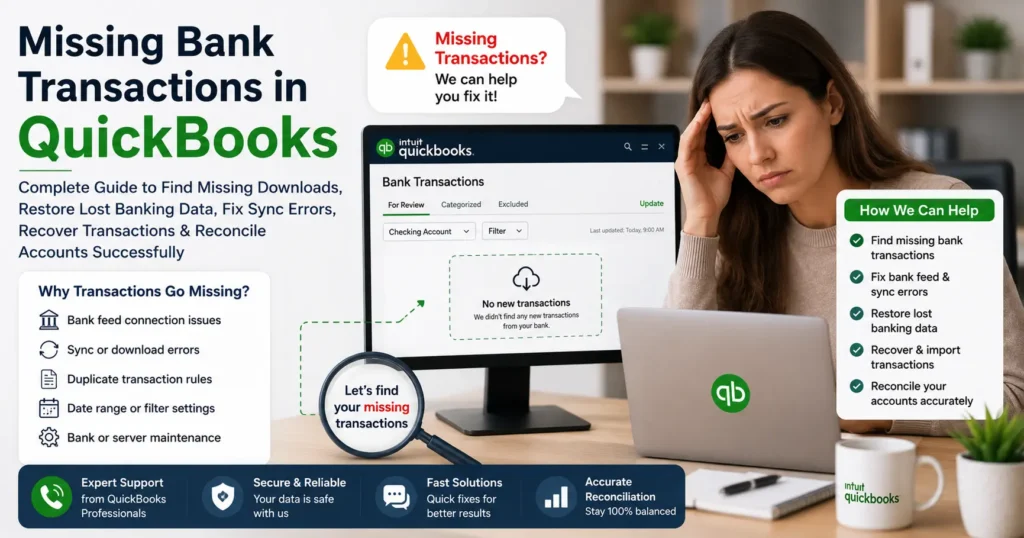
Introduction
Missing bank transactions in QuickBooks can create significant accounting challenges for businesses, bookkeepers, and accountants. When expected banking transactions fail to appear in QuickBooks, financial records become inaccurate, reconciliations become difficult, and reporting errors may occur. Whether you use QuickBooks Online or QuickBooks Desktop, missing transactions can disrupt cash flow management, expense tracking, tax preparation, and overall financial visibility.
Many users discover missing transactions when reconciling accounts, reviewing bank feeds, preparing financial reports, or auditing transactions. The issue may stem from bank connection failures, synchronization problems, incorrect date filters, duplicate transaction prevention systems, software updates, browser issues, or financial institution outages.
This guide explains everything you need to know about missing bank transactions in QuickBooks, including causes, symptoms, troubleshooting methods, prevention strategies, and recovery options.
What Are Missing Bank Transactions in QuickBooks?
Missing bank transactions occur when transactions that exist in your bank account do not appear in QuickBooks through bank feeds or manual imports.
Common examples include:
- Deposits not appearing
- Withdrawals missing
- Credit card charges absent
- ACH payments not downloading
- Payroll transactions missing
- Bank transfers not syncing
- Duplicate prevention hiding transactions
- Historical transactions disappearing
The problem can affect:
- QuickBooks Online
- QuickBooks Desktop
- QuickBooks Enterprise
- QuickBooks Accountant
- QuickBooks Self-Employed
Signs That Bank Transactions Are Missing
Users often notice missing transactions through the following symptoms:
Reconciliation Differences
Account balances don’t match the bank statement.
Incomplete Bank Feed Downloads
Recent transactions fail to appear.
Missing Deposits
Customer payments appear at the bank but not in QuickBooks.
Missing Expenses
Bank withdrawals aren’t visible.
Incorrect Account Balance
QuickBooks balance differs from actual bank balance.
Delayed Updates
Transactions stop downloading for several days.
Partial Downloads
Only some transactions appear.
Why Missing Bank Transactions Occur
Several factors can prevent transactions from appearing.
Bank Connection Errors
A disconnected bank feed is one of the most common causes.
Issues include:
- Expired bank credentials
- Multi-factor authentication changes
- Bank website maintenance
- Security updates
Incorrect Date Filters
QuickBooks may be displaying a limited date range.
Examples:
- Last 30 days only
- Current month only
- Custom filter settings
Transactions outside the selected range remain hidden.
Duplicate Detection
QuickBooks automatically prevents duplicate transaction imports.
Sometimes legitimate transactions are incorrectly flagged as duplicates.
Bank Server Problems
Financial institutions occasionally experience outages.
This may cause:
- Delayed downloads
- Missing data transfers
- Partial transaction synchronization
Browser Cache Problems
For QuickBooks Online users:
- Corrupt cache files
- Stored browser data
- Cookie conflicts
can interfere with transaction visibility.
Company File Damage
QuickBooks Desktop company file corruption may affect:
- Banking data
- Transaction history
- Account registers
Inactive Accounts
Transactions may download into inactive or hidden accounts.
Users mistakenly assume transactions are missing.
Common Banking Errors Related to Missing Transactions
Error 102
Occurs when the bank’s website experiences maintenance or temporary issues.
Error 105
Indicates a problem communicating with the bank.
Error 108
Requires attention on the bank website.
Error 185
Bank requests additional security verification.
Error 310
Duplicate account issue affecting downloads.
Error 324
QuickBooks cannot locate the account at the financial institution.
How to Find Missing Transactions in QuickBooks Online
Step 1: Review Banking Tab
Navigate to:
Banking → Transactions
Check:
- For Review
- Categorized
- Excluded
Sometimes transactions are downloaded but categorized automatically.
Step 2: Expand Date Range
Review older periods.
Transactions may exist outside current filters.
Step 3: Search Transaction History
Use transaction search tools.
Search by:
- Amount
- Vendor
- Date
- Check number
Step 4: Refresh Bank Feed
Select:
Update
Allow QuickBooks to reconnect and retrieve recent transactions.
Step 5: Check Excluded Transactions
Many users accidentally exclude transactions.
Navigate to:
Excluded Tab
Restore missing entries.
How to Find Missing Transactions in QuickBooks Desktop
Verify Bank Feed Settings
Review:
Banking → Bank Feeds
Ensure accounts remain connected.
Download Transactions Again
Retrieve transactions directly from:
- Financial institution
- Web Connect files
- Direct Connect
Verify Company File
Use:
File → Utilities → Verify Data
Check for corruption affecting transactions.
Rebuild Data
If Verify identifies issues:
File → Utilities → Rebuild Data
This repairs damaged records.
How to Restore Missing Transactions
Method 1: Manual Import
Download transaction files from your bank.
Supported formats include:
- CSV
- QBO
- OFX
Import directly into QuickBooks.
Method 2: Reconnect Bank Account
Disconnect and reconnect the account.
This often refreshes transaction synchronization.
Method 3: Restore Backup
For Desktop users:
Restore a backup containing missing transactions.
Method 4: Recreate Transactions
If necessary:
- Re-enter deposits
- Re-enter expenses
- Recreate transfers
using bank statements as references.
Preventing Missing Transactions
Update Banking Connections Regularly
Verify account connectivity weekly.
Reconcile Frequently
Monthly reconciliations help identify issues early.
Keep Software Updated
Install:
- QuickBooks updates
- Payroll updates
- Banking updates
promptly.
Maintain Backups
Regular backups reduce recovery risks.
Monitor Bank Notifications
Financial institutions often announce:
- Maintenance windows
- Security updates
- Login changes
that affect QuickBooks connectivity.
How Bank Feed Synchronization Works
Understanding synchronization helps diagnose problems.
QuickBooks:
- Connects securely to the financial institution.
- Requests transaction data.
- Downloads eligible transactions.
- Screens for duplicates.
- Places transactions into review queues.
Failures at any stage can result in missing transactions.
Impact of Missing Transactions on Businesses
Financial Reporting Errors
Profit and loss reports become inaccurate.
Cash Flow Problems
Business owners may misunderstand available funds.
Tax Preparation Issues
Expenses and income may be underreported.
Audit Risks
Incomplete records create compliance concerns.
Reconciliation Delays
Accounting teams spend additional time identifying discrepancies.
Missing Transactions After Reconnecting Bank Accounts
Some banks limit historical downloads.
Common download windows include:
- 30 days
- 60 days
- 90 days
Older transactions may require manual imports.
Missing Credit Card Transactions
Credit card accounts may experience:
- Delayed merchant posting
- Pending authorization issues
- Duplicate prevention filtering
Verify transactions on the card issuer’s website.
Missing Payroll Transactions
Payroll-related transactions may disappear due to:
- Bank feed delays
- Incorrect account mapping
- Payroll service synchronization failures
Review payroll settings and bank account assignments.
Missing Transactions After QuickBooks Updates
Software updates occasionally affect:
- Banking integrations
- Data synchronization
- Account linking
Re-authenticating bank connections often resolves the issue.
Advanced Troubleshooting Techniques
Verify Bank Website Access
Log directly into online banking.
Confirm transactions exist there first.
Use Incognito Mode
Browser extensions may interfere with QuickBooks Online.
Private browsing helps isolate browser-related problems.
Clear Browser Cache
Remove:
- Cookies
- Cached files
- Stored credentials
and reconnect.
Check Financial Institution Status
Some banks report outages directly through QuickBooks.
Review connection status messages.
Review Audit Logs
QuickBooks Online audit logs can reveal:
- Deleted transactions
- Modified transactions
- User actions
affecting banking data.
When to Contact Technical Support
Consider technical assistance when:
- Transactions remain missing after refreshes.
- Bank feed errors persist.
- Company file damage exists.
- Reconciliations cannot be completed.
- Historical transactions disappear.
- Imported files fail repeatedly.
Support professionals can identify deeper synchronization, database, or connectivity problems.
Frequently Asked Questions
Why are my bank transactions not showing in QuickBooks?
Common causes include bank connection failures, synchronization delays, duplicate detection, incorrect filters, or bank outages.
Can QuickBooks recover missing transactions?
Yes. Transactions can often be restored through bank feed refreshes, manual imports, backups, or account reconnections.
Why are only some transactions missing?
Partial synchronization failures, duplicate filtering, or date restrictions commonly affect only certain transactions.
How far back can QuickBooks download transactions?
This depends on the financial institution. Most banks provide 30–90 days of historical transactions.
Can company file damage cause missing transactions?
Yes. Corruption within QuickBooks Desktop company files may hide or remove banking records.
Is manual import safe?
Yes. Importing QBO, OFX, or CSV files is a common method for restoring missing transactions.
Conclusion
Missing bank transactions in QuickBooks can affect bookkeeping accuracy, financial reporting, reconciliations, payroll processing, and tax preparation. Fortunately, most cases stem from identifiable causes such as bank connection issues, synchronization failures, date filtering, duplicate detection systems, browser conflicts, or company file damage.
By understanding how QuickBooks banking feeds work, regularly reconciling accounts, maintaining updated software, monitoring bank connections, and utilizing recovery tools when needed, businesses can quickly restore missing transactions and maintain accurate financial records. A proactive approach ensures reliable banking data, smoother accounting workflows, and greater confidence in financial decision-making.