
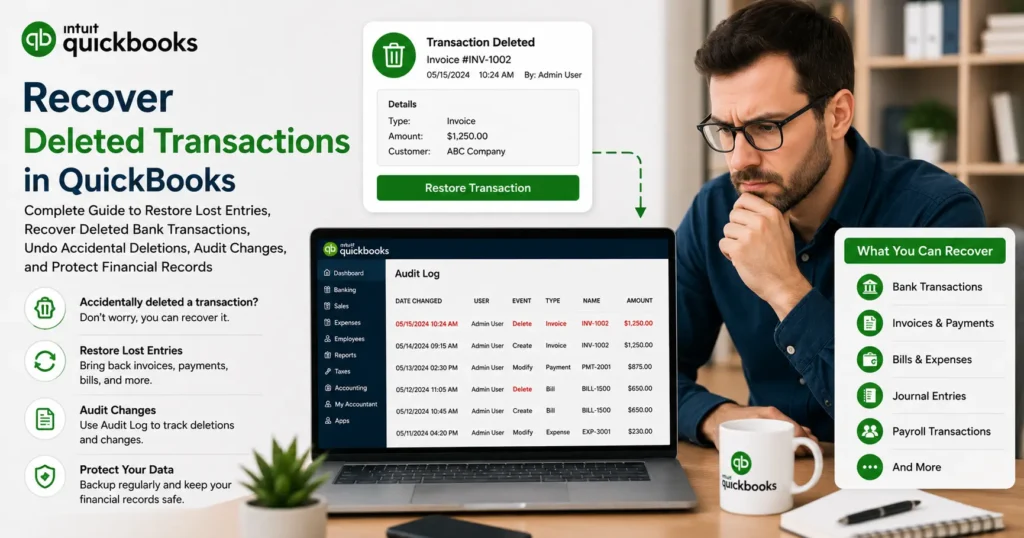
Introduction
QuickBooks is one of the most trusted accounting platforms used by businesses, accountants, bookkeepers, and financial professionals worldwide. It simplifies bookkeeping, payroll, invoicing, tax preparation, and financial reporting. However, one of the most frustrating situations users encounter is discovering that important transactions have been deleted.
Whether a bank transaction, invoice, bill payment, journal entry, expense, sales receipt, deposit, or payroll transaction was accidentally removed, losing financial data can create significant accounting discrepancies. Deleted transactions can impact account balances, reconciliation results, tax filings, profit and loss reports, and overall business financial accuracy.
If you’re searching for ways to recover deleted transactions in QuickBooks, this comprehensive guide explains everything you need to know. You’ll learn why transactions get deleted, how to identify missing records, methods to recover lost data, how QuickBooks Audit Log works, and best practices for preventing future data loss.
What Happens When Transactions Are Deleted in QuickBooks?
When a transaction is deleted, QuickBooks permanently removes the transaction from active records. Unlike voiding a transaction, deleting eliminates the entry from most reports and account histories.
Common deleted transactions include:
- Bank transactions
- Credit card transactions
- Customer invoices
- Vendor bills
- Expense entries
- Deposits
- Checks
- Sales receipts
- Journal entries
- Payroll transactions
- Inventory adjustments
Deleted transactions can cause:
- Incorrect account balances
- Missing income records
- Reconciliation discrepancies
- Payroll inaccuracies
- Tax reporting issues
- Financial statement errors
Understanding how deletion affects your accounting system is the first step toward recovery.
Common Reasons Transactions Get Deleted
Several factors contribute to missing QuickBooks transactions.
Human Error
Users accidentally delete transactions while cleaning records or correcting entries.
Incorrect Data Cleanup
Bookkeepers sometimes remove entries believing they are duplicates.
Bank Feed Sync Problems
Connected bank accounts may create synchronization issues causing transactions to disappear.
Third-Party App Conflicts
Integrated applications occasionally overwrite or remove financial records.
User Permission Errors
Employees with administrative access may unintentionally delete transactions.
Company File Corruption
Data damage within QuickBooks company files can lead to disappearing records.
Migration Issues
Converting data between QuickBooks versions sometimes causes transaction loss.
Signs That Transactions Have Been Deleted
Many users don’t realize transactions are missing until financial reports stop matching expected balances.
Common warning signs include:
Reconciliation Differences
Previously reconciled accounts no longer balance.
Missing Income
Revenue appears lower than expected.
Vendor Balance Issues
Outstanding vendor balances suddenly change.
Payroll Mismatches
Employee payment records disappear.
Tax Report Inconsistencies
Sales tax and expense reports show unexpected values.
Customer Account Errors
Invoices or payments appear missing.
Can Deleted Transactions Be Recovered in QuickBooks?
The answer depends on several factors.
QuickBooks Online
Deleted transactions cannot be directly restored with a single click. However, they can often be recreated using Audit Log information.
QuickBooks Desktop
Recovery options depend on backups, Audit Trail records, and transaction history.
Backup Availability
If a recent backup exists, deleted data can usually be recovered.
Audit Trail Records
QuickBooks often stores detailed information regarding deleted transactions.
Using Audit Log to Recover Deleted Transactions in QuickBooks Online
Audit Log is one of the most powerful recovery tools available.
Accessing Audit Log
- Sign in to QuickBooks Online.
- Click Settings.
- Select Audit Log.
- Search for deleted transactions.
The audit history displays:
- Date deleted
- User responsible
- Transaction type
- Original amount
- Changes made
Benefits of Audit Log
Audit Log helps users:
- Identify missing transactions
- Review deletion details
- Recreate transactions accurately
- Monitor employee activities
Although QuickBooks Online cannot automatically restore deleted entries, Audit Log provides sufficient information for reconstruction.
Recovering Deleted Transactions in QuickBooks Desktop
QuickBooks Desktop includes several recovery options.
Audit Trail Report
The Audit Trail tracks modifications and deletions.
Steps:
- Open Reports.
- Select Accountant & Taxes.
- Click Audit Trail.
- Search for deleted entries.
The report shows:
- Original transaction data
- Deleted status
- User information
- Date and time stamps
This information can be used to manually recreate transactions.
Restoring Data from QuickBooks Backup
Backups remain the most reliable recovery solution.
Why Backups Matter
A backup contains:
- Customer records
- Vendor information
- Financial transactions
- Payroll history
- Reports
Restore Process
- Open QuickBooks.
- Select File.
- Choose Open or Restore Company.
- Select Restore Backup Copy.
- Choose Local Backup.
- Locate backup file.
- Restore company file.
Once restored, deleted transactions often reappear.
Recover Deleted Bank Transactions
Bank transactions are among the most commonly deleted records.
Recovery Methods
Reconnect Bank Feed
Refreshing the connection may download transactions again.
Import Bank Files
Upload:
- CSV files
- QBO files
- OFX files
Review Excluded Transactions
Sometimes transactions aren’t deleted but moved into excluded categories.
Restore Backup
If transactions were permanently removed, backup restoration may be required.
Recover Deleted Invoices
Missing invoices can affect cash flow and customer balances.
Steps to Recover
- Check Audit Log.
- Locate invoice details.
- Recreate invoice manually.
- Verify customer information.
- Reapply payments if necessary.
Recover Deleted Expenses
Expense deletion can significantly impact tax reporting.
Recovery Process
- Review Audit Trail.
- Identify deleted expense.
- Recreate transaction.
- Attach original receipt.
- Verify account classification.
Recover Deleted Journal Entries
Journal entries often affect multiple accounts simultaneously.
Best Recovery Method
Use Audit Trail information to reconstruct:
- Debit amounts
- Credit amounts
- Account mappings
- Memo descriptions
Accuracy is essential to avoid financial discrepancies.
Recover Deleted Payroll Transactions
Payroll deletions can create compliance risks.
Recovery Options
- Payroll reports
- Payroll backup files
- Audit Trail
- Employee payment history
Always verify:
- Tax calculations
- Deductions
- Employer contributions
after restoring payroll records.
Recover Deleted Customer Payments
Customer payment deletions may create outstanding balances.
Recovery Steps
- Review customer history.
- Check payment reports.
- Identify deleted transaction.
- Recreate payment.
- Relink payment to invoice.
This ensures accounts receivable remain accurate.
Recover Deleted Vendor Bills
Vendor bills impact accounts payable balances.
Recovery Process
- Locate deleted bill in Audit Trail.
- Review original amount.
- Recreate bill.
- Match vendor details.
- Reapply bill payments.
How to Use Reconciliation Reports for Recovery
Reconciliation reports help identify missing transactions.
Benefits
They reveal:
- Missing deposits
- Missing checks
- Missing expenses
- Missing transfers
Comparing historical reports with current balances often highlights deleted entries quickly.
Using Accountant’s Copy to Identify Missing Transactions
Professional accountants frequently use Accountant’s Copy files to compare historical records.
Benefits include:
- Transaction verification
- Change tracking
- Historical balance comparison
- Recovery support
This method is especially useful for larger organizations.
Company File Verification Tools
QuickBooks includes utilities designed to detect data damage.
Verify Data
Checks company file integrity.
Rebuild Data
Repairs detected issues.
Process
- Open File menu.
- Select Utilities.
- Click Verify Data.
- Run Rebuild Data if necessary.
This may recover transactions hidden due to corruption.
Third-Party Recovery Solutions
Several professional QuickBooks recovery services assist businesses recovering deleted transactions.
These services help with:
- Corrupt files
- Lost company data
- Missing transactions
- Damaged backups
- Database recovery
Professional assistance becomes valuable when backups are unavailable.
Preventing Future Transaction Loss
Prevention is always better than recovery.
Enable User Permissions
Limit deletion rights to authorized personnel.
Create Daily Backups
Automatic backups significantly reduce risk.
Monitor Audit Logs
Regular review detects issues early.
Use Cloud Storage
Maintain backup copies in multiple locations.
Train Employees
Educate staff on proper transaction management.
Reconcile Frequently
Monthly reconciliation helps identify problems quickly.
Best Practices for Financial Data Protection
Successful businesses implement strong accounting controls.
Recommended practices include:
Daily Backup Schedule
Maintain current backup files.
Multi-User Access Controls
Restrict administrative privileges.
Audit Log Reviews
Track changes regularly.
Document Management
Retain invoices, receipts, and supporting records.
Bank Feed Monitoring
Review imported transactions consistently.
Software Updates
Keep QuickBooks current.
Frequently Asked Questions
Can I Undo a Deleted Transaction in QuickBooks?
Deleted transactions cannot usually be restored with one click. However, they can often be recreated using Audit Log or Audit Trail records.
Does QuickBooks Keep Deleted Transactions?
QuickBooks maintains records of deletions through Audit Log and Audit Trail features.
Can I Recover Deleted Bank Transactions?
Yes. Recovery methods include bank feed updates, manual imports, backups, and Audit Log review.
How Far Back Can I Restore Transactions?
Recovery depends on available backups and transaction history records.
Can Audit Log Restore Transactions Automatically?
No. Audit Log provides information required to manually recreate deleted transactions.
Is Recovery Possible Without a Backup?
Yes. Audit Trail reports, Audit Log entries, and bank records often allow transaction reconstruction.
Conclusion
Recovering deleted transactions in QuickBooks is often possible when users act quickly and use the proper recovery methods. Whether you’ve lost invoices, bank transactions, expenses, payroll records, deposits, bills, or journal entries, QuickBooks offers several tools to identify and reconstruct missing data.
The most effective recovery methods include Audit Log review, Audit Trail reports, backup restoration, bank feed re-imports, reconciliation analysis, and professional data recovery assistance. Businesses that implement routine backups, user access controls, and regular reconciliation practices dramatically reduce the risk of permanent financial data loss.
By understanding how QuickBooks stores transaction history and maintaining proactive accounting procedures, organizations can protect their financial records, maintain reporting accuracy, and ensure long-term accounting integrity.